Quick Answer
A 240Hz rig works for photo editing and retouching if the monitor covers 98%+ sRGB — most 240Hz IPS panels now qualify. Pair a 240Hz IPS display with a Ryzen 7 7700X, 32GB DDR5, and an RTX 4060 Ti, and you get accurate Lightroom colour previews by day and high-fps gaming by night, all under R38,000.
Choosing a 240Hz Panel with Editing-grade Colour
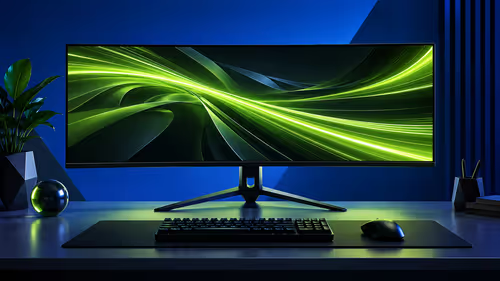
Not all 240Hz monitors are created equal for editing. Fast IPS 240Hz panels at the R5,500–R8,000 price point typically cover 98–100% sRGB and 90–95% DCI-P3 — more than adequate for retouching work targeting web and social delivery. TN-based 240Hz panels (R3,500–R4,500) cap at 72% NTSC, making skin tone accuracy unreliable in Lightroom.
If you're processing RAW files from a full-frame camera for print delivery, calibrate the monitor with a hardware colorimeter (Datacolor SpyderX, available locally). The panel won't drift more than ΔE 1.5 from calibrated values in normal use.
CPU and RAM for a Retouching Workflow
Lightroom Classic's AI Masking, Denoise, and export pipeline scale well across cores. A Ryzen 7 7700X (R6,800) or Intel Core i7-14700K (R8,500) reduces a 100-photo RAW export by 20–35% compared to a 6-core chip. Minimum 32GB DDR5 — Lightroom's catalogue preview cache consumes 4–8GB on large libraries, and keeping Photoshop open simultaneously pushes total RAM use above 16GB regularly.
GPU Role in Photo Editing
Adobe apps offload select tasks to the GPU — Photoshop's Oil Paint filter, Camera Raw lens correction, and Lightroom's histogram rendering are all GPU-accelerated. An RTX 4060 Ti (R12,500) or RX 7600 (R7,500) handles these efficiently and covers 1080p–1440p gaming at 180–240 fps in lighter esports titles. Neither card bottlenecks editing workflows at this tier.
Sample Build: ~R38,000
- CPU: Ryzen 7 7700X — ~R6,800
- Motherboard: MSI B650-A PRO — ~R3,200
- RAM: 32GB DDR5-5600 — ~R2,400
- GPU: RTX 4060 Ti — ~R12,500
- SSD: 1TB PCIe 4.0 NVMe + 2TB HDD — ~R1,600
- Case + 750W 80+ Gold PSU — ~R3,000
- Monitor: 27" 1440p 240Hz IPS — ~R8,000
- Total: ~R37,500
FAQ
Does 240Hz improve the photo editing experience?
Indirectly yes — viewport panning, brush strokes, and timeline scrubbing in Photoshop and Lightroom all feel smoother at 240Hz, even though the underlying editing accuracy is unchanged. The main benefit for a photographer is the same panel for both work and gaming without buying two screens.
Should I use Adobe RGB or sRGB mode on a 240Hz gaming monitor for editing?
Use sRGB mode for web-delivery work (Instagram, Lightroom web exports). Switch to Adobe RGB mode only if your panel supports it and you're editing for print — most 240Hz IPS panels cover 95–97% Adobe RGB at higher-end price points.
What colorimeter should I use to calibrate a 240Hz gaming monitor for editing?
The Datacolor SpyderX or X-Rite i1 Display Pro are both widely used and available locally. Calibrate every 4–6 weeks if colour accuracy is critical — IPS panels are stable but backlight drift over time does affect retouching accuracy.
Classic, go to Preferences → Performance and enable "Use Graphics Processor" — without this, GPU-accelerated operations like AI Masking and histogram rendering fall back to CPU, slowing your editing workflow on a capable RTX card.