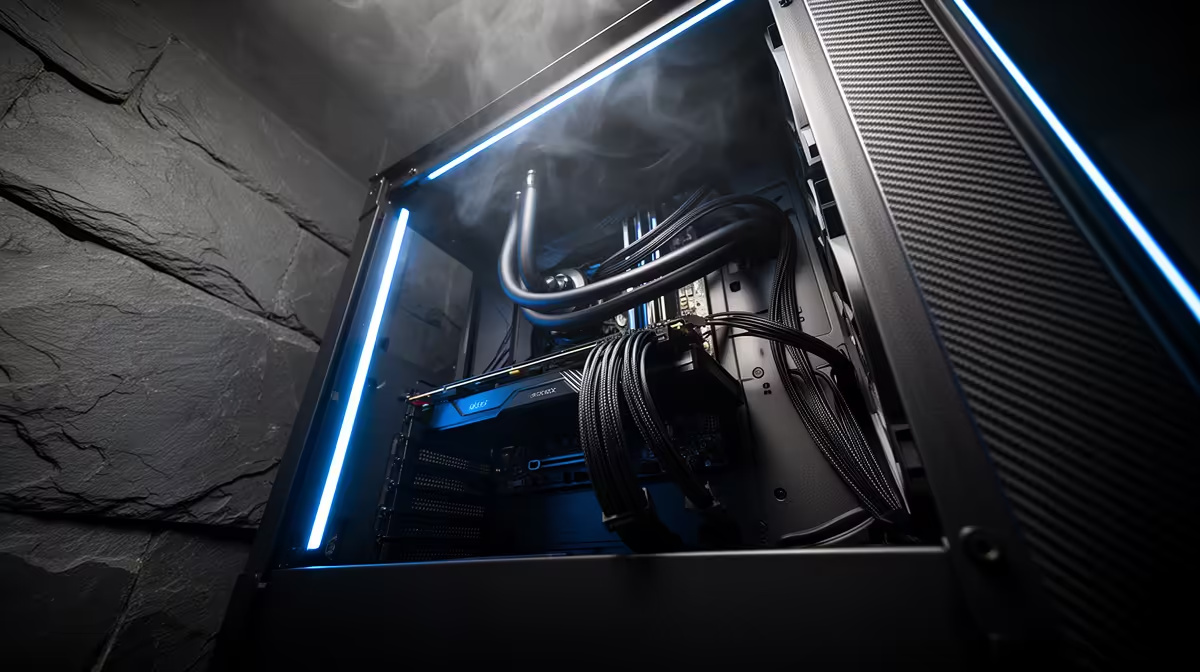
Cable management keeps wires out of fan blades, side-panel seams and service paths. In an open modern case, neat routing may change temperature less than a clogged filter or poor fan layout. Its biggest wins are reliable airflow, strain-free connectors and an upgrade that does not begin with untangling the power supply.
Quick Answer
Plan the power and data routes before installing the graphics card. Send long runs through the nearest rubber grommet and behind the motherboard tray. Keep the front-to-rear air path, fan blades and radiator faces clear. Bundle by destination with reusable ties, leave gentle service loops and close the side panel without crushing cables.
Evetech's gaming PC range shows how component and case layouts differ. The PC best-seller page helps compare towers whose routing channels and power-supply shrouds make later maintenance easier.
Plan the Routes Before Plugging In
Identify the motherboard power sockets, CPU power at the top edge, graphics connectors, fan hubs, front-panel headers and storage. Look behind the tray for channels and tie points.
Route the thick CPU cable before fitting a large top radiator or tower cooler. Pass the motherboard cable through the closest opening so it reaches the socket without crossing the board.
Keep cables away from sharp unfinished edges. Use the case's protected openings and fit missing grommets when the design requires them.
Build the Main Air Path
Front or bottom intake should have a clear route towards the graphics card and CPU cooler. Rear and top exhaust need space to pull warm air out. A cable lying across the middle of a large case rarely destroys cooling, but a bundle against an intake or radiator can restrict it.
Do not pack spare cable in front of a fan. Store it under the power-supply shroud or in a designed rear cavity without blocking ventilation.
Check both sides of every fan before power-on. A thin front-panel lead can drift into a blade after the panel closes.
Manage Power Cables Without Strain
Seat each connector before tying the run. Leave enough slack that the plug enters square and the latch closes. A tight bend at the graphics card power connector can pull it sideways.
Follow the power-supply and graphics-card maker's guidance on individual cable runs for high-power connectors. Do not mix modular cables between power-supply models; the PSU-side pinout can differ even when the plug fits.
Keep signal and power cables organised for service, but there is no need to weave every run into a decorative pattern behind an opaque panel.
Use Ties With Restraint
Reusable hook-and-loop ties suit large bundles and future changes. Small cable ties can secure permanent fan leads, though they should not bite into insulation.
Leave a finger's space where practical and cut tie tails flush with a safe tool. A sharp tail can scratch your hand during service.
Do not cinch front-panel audio, RGB or sensor wires into the same rigid bundle as thick power leads. Their small connectors need strain relief.
Keep the Side Panel Easy to Close
Use the case's deepest routing channel for the motherboard and graphics power bundles. Spread cables across designed channels rather than stacking every connector at one point.
Test-fit the rear panel before final ties. It should close with light pressure. If it bows or springs back, reroute the high spot instead of forcing the screws.
Avoid placing connectors under a flat section that presses directly on them. Side-panel pressure can loosen a plug over time.
Preserve Upgrade Access
Keep memory latches, M.2 covers, drive trays and graphics-card screws reachable. Label SATA and fan-hub leads when several look identical.
Photograph the finished rear routing before closing. Future you can see which ties to release for a new SSD or graphics card without tracing every wire.
When reopening the case, inspect old ties, fan clearance and connector strain before repeating the original route. A new part can change the sensible path.
Measure the Cooling Difference
Run a warm game or combined CPU and GPU load before and after a major reroute. Keep fan speeds, room temperature and panels the same. Compare sustained temperature, clocks and noise.
A small thermal change is fine. The more important result can be a fan that no longer scrapes, an intake without a cable bundle and a side panel that closes cleanly.
FAQ
Does cable management always lower temperature?
No. It helps most when loose cables obstruct an intake, radiator or fan path. Modern open cases may show a small thermal change.
Should cables be tied hard against the tray?
No. Secure them without crushing insulation or pulling connectors sideways, and leave room for service.
Do modular power supplies make routing easier?
They let you omit unused leads, but use only modular cables approved for that exact PSU model.
Route by destination, clear every fan path and close the rear panel under light pressure with no connector carrying cable strain.