


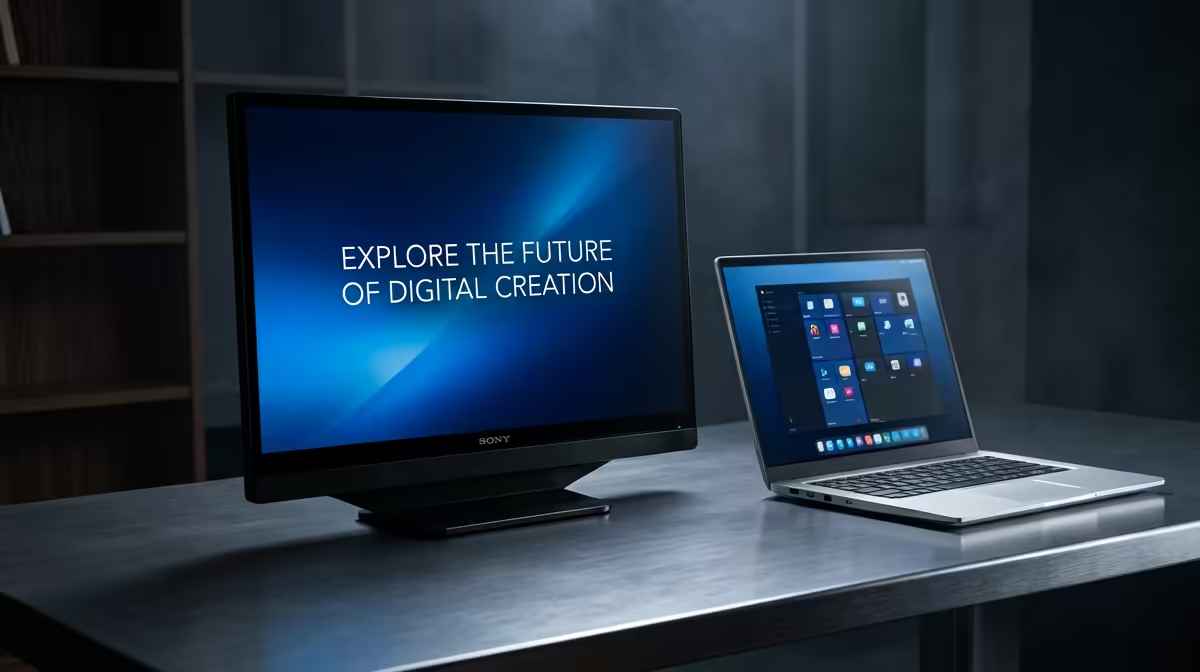
Working off a laptop screen alone forces your head down and forward all day, and that hunch is what leaves your neck and upper back aching by mid-afternoon. Adding an external monitor fixes the root cause: you raise a second display to eye level, push the heavy work onto the bigger screen, and demote the laptop to a glanceable side panel. The setup takes one cable and a few minutes in display settings.
Quick Answer
Connect an external monitor to your laptop with HDMI or USB-C, set it to extend the desktop, and raise it until the upper edge aligns with your seated eye line. Put your main work on the raised monitor and use the laptop as a secondary screen. This lifts your gaze, straightens your neck, and ends the laptop hunch.
Why the laptop screen wrecks your posture
A laptop ties the screen to the keyboard, so the moment your hands are at a comfortable typing height, the screen is far too low. Your head tilts down to read it, and a head held forward and down loads the neck and shoulders for hours. Raising the laptop on a stand fixes the screen height but lifts the keyboard out of reach, which is why a stand alone is only half the answer.
A second display breaks that compromise. The external monitor goes up to eye level for reading, while the keyboard, whether the laptop's own or an external one, stays at the right height for your hands. Posture problem solved at both ends.
Step 1: Pick the right cable for your laptop
Check what ports your laptop has before anything else.
- HDMI: the most common video output. A standard HDMI cable to the monitor's HDMI input carries picture and sound.
- USB-C with DisplayPort: many modern laptops output video over USB-C. A single USB-C cable can carry video, and on the right monitor it can also deliver power back to the laptop, so one cable does everything.
- Mini DisplayPort or older outputs: use the matching cable or a simple adapter.
If your laptop only has USB-C and the monitor only has HDMI, a USB-C to HDMI cable or adapter bridges the two.
Step 2: Connect and extend the desktop
Plug the monitor into the wall, connect the cable to the laptop, and switch the monitor on. Windows usually detects it straight away.
- Right-click the desktop and choose Display settings.
- You will see two numbered boxes for the two screens. Choose Extend these displays so the monitor becomes extra space rather than a mirror of the laptop.
- Drag the boxes so their on-screen arrangement matches how the screens physically sit on your desk, then click Apply.
- Set the external monitor as the main display if you want the taskbar and new windows to open there.
On macOS the same lives under System Settings, Displays, where you arrange the screens and untick Mirror Displays.
Step 3: Get the heights right
This is the step that actually fixes your posture, so do not skip it.
Raise the monitor to eye level
The external monitor's upper edge should align with your seated eye line, with viewing distance roughly arm's length. A monitor arm or height-adjustable stand gets you there cleanly and frees desk space underneath. A height-adjustable chair makes the whole arrangement easier to dial in, and the chairs and ergonomic seating range at Evetech rounds out the ergonomic equation on the seating side.
Position the laptop as a side screen
Put the laptop slightly lower and off to one side, angled toward you. Use it for chat, reference, or anything you only glance at, so your main focus stays on the raised display and your head stays level.
Step 4: Tidy the workflow
Decide which screen does what. Put your primary application (the document, the code, the spreadsheet) on the raised monitor at eye level. Keep email, messaging, and music on the laptop. This keeps your gaze up for the work that takes the most time, which is where the posture benefit comes from.
If you sit for long stretches, the chair matters as much as the screen height. A seat that supports the lower back and lets your feet rest flat keeps the whole posture chain aligned. Browsing the office and gaming chairs best sellers at Evetech shows which models other buyers have gravitated toward for long desk days.
Frequently Asked Questions
Do I need a docking station or just a cable?
For one external monitor, a single cable is enough. A dock makes sense only if you want to connect several monitors and peripherals through one connection each time you sit down. Start with the cable.
Can my laptop power a monitor and charge over one USB-C cable?
On many recent laptops, yes, if the monitor supports USB-C power delivery. One cable then carries video to the screen and power back to the laptop. Check that both the laptop and the monitor support it before relying on it.
Should the external monitor be my main display?
Usually yes. Set the raised monitor as the main display so the taskbar and new windows appear at eye level, keeping your most-used surface in the comfortable position.
What if my laptop screen and monitor are different sizes?
That is fine. Extend the desktop and arrange the screens by their physical layout. Windows handles different resolutions and sizes per screen, so each runs at its own native setting.
How high should the monitor sit exactly?
Position the upper edge level with or slightly below your eye line, at roughly arm's length, tilted slightly back. From there your gaze falls naturally onto the upper third of the screen with your neck upright.
Set your screen height, then sort out the seat that holds your posture all day. Browse the chairs and ergonomic seating range at Evetech to finish the WFH setup.











