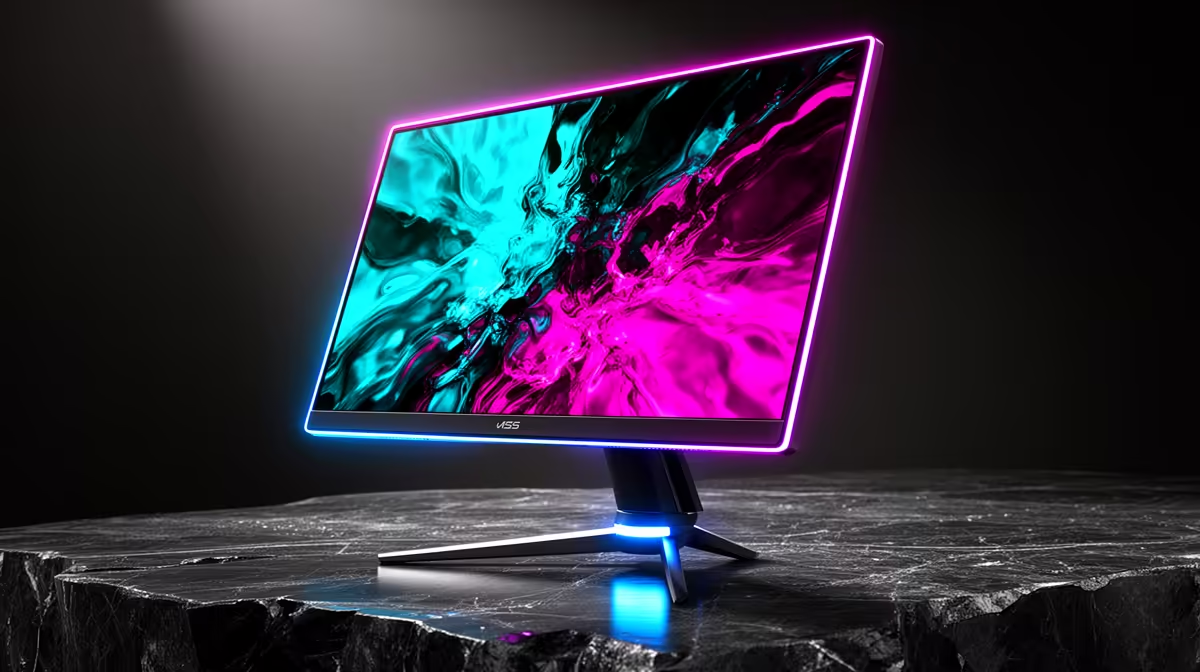
When fps drops shows up on a setup with a 240Hz Monitor, work through the obvious settings first before assuming the worst.
Quick Answer
To fix fps drops on a 240Hz Monitor setup, cap the in-game framerate a few frames under 240 to keep the sync window clean. Most cases clear up once these are right, and you should be back to a steady framerate that holds its target.
First checks for 240Hz Monitor
Start with the basics. Cap the in-game framerate a few frames under 240 to keep the sync window clean. Confirm Windows is actually set to 240Hz under Display, Advanced display, not stuck at 60Hz. These two steps resolve the majority of fps drops cases on a 240Hz Monitor, because the default Windows and driver settings are often the real cause rather than the display itself.
When it is not the 240Hz Monitor at all
Sometimes the 240Hz Monitor is a red herring. Fps drops often hides a CPU bottleneck, a background process, or memory running below its rated speed. Run the RAM at EXPO or XMP, close startup clutter, and confirm the GPU sits in the CPU-linked slot before blaming the display.
Driver and Windows settings
Next, use a DisplayPort 1.4 or HDMI 2.1 cable rated for the full 240Hz bandwidth. Keep Windows 11 fully updated and turn off any background overlays or capture tools that hook into games, since these are a common source of fps drops. A clean driver install often does more than any single in-game setting when chasing a steady framerate that holds its target.
FAQ
Does the 240Hz Monitor itself cause fps drops?
Rarely on its own. A 240Hz Monitor is far more often exposing a software or settings problem. Work through the driver, Windows power plan and rated memory speed first.
Why did fps drops start after my display change?
A new display often resets a setting or adds a driver that conflicts with your game. cap the in-game framerate a few frames under 240 to keep the sync window clean, and the issue usually clears.
Is fps drops a hardware fault?
Usually not. Fps drops on a 240Hz Monitor setup is almost always settings, drivers or thermals. Only suspect hardware after the checks above come back clean.
240Hz Monitor fixes in order, confirm the RAM is at EXPO and the GPU is in the top slot, and the fps drops should clear up.