Your screen can advertise a high refresh rate and still offer only 60Hz after you plug in a docking station. A monitor stuck at 60Hz through a dock is a connection problem to isolate, not an automatic sign that the panel is faulty. Keep the same screen and change one part of the path at a time.
Quick Answer
Choose the external monitor in Windows 11 Advanced display, check its resolution and refresh options, then compare a direct connection from a compatible laptop output. Start with R0 settings and connection tests using equipment you already have. Evetech's AOC Q27G41ZDP 240Hz WOLED was R9,999 on 17 September 2026, which is a good reason to diagnose the path before buying a replacement screen.
🔎 Confirm which display Windows is changing
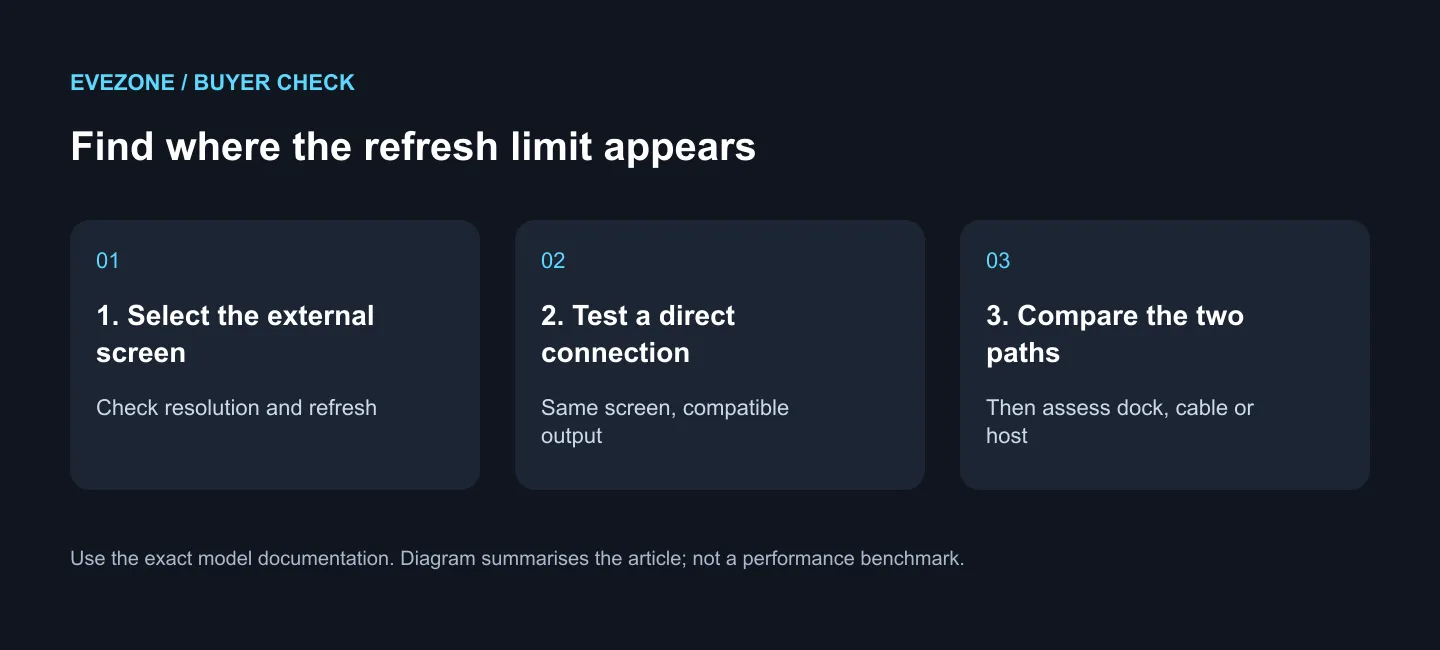
Open Settings, System, Display and Advanced display. Select the external screen rather than the laptop panel, then inspect the refresh-rate list. Microsoft notes that the available choices depend on the display and its supported modes.
Watch for an asterisk beside a refresh option: Windows uses it when that choice changes the current resolution. A faster mode at lower resolution is not the same result as keeping your preferred desktop resolution. Record both values so you can compare like with like in the next test.
If only a game seems limited and your hardware offers Dynamic Refresh Rate, test with DRR disabled. That is a separate check from a docked screen whose higher modes are absent altogether. Do not assume one switch explains both symptoms.
🔌 Compare the docked and direct paths
Connect the monitor directly to a compatible video output on the laptop, using a suitable cable. Keep the desired resolution the same. If the higher refresh option appears directly but disappears through the dock, concentrate on the docked path and its supported modes before blaming the display.
Test one external monitor at a time and note the exact dock, host port, cable and screen input. Consult those models' display specifications together; the connector shape alone is not enough to promise a particular resolution and refresh combination. Dell's HDMI guidance similarly ties maximum display modes to the hardware capabilities.
Check for a damaged connector or cable and use a known-working equivalent where available. Compare cable choices against the required mode only after you know which connection you need. Buying the most expensive lead without that information is still a guess.
🖥️ Replace the part that actually needs replacing
If the direct connection also stops at 60Hz, review the laptop output and the monitor input specifications, then follow the device maker's display-driver guidance. If the dock is the only limiting path, a compatible direct connection may be a perfectly useful everyday solution.
Before ordering a different screen, compare gaming monitor specifications with the host and connection you will keep. A 240Hz panel connected through a path that cannot offer the intended mode will not solve the mismatch by itself.
Save your test notes for support: resolution, refresh choices, direct result and docked result. That small record makes a much stronger troubleshooting request than saying the screen feels slow, and helps avoid paying for the wrong replacement.
Frequently Asked Questions
Can the screen support high refresh while the dock does not?
Yes. The entire display path must support the mode you want. A monitor's advertised maximum alone does not establish the docked result.
Is 60Hz the same as 60 frames per second?
No. Refresh rate describes the display's updates, while game frame rate describes rendered frames. Diagnose the missing display mode before changing game settings.
Must I buy a new cable to run the first test?
Not if you already have a suitable direct cable and compatible output. Begin with those; purchase only when the required connection is clear.
Recover the performance you already paid for. Identify the limiting connection first, then choose an Evetech cable or monitor that supports the mode your laptop can deliver.