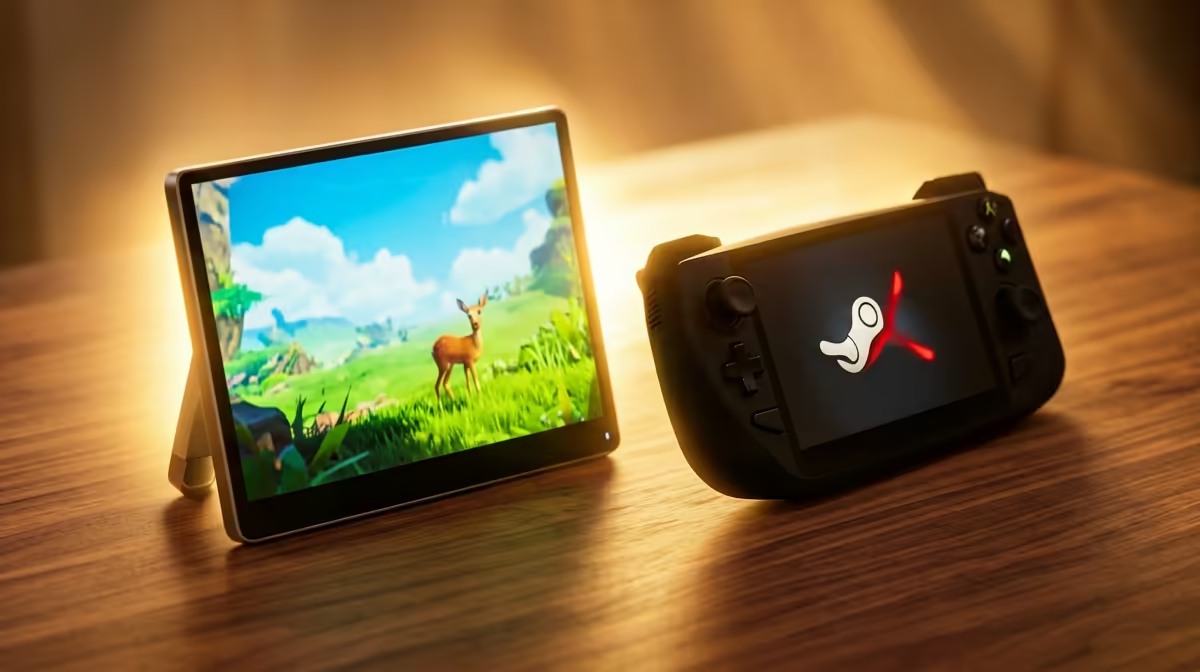
Plugging a bigger screen into a Steam Deck is one of the rare PC tasks that genuinely needs no dock, no driver, and no settings menu. The handheld's USB-C port natively carries DisplayPort 1.4 Alt Mode, so a single compatible cable to a portable monitor and the picture appears within seconds. This guide walks through doing it cleanly and getting the best result.
Quick Answer
Connect a portable monitor to a Steam Deck with one USB-C cable that supports DisplayPort Alt Mode. The Deck's port outputs video natively, so no dock or software is required. The monitor is detected automatically and the Deck mirrors or extends to it within seconds of plugging in.
Why one cable is enough
The Steam Deck's single USB-C port is wired for DisplayPort 1.4 Alt Mode, meaning it can push a full video signal over the same connector it uses for charging and data. Many portable monitors are built around exactly this: a USB-C input that takes both power and video from one cable. When the two are compatible, the Deck sees the monitor as a display and outputs to it with no setup.
The catch is cable and monitor compatibility. Not every USB-C cable carries video, and not every portable monitor accepts video over USB-C. Get those two things right and the rest is automatic.
What you need before you start
- A Steam Deck with a charged battery, since driving an external display draws extra power.
- A portable monitor with a USB-C input that supports DisplayPort Alt Mode, or one that takes video over USB-C.
- A full-featured USB-C cable that carries both video and sufficient power -- the one bundled with the monitor is the safest starting point.
If your monitor needs more power than the Deck can spare, or if you want to charge while connected, you will also want the monitor's own power adapter or a USB-C hub with passthrough charging.
Step-by-step connection
- Power on both the Steam Deck and the portable monitor.
- Connect the USB-C cable from the Deck's top port to the monitor's USB-C video input.
- Wait a few seconds. The Deck detects the display and the image should appear automatically, either mirroring the Deck's screen or extending to the external panel depending on the monitor.
- If the monitor stays blank, check its input source setting and make sure it is set to the USB-C input rather than HDMI.
That is the whole process when the cable and monitor support Alt Mode. No driver install, no Deck settings change.
Getting the best picture
Once connected, a few tweaks sharpen the result.
Set the resolution and refresh rate
In Steam settings under Display, you can match the output to the external monitor's native resolution and refresh rate. A 1080p portable panel at 60Hz is a common pairing and looks crisp from the Deck. Higher refresh portable monitors will run faster if the game and the Deck's performance allow.
Power management matters
Driving an external screen and the game at once works the Deck's battery and chip harder. For longer sessions, connect power through a USB-C hub that supports both video and charging, so the Deck stays topped up while it outputs. If you want to compare panels that are easy to carry alongside a Deck, the portable monitors range at Evetech shows what is available in travel-friendly sizes.
Add a controller and keyboard
On a bigger screen the Deck becomes a small desktop. A Bluetooth controller pairs in the Deck's settings for comfortable couch play, and a keyboard and mouse turn it into a capable little PC. Bluetooth handles all of this without using the single USB-C port the monitor occupies.
When you outgrow a portable panel
A portable monitor is perfect for travel, res rooms, and desks where space is tight. If you find yourself docking the Deck at home for long stretches, a full-size monitor on a proper stand may serve better. For a sense of what is popular across screen sizes, browsing the monitor best sellers at Evetech helps you weigh the options before committing to a larger panel.
Frequently Asked Questions
Do I need a dock to connect a monitor to a Steam Deck?
No. The Steam Deck supports DisplayPort Alt Mode over its USB-C port, so a single compatible cable to a USB-C portable monitor works without a dock or any software.
Why is my portable monitor not showing anything?
Most often the monitor's input source is set wrong, or the cable does not carry video. Set the monitor to its USB-C input and use a cable rated for DisplayPort Alt Mode, ideally the one supplied with the monitor.
Can I charge the Steam Deck while using an external monitor?
Yes, through a USB-C hub or a monitor that supports power passthrough. The Deck has only one port, so you need a hub with both video and charging to do both at once.
What resolution can the Steam Deck output?
The Deck outputs well beyond its internal screen through DisplayPort 1.4, comfortably driving 1080p portable monitors and higher. Set the output resolution and refresh rate to match the panel in Steam's display settings.
Can I use a controller and keyboard with the Deck on a monitor?
Yes. Bluetooth controllers, keyboards, and mice pair in the Deck's settings without occupying the USB-C port, so you keep the cable free for the monitor and turn the Deck into a small desktop.
Want a bigger screen that travels with your Steam Deck? Browse the portable monitors range at Evetech (https://www.evetech.co.za/buy-portable-monitors/x/1590) and pick a USB-C panel that lights up the moment you plug in.