Running Windows for the games that demand it and Linux for everything else sounds ideal until a Windows update silently wipes your Linux bootloader and you are staring at a black screen. The cleanest way to dual-boot Windows and Linux for gaming sidesteps that entirely: give each operating system its own physical drive. When the two systems never share a disk, Windows cannot overwrite GRUB, and you switch between them from the firmware boot menu without either one stepping on the other. This guide walks the full setup, from drives to a working SteamOS-style gaming environment on Linux.
Quick Answer
Install Windows and your Linux gaming distro on two separate physical drives, not two partitions of one disk. This stops Windows updates from overwriting the Linux bootloader, the single most common cause of a broken dual-boot. You pick your OS from the motherboard boot menu each time, and with Proton, most of your Steam library runs on Linux too.
Step 1: Prepare Two Separate Drives
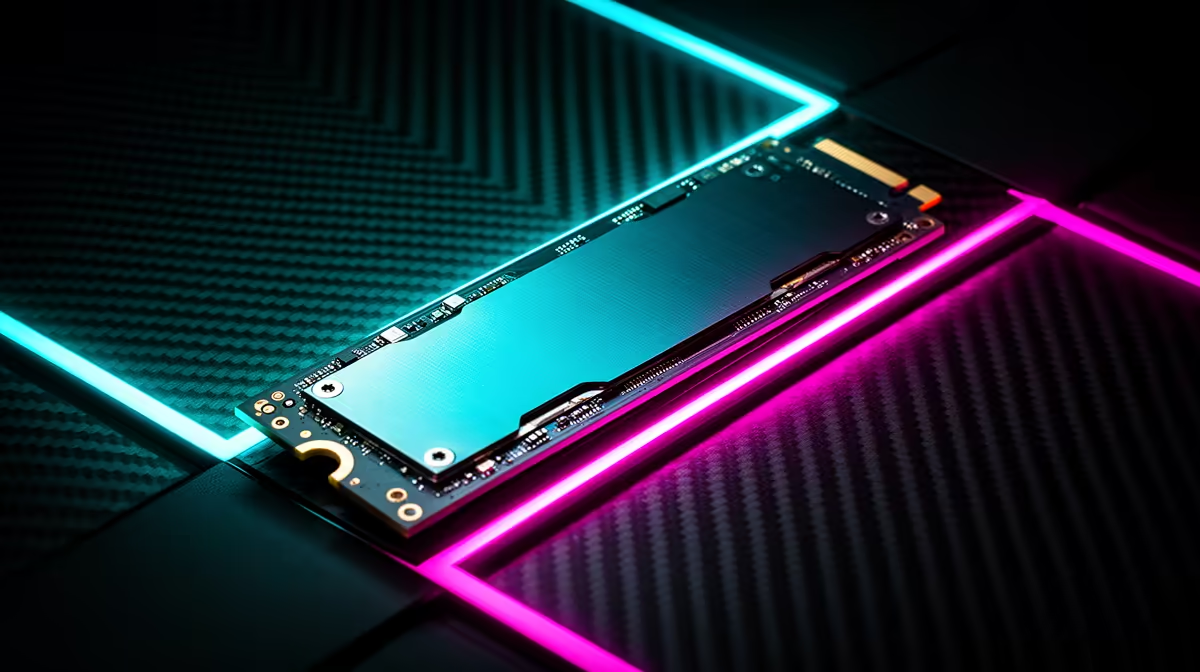
The foundation of a painless dual-boot is hardware separation. You want one drive dedicated to Windows and a second, entirely separate drive for Linux. Two NVMe SSDs, or one NVMe and one SATA SSD, both work well. Avoid the tempting shortcut of two partitions on a single disk, because that is exactly the arrangement where a Windows update can reclaim the boot partition and clobber GRUB.
If you are building or upgrading for this, fit both drives before installing anything and confirm the motherboard sees both in the firmware. A handheld or compact gaming machine can follow the same logic with an internal drive plus expansion where supported. Browse the handheld and compact gaming options at Evetech if a portable Linux gaming setup is what you are after.
Step 2: Install Windows First
Install Windows before Linux. Windows is the less cooperative neighbour: it expects to own the boot process and will write its bootloader assertively. Getting it down first means Linux, which handles dual-boot gracefully, can be installed around it afterwards.
During the Windows install, physically disconnect or, in firmware, disable the drive you have set aside for Linux so there is no chance Windows touches it. Point the installer at the Windows drive only, complete the install, install your GPU drivers, and confirm Windows boots cleanly on its own. Then power down before moving to the next stage.
Step 3: Install Your Linux Gaming Distro
Reconnect or re-enable the Linux drive, then boot from your Linux installer USB. Choose a distribution suited to gaming; options that ship with up-to-date graphics drivers and easy access to Proton save a lot of fiddling. During installation, select the manual or "something else" partitioning option and direct the installer to the Linux drive only.
Critically, install the Linux bootloader, GRUB, onto the Linux drive, not the Windows drive. This keeps each operating system's boot files on its own disk, which is the whole point of the separation. Finish the install, reboot, and let Linux come up. At this stage you have two independent operating systems, each able to start its own drive.
Step 4: Set Up Steam and Proton on Linux
With Linux running, install Steam from your distribution's software source. In Steam, open the settings and enable Steam Play, which switches on Proton, the compatibility layer that lets a large share of Windows games run on Linux. Enable it for all titles, not just verified ones, to get the widest coverage.
Install a game and test it. Many titles run at near-native performance through Proton, though a few with strict anti-cheat systems remain Windows-only, which is exactly why keeping the Windows drive is worthwhile. Update your graphics drivers through the distro's recommended method so games get the performance they should. For controllers, capture devices, or storage to round out the build, the PC gaming best sellers cover the common extras.
Step 5: Choose Your OS at Boot
With both systems installed on their own drives, you switch between them from the motherboard's boot menu. Tap the boot-menu key during startup, usually F11, F12, or a similar key shown on the splash screen, and pick the drive you want. You can also set a default boot drive in the firmware so the machine lands on your most-used OS unless you intervene.
Because each drive carries its own bootloader, a future Windows update cannot break Linux: there is no shared boot partition for Windows to overwrite. This firmware-level switching is more robust than relying on a single bootloader to manage both systems, and it is the reason the separate-drive approach stays trouble-free over years of updates.
Frequently Asked Questions
Why use separate drives instead of partitions for dual-boot?
Separate drives keep each operating system's bootloader on its own disk, so a Windows update cannot overwrite the Linux GRUB. Sharing one disk puts both boot files at risk, which is the most common cause of a dual-boot suddenly failing to start Linux.
Do I have to install Windows before Linux?
It is strongly recommended. Windows writes its bootloader aggressively and expects to control startup, so installing it first and Linux second avoids conflicts. Linux handles being the second install gracefully, whereas the reverse order often leaves Windows breaking the Linux boot.
Can I play my Steam games on the Linux drive?
Many of them, yes. Enabling Steam Play activates Proton, which runs a large share of Windows games on Linux at close to native performance. A handful of titles with strict anti-cheat stay Windows-only, which is why the second Windows drive remains useful.
How do I switch between Windows and Linux?
You pick the drive from the motherboard boot menu at startup, usually by tapping F11, F12, or the key shown on the boot splash. You can also set a default boot drive in firmware so the machine starts your usual OS automatically.
Will a Windows update break my Linux install?
Not with separate drives. Because the Linux bootloader lives on its own disk and Windows has no shared boot partition to reclaim, updates leave Linux untouched. This isolation is the main reason the two-drive method holds up over time.
Two drives, the right install order, and Proton give you Windows for the games that need it and Linux for everything else, with no bootloader headaches. Pick up the NVMe drives and gaming gear to build it at Evetech and set up a dual-boot that simply stays working.