



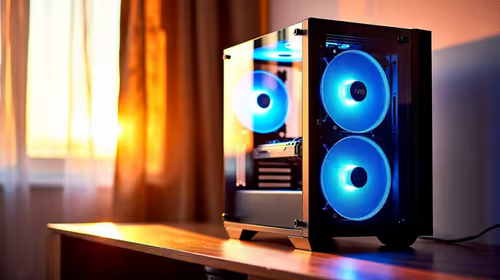
Is a high-airflow case actually worth buying for a bedroom gaming setup in SA?
For a bedroom gaming setup in SA, a high-airflow case is worth considering when heat and fan noise would bother the room.
Read moreDead pixel on Ryzen 7 9800X3D build needs careful display-chain checks, not a single-part blame. Test the screen, cable, port, scaling, drivers, and setup context before replacing hardware.
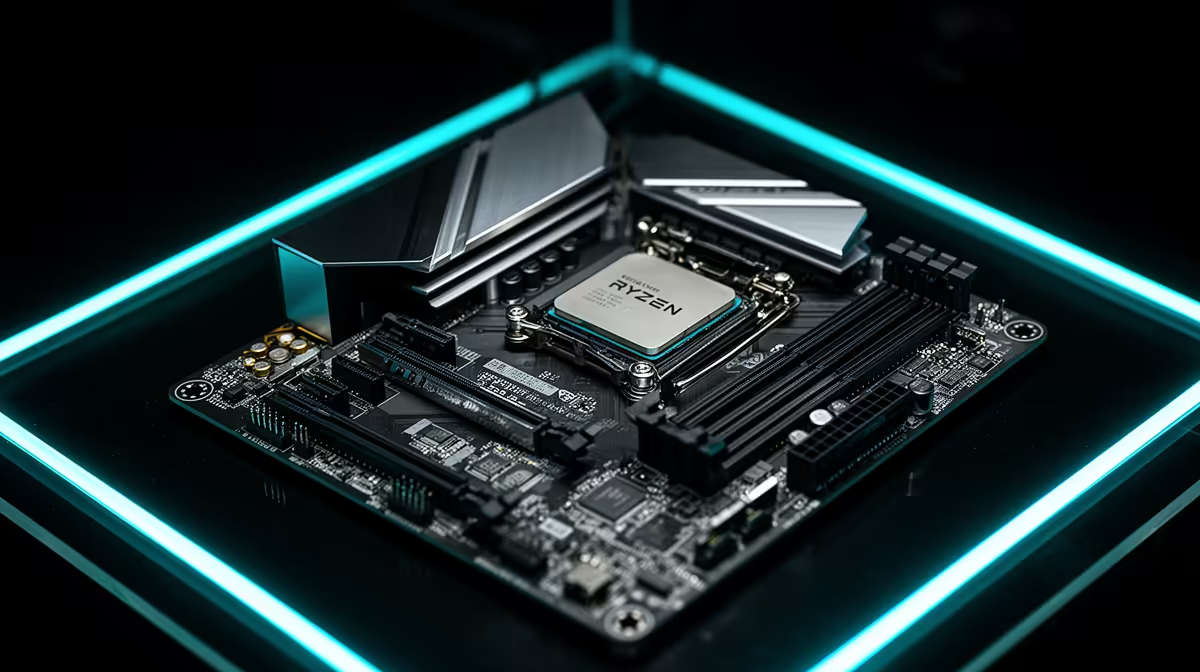
A fresh dead pixel on a Ryzen 7 9800X3D build is annoying, but it rarely means the part is faulty. Most cases trace back to settings, cabling or firmware rather than dead hardware.
A true dead pixel stays black and cannot be revived, but most reported cases are stuck pixels that pixel-cycling software fixes. Inspect on full-screen white and black first, then run a 20-minute pixel exerciser before considering a warranty claim. Verify the cable supports your resolution at 120 Hz or higher rather than silently dropping to 60 Hz.
View solid red, green, blue, white and black screens full-screen. A dead pixel is black on every colour; a stuck pixel shows one colour and is often recoverable, so the distinction decides your next step.
A flashing RGB exerciser run for 15 to 30 minutes revives many stuck sub-pixels. It is free, reversible and worth trying on a Ryzen 7 9800X3D build before anything more drastic.
With the screen off, a soft cloth and very light pressure on the exact spot while powering on sometimes seats a stuck pixel. Stop immediately if you feel resistance, as too much force damages the panel.
Hardware faults are the rare exception, not the rule, with a Ryzen 7 9800X3D build. Most dead pixel complaints come down to a default Windows setting, an under-spec cable bought to save a few Rand, or a driver that shipped before your exact panel was supported.
It can. A certified cable rated for your resolution and refresh prevents the silent fallback modes that cause many of these display complaints.
Once you have documented the fault on a plain test image and exhausted the settings, cable and driver fixes. Keep photos and notes so the claim moves quickly.
The principles do: confirm native settings, update drivers, verify cabling. Adapt the exact steps to each device, but the order of checks stays the same.
Spend where it changes your experience Save yourself a courier trip: confirm settings, cable and driver health before assuming the part is dead.
For a bedroom gaming setup in SA, a high-airflow case is worth considering when heat and fan noise would bother the room.
Read more
A first-time SA buyer should pick a video-editing PC that is understandable, upgrade-friendly and strong enough for work and play. The provided creator options include RTX 5070 Ti 16GB R12,700 through RTX PRO 4000 24GB R16,700, so avoid paying for complexity that the user will not use.
Read more
Medical students in South Africa should get a streaming setup built around study reliability first, then creator PC power if rendering, AI or large media work is real. The provided options cite RTX 5070 Ti 16GB R12,700 through RTX PRO 4000 24GB R16,700, with higher workstation scaling noted.
Read more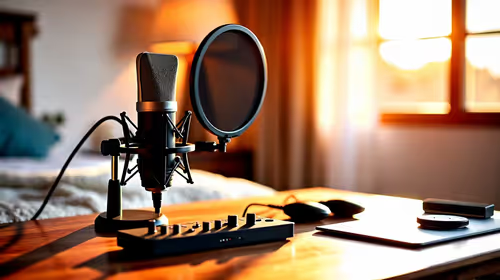
In a quiet bedroom, a USB microphone can cope well if the room stays controlled and the setup remains simple. The purchase should focus on clean voice capture, convenient placement and whether the existing device can record without adding noise or clutter.
Read more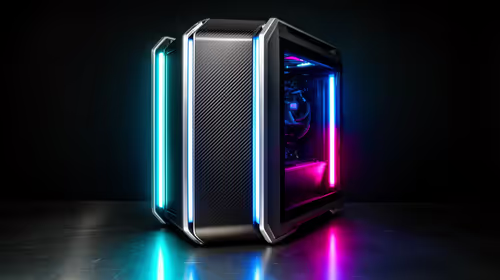
A first-time entry gaming PC setup in South Africa should start with a balanced tower, enough desk space, and a realistic upgrade plan.
Read more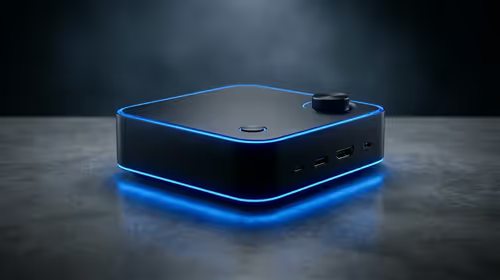
For a bedroom gaming setup, a mini PC media box is worth considering when space and tidy cabling matter more than tower-style expansion. Minisforum NAB6 Lite is listed at R4,150, with UM750L and AI-X1-255 around R4,600 for buyers comparing nearby options.
Read more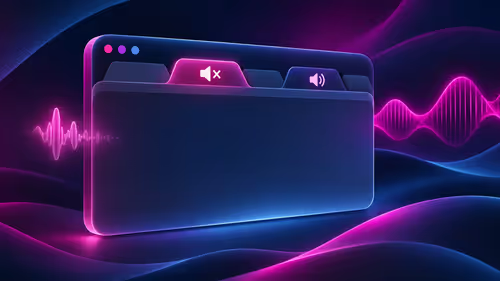
Firefox can mute one noisy tab using its speaker button or context menu. Check the tab control before changing Windows volume or replacing a working headset.
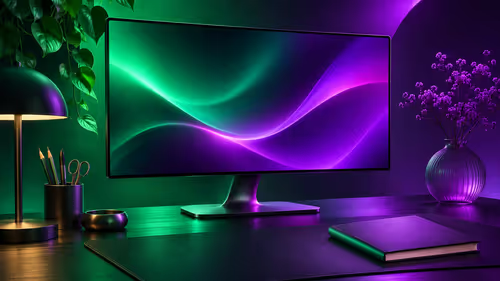
ASUS PA329CDV combines a 4K 120Hz QD-OLED panel with USB-C charging and Auto KVM. Compare colour work, laptop power and desk connections before treating overseas availability as an SA offer.
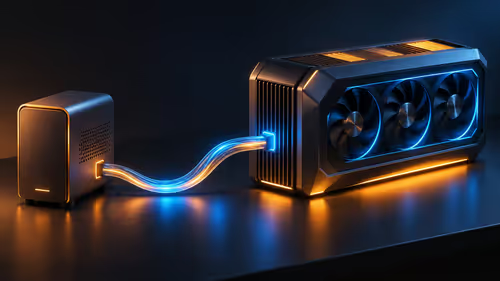
Teclast N30 Pro pairs Core 3 304 with 12GB memory and USB4. Its expansion connection is useful, but an external graphics plan needs a complete cost and compatibility check.

Firefox private browsing separates a temporary session from normal browsing history. It does not make you anonymous online, and files or bookmarks you deliberately save can remain after the last private window closes.
Firefox can mute one noisy tab using its speaker button or context menu. Check the tab control before changing Windows volume or replacing a working headset.

Firefox has a startup-cache control on its Troubleshooting Information page. Use it for a focused interface test and keep it separate from clearing website data or refreshing the profile.

Firefox Primary Password protects access to locally saved logins. It is separate from a website or Mozilla account password, and forgetting it can put saved credentials at risk during reset.

Firefox can add bookmarks from an HTML file through its Library import menu. Back up the current collection first and distinguish an additive import from restoring a Firefox backup.
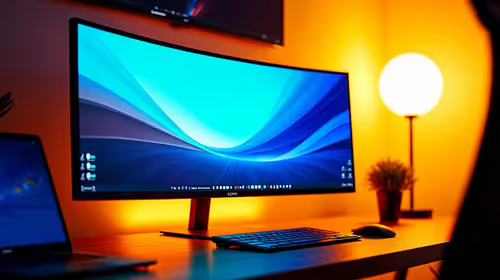
Choosing a ultrawide monitor for students should be shortlisted around the job it must do. South African buyers should compare panel type, resolution, refresh rate, and ports, warranty path, and upgrade room before treating any pick as best.
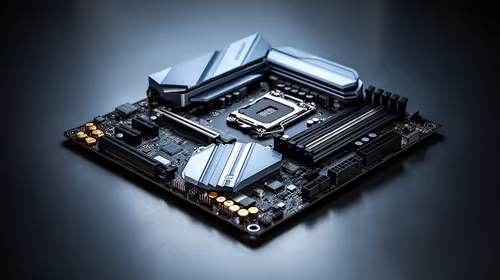
Motherboards for deal planners: the SA buyer should be shortlisted around the job it must do. South African buyers should compare fit, performance, compatibility, and upgrade room, warranty path, and upgrade room before treating any pick as best.
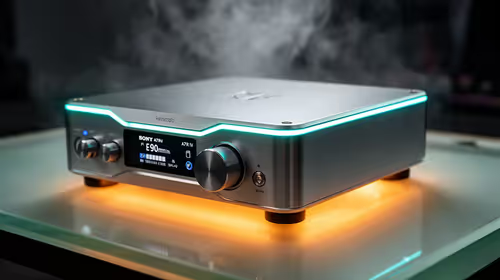
The best DAC/amp for headphones in South Africa in 2026 balances output power, conversion quality and Rand value - combo units like the FiiO K11 ESS cut desk clutter and cost versus separate boxes, while the Schiit Modi 3+ paired with a Magni remains a benchmark.

A lightweight laptop can handle entry-level streaming for webcam, Just Chatting and other light content. Gameplay streaming is more demanding, so an RTX laptop with NVENC is the better fit when the game and stream must run together. Upload speed still decides the clean resolution and bitrate you can hold, with SA broadband noted at around R309 a month.