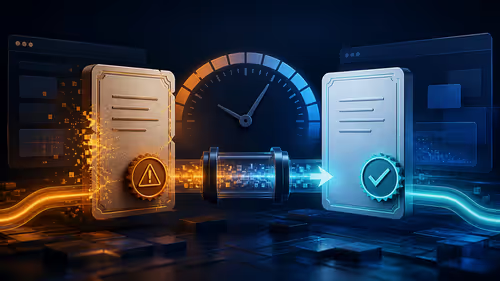
Seeing a ghosting issue with a 240Hz monitor is frustrating but rarely fatal. The fastest route back to a working PC is a methodical pass through cables, power, and software.
Quick Answer
Yes, a ghosting issue on a 240Hz monitor is usually a quick fix: set the monitor to its full refresh rate, choose a medium overdrive level, and update the GPU driver. Start with that the DisplayPort 1.4 cable is rated for 240Hz and that Windows refresh rate is set to 240Hz before spending money on replacements.
Isolate the Faulty Part
Test a different game and a desktop UFO test to confirm whether ghosting is panel-wide or game-specific. Swap one variable at a time so you know which part of the 240Hz monitor chain is at fault. Try a second DisplayPort cable and a different port to rule out the cable before the panel.
When to Get SA Support
If the ghosting issue survives every check, the issue may be hardware. 240Hz panels carry a 2 to 3 year warranty; log the fault with the retailer. Keep proof of purchase and note the exact symptom so Evetech support or the brand RMA process moves faster.
First Checks for Your 240Hz monitor
Confirm the panel is running at its rated refresh rate in Windows and the GPU control panel, since running below it makes smearing worse. For a 240Hz monitor specifically, confirm that the DisplayPort 1.4 cable is rated for 240Hz and that Windows refresh rate is set to 240Hz. A HDMI 2.0 cable often caps a 1080p panel at 144Hz, so use DisplayPort for the full 240Hz.
FAQ
Will enabling overdrive remove ghosting on this setup?
A medium overdrive setting reduces ghosting without adding inverse-ghosting overshoot. Avoid the maximum level, which often looks worse on fast panels.
Can the GPU cause ghosting with a 240Hz monitor?
An old or mismatched GPU driver can cause frame-pacing issues that look like ghosting. Update the driver and confirm V-Sync or G-Sync settings.
What causes ghosting on a 240Hz monitor?
Ghosting is trailing pixels from slow response or a too-low overdrive setting. With a 240Hz monitor, also check that the DisplayPort 1.4 cable is rated for 240Hz and that Windows refresh rate is set to 240Hz and set the monitor overdrive to a balanced level.
Upgrade your 240hz gaming monitors For sharper motion, compare fast-response 240Hz Gaming Monitors at Evetech with low grey-to-grey times and high refresh rates.