Quick Answer
Ghosting on a B850 motherboard build in South Africa is a display issue, not a board defect. Smearing comes from a refresh rate stuck at 60Hz or the wrong overdrive level. Set the monitor to its rated 144Hz or higher, overdrive to Normal, and use DisplayPort 1.4 from the GPU to fix it.
Check Refresh Rate First
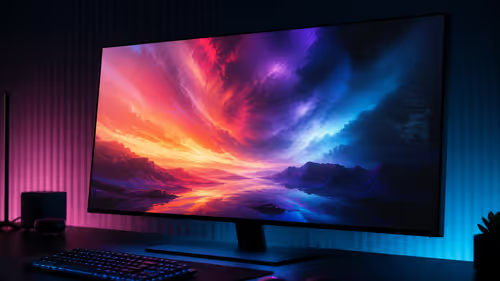
Ghosting is the smear that trails moving objects, and it is controlled by the monitor, not the B850 board. The most frequent cause on a new SA build is Windows defaulting the panel to 60Hz, which makes a 144Hz or 240Hz monitor look smeary. Open Settings, Display, Advanced display, and select the full rated refresh. This one step resolves most apparent ghosting before any other change.
Overdrive, Cable And Adaptive Sync
In the monitor's menu, set overdrive or response time to Normal or Medium; too aggressive causes bright inverse-ghosting trails, too weak leaves dark smears. Connect the monitor to the discrete GPU with a DisplayPort 1.4 cable, not the B850 board's video output, so it runs at full refresh. Enable FreeSync to keep motion clean when frame rates vary, which is common in demanding games on SA networks and hardware.
FAQ
Does the B850 board cause monitor ghosting?
No. Ghosting is a display behaviour from pixel response and refresh rate. The B850 board hosts the system but has no part in motion smearing; check your monitor settings instead.
How do I fix smearing on my new build?
Set the monitor to its full rated refresh in Windows, tune overdrive to Normal, and use a DisplayPort 1.4 cable from the GPU. Enabling FreeSync keeps motion clean during dips.
Why does motion smear at 60Hz?
A high-refresh panel forced to 60Hz updates far less often, so moving objects leave visible trails. Restoring the rated 144Hz or higher refresh removes most of that smearing.
Display tip
On a new B850 build, set the monitor to its rated refresh first, then overdrive to Normal and use DisplayPort 1.4 from the GPU. A 60Hz default causes most apparent ghosting.