Quick Answer
Fix lag spikes around the Core Ultra 9 285K build by proving the timing path first. Check frame-time spikes versus ping spikes, then drivers, thermals, storage activity, overlays, and wireless interference, then confirm the result against stable 1% lows and no repeated jumps above 33ms before replacing parts. Use CapFrameX, PresentMon, HWiNFO64, Resource Monitor and target Intel Default Settings, P-core/E-core scheduling, 1% lows, and 240Hz caps.
Build A Clean Baseline
Use one game, one route or benchmark pass, one preset, and one fixed cap. Because this appeared after an upgrade, compare the new part with the last stable setup and reset the settings touched during the install. Close capture overlays, RGB panels, browser video, and extra launchers before the first run.
Settings And Hardware Checks
In Windows 11, confirm Settings > System > Display > Advanced display shows the intended refresh rate. Then review Settings > Gaming > Game Mode and Graphics > Default graphics settings for VRR and Hardware-accelerated GPU Scheduling. In the game profile, check VSync, Reflex, Anti-Lag, raw input, and any manual FPS cap.
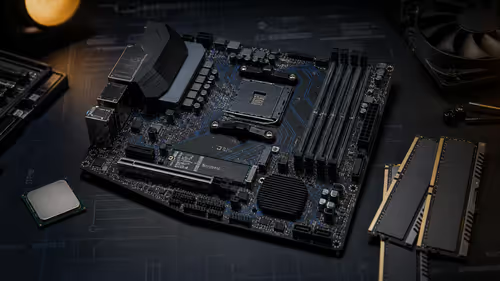
For the Core Ultra 9 285K build, the practical fix is to apply stable BIOS settings, install chipset and ME drivers, and test with default scheduling before tuning. Relevant reference hardware includes Intel Core Ultra 9 285K, Z890 motherboard, DDR5 memory, strong AIO cooling. Broad SA flagship CPU platforms move quickly into high-end desktop spending. cooling and Windows 11 scheduling are practical day-one checks for SA flagship builds.
Buying Decision
Keep the current part if the clean test passes. If it fails, buy only against the evidence: display timing points to a monitor or cable, USB timing to a device or port, storage spikes to the SSD, and network spikes to router placement or Ethernet.
FAQ
What should I check first for lag spikes on this setup?
Start with refresh rate, frame cap, and a clean baseline. Then check the driver, firmware, USB, storage, wireless, or cooling item tied to the recent change.
Should I replace the Core Ultra 9 285K build immediately?
No. Replace it only after CapFrameX, PresentMon, HWiNFO64, a ping test, Ethernet, or direct USB shows the part is the limit.
What numbers show the fix worked?
A good result has steady 1% lows and no repeated jumps above 33ms. For 240Hz play, 4.2ms is the reference; for 60fps play, 16.7ms is the target.
Practical Check
Capture one clean run, note driver version, refresh rate, frame cap, and temperature, then compare Ethernet or direct USB before replacing hardware.