Windows 11 stutter on a Core Ultra 9 285K build comes from early Arrow Lake microcode, thread scheduling between P-cores and E-cores, or memory at default speed. The flagship needs a current platform to pace well.
Quick Answer
Flash the latest BIOS microcode, enable XMP for DDR5-6400, and install the current Intel chipset and Thread Director drivers so games target the P-cores. A tuned 285K holds smooth 1% lows even in CPU-bound titles on Windows 11.
Thread Director routing
The 285K mixes fast P-cores with efficient E-cores. If a game runs on E-cores, pacing suffers. The latest Intel drivers and an updated Windows 11 build keep gaming threads on the P-cores where they belong. Pair the 285K with a 280mm AIO around R2,500 and a quality Z890 board for steady power delivery.
Microcode and memory speed
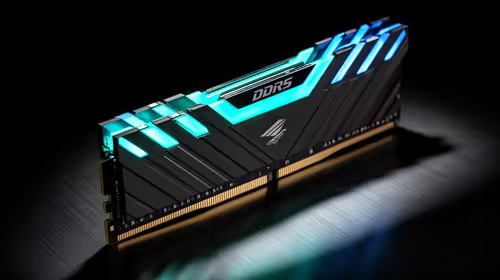
Early Arrow Lake BIOS hurt gaming until patches arrived. Flash the newest microcode, enable XMP for DDR5-6400, and confirm the speed in Task Manager so the CPU is never memory-starved into hitching.
Cooling and power on Z890
The 285K runs cooler than past Intel flagships but still wants a strong 280mm AIO and a board with solid VRMs. Keep package temps in check so it holds boost and never throttles into stutter during long sessions. Keep a clean GPU driver and 15% free on the NVMe so neither component masks the Thread Director fix you made.
FAQ
Why did my 285K stutter after building it?
Likely early microcode and threads landing on E-cores. Update the BIOS and Intel drivers so Thread Director targets the P-cores.
What RAM speed suits the 285K on Windows 11?
DDR5-6400 via XMP is a strong choice. Confirm it is enabled, since the platform boots much slower by default.
Does the 285K need a big AIO?
A quality 280mm AIO is ideal. Low package temps keep boost clocks steady, which keeps frame pacing flat and stutter-free.
Set up the Core Ultra 9 285K on a current Z890 board. Update the microcode and run DDR5-6400 for smooth Windows 11 gaming.