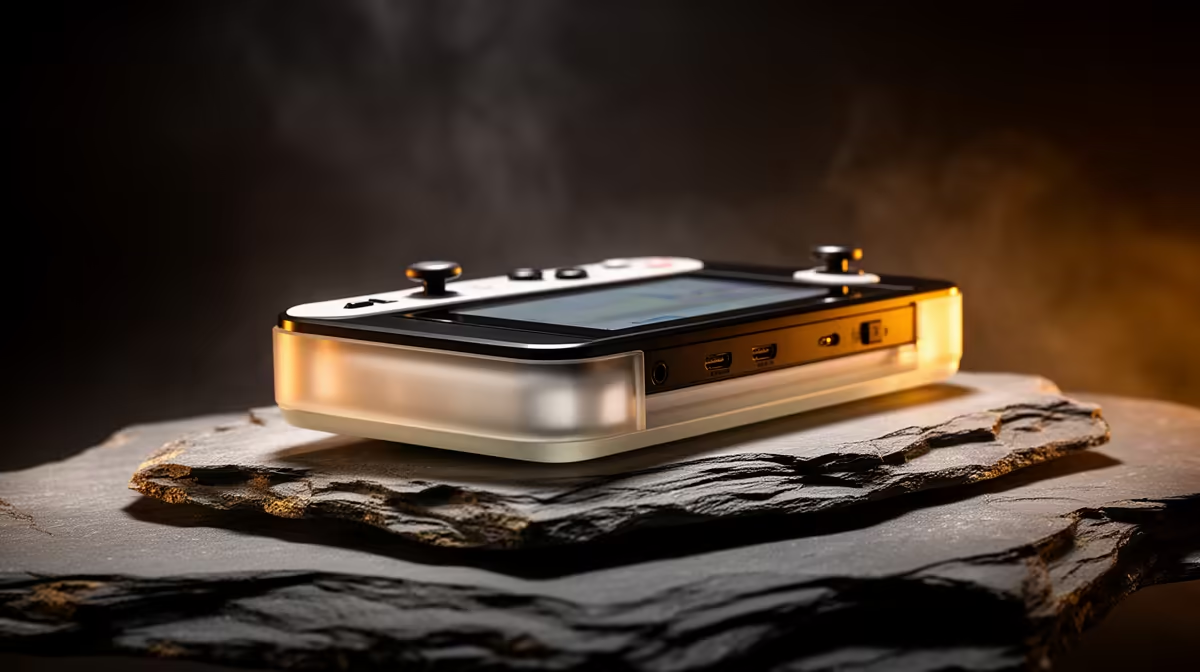
A budget retro handheld like the R36S ships with passable stock firmware, but the real experience starts when you flash a proper community build. ArkOS is the firmware most beginners are pointed toward for the R36S because it works out of the box with very little fiddling. The catch new owners hit is the screen: get the wrong image and you boot to a black display. This guide covers the right image, the flashing tool, and the one detail that saves you a headache.
Quick Answer
To install ArkOS on an R36S, download the R36S-specific ArkOS image, extract it, and flash it to a microSD card with Balena Etcher. The whole process takes about 20 minutes. The critical detail is matching the image to your exact screen revision, otherwise the green light comes on but the screen stays black.
What you need first
Get these ready before you touch any software.
- A quality microSD card, 16GB or larger. Ideally use two: a smaller 16GB to 32GB card for the OS in the TF1 slot, and a larger 128GB-plus card for your game library in the TF2 slot.
- A USB 3.0 card reader for your PC or laptop.
- 7-Zip to extract the image, since it downloads as a compressed .xz archive.
- Balena Etcher to flash the image. Start with Etcher because it verifies the write after it finishes.
If you are still shopping for the handheld or a faster card, the handheld gaming console range at Evetech is the place to begin.
Step 1: Download the right ArkOS image
Grab the ArkOS image built specifically for the R36S, not a generic build for another device. This matters more than anything else in the process. The R36S has shipped with several different screen panels over its production run, and each needs a matching Device Tree Blob, the small file that lets the screen talk to the CPU. Flash an image with the wrong DTB and the device boots, the green power light turns on, but the screen stays pitch black.
If you are unsure of your screen revision, the community guides usually help you identify it by purchase date or panel behaviour, and many R36S images include several DTB options you can swap in.
Step 2: Extract the archive
The download arrives as an .xz archive. Open it with 7-Zip on Windows, or The Unarchiver on a Mac, and extract the contents. You should end up with a raw .img file somewhere in the region of 6GB to 8GB. If your extracted file is only a few megabytes, the download did not complete, so fetch it again.
Step 3: Flash with Balena Etcher
Open Balena Etcher and the process is three clicks.
- Click Flash from file and select your extracted ArkOS .img file.
- Click Select target and choose your microSD card. Double-check you have picked the card and not another drive, since flashing wipes the target completely.
- Click Flash and wait. Etcher writes the image and then verifies it automatically, which catches a bad write before it ruins your first boot.
If Etcher throws errors, switch to Rufus. It is more robust at repairing cards with awkward partition tables left over from a previous firmware.
Step 4: Set the correct DTB and first boot
Once the flash finishes, this is where you confirm the screen file matches your panel. If the image came with multiple DTB options, copy the one for your screen revision into place following the build's instructions. Insert the card into the TF1 (operating system) slot, power on, and you should reach the ArkOS menu. A black screen with a green light almost always means the DTB does not match your panel, so try the alternative file.
With ArkOS booted, add your game card to the TF2 slot, load your legally owned game files, and you are ready to play. For spare cards, cases, or a second handheld, the PC best sellers list is handy to browse.
Frequently Asked Questions
Why is my R36S screen black after flashing ArkOS?
Almost always a DTB mismatch. The R36S has shipped with different screen panels, and each needs a matching Device Tree Blob. If the device boots with a green light but a black screen, swap in the DTB that matches your screen revision.
Which flashing tool should I use for ArkOS?
Start with Balena Etcher because it verifies the write automatically, catching a bad flash before first boot. If Etcher errors out on a problem card, switch to Rufus, which handles awkward partition tables more reliably.
How big should my microSD card be?
At least 16GB for the operating system. The better setup uses two cards: a 16GB to 32GB card for ArkOS in the TF1 slot and a 128GB-plus card for your games in the TF2 slot, which keeps the system and library separate.
Why does the ArkOS image download as an .xz file?
The image is compressed to keep the download small. Use 7-Zip on Windows or The Unarchiver on a Mac to extract it into a raw .img file of roughly 6GB to 8GB before flashing.
Is ArkOS the best firmware for a first-time R36S owner?
It is the most commonly recommended starting point because it works with minimal configuration. Other firmware exists for specific needs, but ArkOS gets a beginner playing quickly with the least setup.