A WD Blue 500GB drive is quick to fit once you know its shape, and this guide shows how to install wd blue 500gb ssd in a desktop or laptop in about 20 minutes. The only real decision is whether yours is a 2.5-inch SATA drive or a bare M.2 stick.
Quick Answer
Check the label: a 2.5-inch metal case with a flat SATA connector goes in a drive bay with a data cable and power lead, while a short green or black stick slots into the M.2 socket on the board. Fit it, boot into Windows, then initialise it in Disk Management. A 500GB SSD of this class usually costs around R1,200 to R1,500.
🔎 Identify the drive you are holding
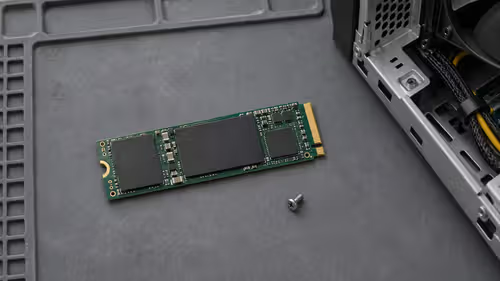
Look at the product label for the exact model name and read the connector. A SATA drive has an L-shaped notch in a flat edge connector and a rectangular case. An M.2 stick has no case, a notched edge and a screw hole at the far end.
M.2 comes in two flavours, SATA and NVMe, and a motherboard may support one or both. Read your board's manual before assuming the slot matches. If you are adding it to a laptop, the same rule applies, and the service manual for your model is the authority.
🖥️ Fitting it in a desktop
SATA version: switch the PC off, flip the power supply switch and touch the metal case. Slide the drive into a bay, or screw it into a 3.5-inch adapter bracket if the case has only large bays. Connect a SATA data cable from the drive to a port on the motherboard and a flat power plug from the power supply.
M.2 version: remove the cover over the M.2 socket if there is a heatsink. Push the stick in at an angle, press it flat and fasten the small standoff screw from the motherboard box. Replace the cover.
Fitting it in a laptop: the steps are similar but smaller. Shut down fully, remove the base screws, unclip the battery connector and swap the drive in the bay or slot. Keep a magnetic tray for the tiny screws, because laptop screws vary in length and a wrong one can press on the board. Compare the available internal solid state drives if you are still deciding between SATA and M.2. A 500GB drive suits a laptop used for study, browsing and a few games, while heavier gamers usually step up to 1TB.
💾 Prepare the drive in Windows
A brand-new SSD is blank, so it will not appear in File Explorer yet:
- Right-click Start and choose Disk Management.
- A window asks you to initialise the disk. Choose GPT for a modern PC.
- Right-click the unallocated space, pick New Simple Volume and accept the defaults.
If the drive is missing even in BIOS, reseat the cables or the M.2 stick. Some boards switch off a SATA port when an M.2 socket is in use, so try the neighbouring port.
📦 Move your old setup across
Allow half an hour for a clone of a typical 500GB boot drive, and do not use the PC during the copy.
For a boot drive, either clone the old disk or install Windows fresh. Cloning is kinder on South African capped LTE, where a full Windows download from scratch can swallow a large slice of your data bundle. A clean install gives a tidier system if the old one was cluttered. Keep the old drive in a spare bay, or in an enclosure, until you have checked everything works. Open a few documents, start your most-used programs and restart twice before you wipe anything. Confirm too that Windows shows the new drive as the boot disk in BIOS, since a clone can leave the old drive first in the boot order. If you want portable backups too, take a look at an external SSD for the old data.
Frequently Asked Questions
Is my WD Blue SATA or M.2?
A cased 2.5-inch drive with a flat connector is SATA. A bare stick that slots into a small socket is M.2. The model on the label confirms it.
Do I need to format a new SSD?
Yes, once. Initialise it as GPT in Disk Management, then create a simple volume so Windows can use it.
Will it work in a laptop?
Yes, if the laptop has a free 2.5-inch bay or an M.2 slot of the same type. Check the service manual for your exact model.
Clone or fresh install?
Clone for speed and to keep programs. Pick a fresh install if the old setup was slow or messy.
Why is the drive missing in BIOS?
Reseat the cables or press the M.2 stick fully home. Try another SATA port too, as some are shared with M.2.
Ready to give your PC a faster drive?
Look through the solid state drive categories at Evetech for internal 2.5-inch and M.2 options, plus portable drives for backups.