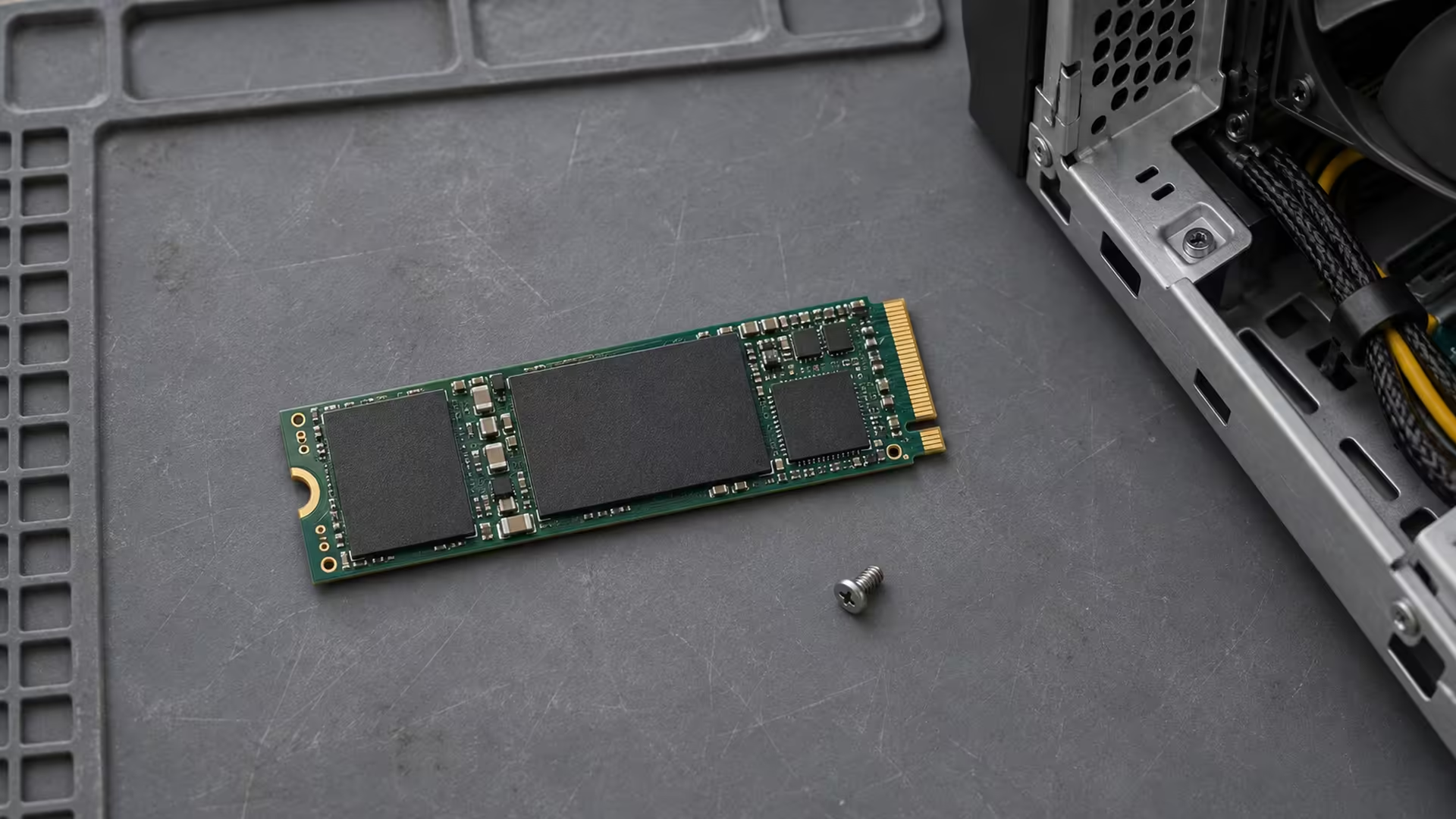
The new drive appears in the firmware inventory, then vanishes when you open File Explorer. If your SSD shows in BIOS but not Windows File Explorer, check the disk's status in Windows before buying another drive or clicking a prompt that could put existing files at risk.
Quick Answer
Open Disk Management and match the SSD by capacity and, where possible, model. A healthy data volume without a letter may only need a letter, while a confirmed new and empty SSD may need a volume. Checking the status costs R0.
🔍 Find the physical disk
Right-click Start and open Disk Management. Use the lower pane to distinguish physical disks from the volumes and partitions on them. Compare the reported capacity with the drive you fitted and check the device model if several drives look alike. Stop if you cannot identify the new disk with confidence.
Record what the lower pane shows. Look for the disk number, whether Windows marks it online, and whether the space appears as a healthy data partition or as unallocated. A small recovery or system partition on another drive can look tempting when it lacks a letter. Leave those partitions alone.
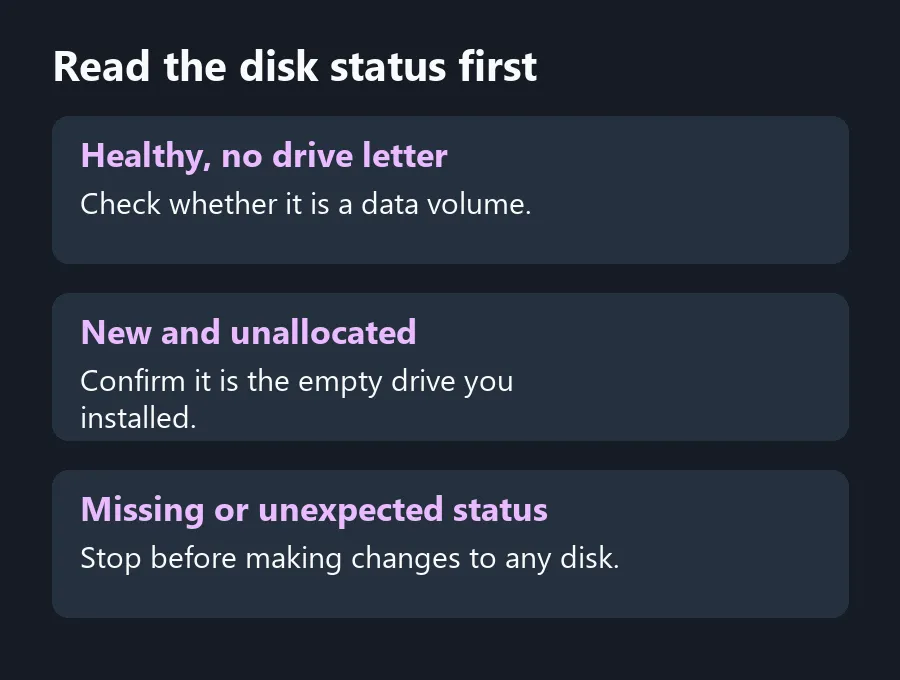
💾 Choose the step that matches the status
For a healthy data volume that should appear in Explorer, right-click that volume and look for Change Drive Letter and Paths. Add an unused letter if the command is available. Leave existing letters on Windows and application volumes in place.
For a confirmed brand-new empty SSD, use the initialisation option if Disk Management marks it as uninitialised. GPT is the default for modern Windows systems. Create a New Simple Volume in the unallocated space and assign a letter during setup. Double-check the disk before you approve any change. If the drive held files before, or Windows calls an existing volume RAW, stop before formatting or initialising it. Keep the original intact while you check your backup or recovery options.
🖥️ When Disk Management cannot see the SSD
Confirm the firmware still lists the same model after a restart. Then check your PC or motherboard's storage documentation for the controller mode and any driver it requires. Leave storage-mode settings alone on a working Windows installation while you investigate. Record the laptop or motherboard model, the SSD model and where each one appears so support can reproduce the distinction.
If tests point to a replacement, check the connector and format before browsing NVMe SSDs or Internal SSDs. The 25 November in-stock catalogue snapshot included a 500GB NVMe SSD at R1,999. A drive letter costs nothing, so run the status check before comparing products.
Frequently Asked Questions
How can BIOS see a disk that Explorer misses?
Firmware can list the hardware before Windows has a usable volume and drive letter to display.
Should I initialise an SSD that held files?
Leave it intact. Check access and backups before doing anything that changes the drive.
Does an unallocated drive need a letter?
A verified empty drive needs a volume first. Windows can assign the letter when you create that volume.
Can I rename the Windows drive letter?
Leave the letter used by Windows or installed applications as it is.
What if two disks are the same size?
Confirm the model through device properties or your machine documentation. Do not make changes until you can identify the disk.
Do I need to replace the SSD?
Check Disk Management and the model's storage configuration first. Missing setup alone is not a reason to replace it.
Healthy, no drive letter
Check Disk Management before replacing an SSD the firmware can already see.