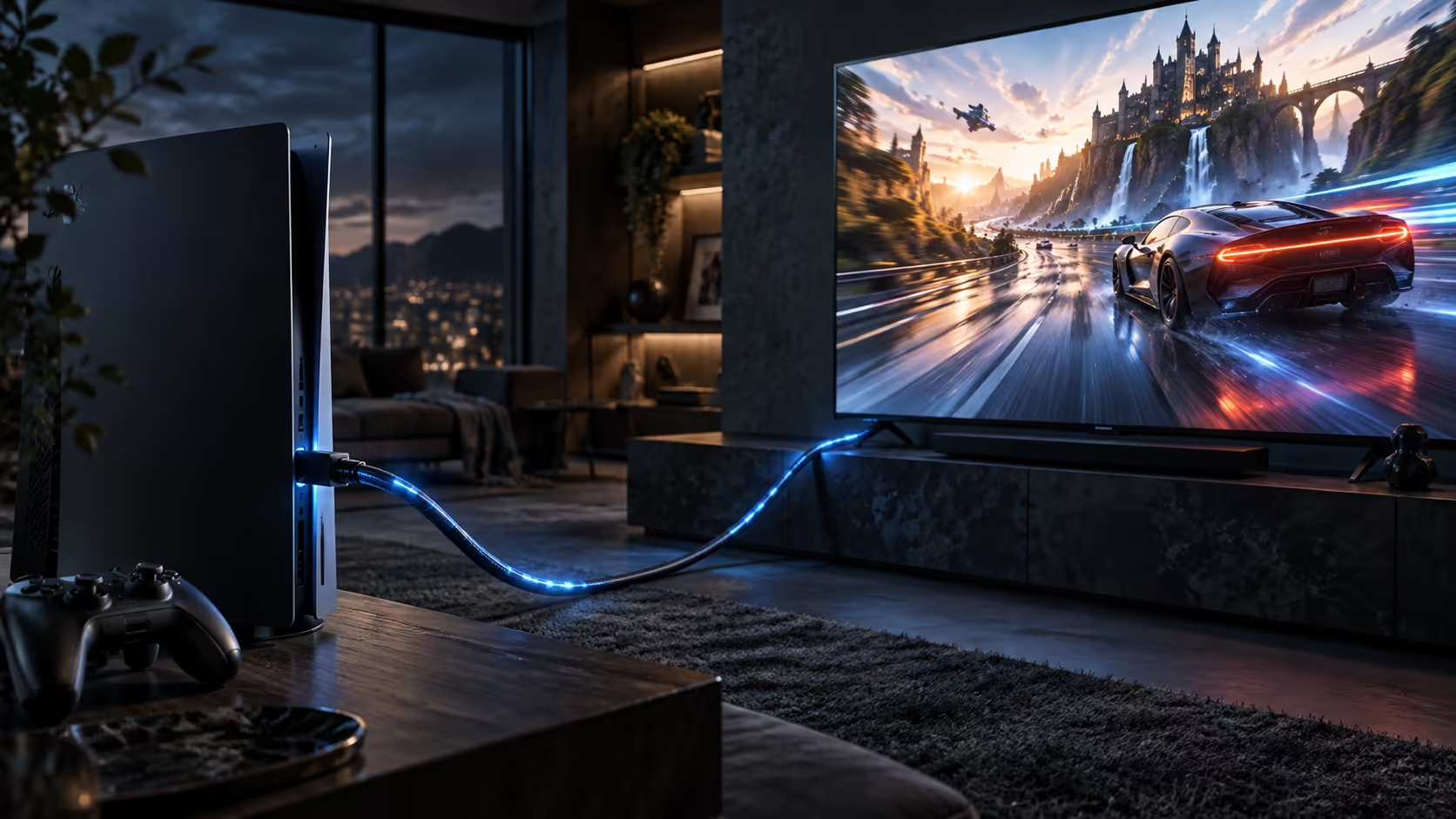
Getting a console or PC to actually hold 4K 120Hz over HDMI is a wiring job first and a settings job second, and doing them in the wrong order is why so many setups stall at 60Hz. Plug the source straight into the display, confirm the lead is rated for the full HDMI 2.1 figure, then work through two menus in sequence. Skip a step and the picture still works, just not at the mode you paid for.
Quick Answer
Connect the console or PC directly to the display, skipping a soundbar or switch in the middle wherever you can. Rate the lead itself first: a 48Gbps HDMI 2.1 cable such as the R299 Anker 1.8m is the minimum for 4K at 120Hz. Turn on the display's high-bandwidth input mode, then select 120Hz in the source's video output menu, in that order. Most stalled setups turn out to be the display step that got skipped, not the cable.
🔌 Wire it up before you touch a single setting
Run the lead straight from the console or graphics card to the display's HDMI input first, before anything else joins the chain. A soundbar or AV receiver sitting in the middle is the most common reason a 120Hz setup fails, because plenty of older receivers pass signal through at roughly 18Gbps rather than the 48Gbps HDMI 2.1 asks for. If a receiver is non-negotiable in your lounge, check its own spec sheet for a 48Gbps-rated HDMI input before assuming the cable is at fault.
On the cable itself, the 1.8m Anker lead costs R299 and is built to the full 48Gbps figure, so a 4K signal at 120Hz or an 8K one at 60Hz makes no difference to it, and buying it here means a warranty claim is a local courier trip rather than a parcel sent overseas. Browse the cable range if the receiver check rules that box out and you need a second lead for the display leg.
🎮 Tell the source to actually output 120Hz
A PlayStation 5 keeps the toggle under Screen and Video, inside the Video Output screen, listed beside the resolution options rather than on its own. An Xbox Series console files the same information under General, then TV & display options, then 4K TV details, though a couple of dashboard versions fold it into the display calibration screen instead.
On a Windows PC, right-click the desktop, open Display settings, then Advanced display, and pick 120Hz from the refresh rate list beside the connected monitor's name. Windows will not offer 120Hz at all if either the graphics card output or the panel itself falls short at 4K, which is worth ruling out on our gaming monitor range before you blame the cable for something the hardware never promised.
📺 Confirm the display's own input is unlocked
Not every HDMI socket on a mid-range set carries the same bandwidth, even though the panel behind them is identical. Look through that input's picture menu for a toggle that raises its bandwidth, sometimes labelled Enhanced Format, sometimes HDMI UHD Colour, sometimes just Signal Plus, and switch it on for the specific socket your source is plugged into. Then unplug the cable and reseat it so the two ends renegotiate from scratch rather than holding onto whatever mode they agreed on at power-up.
🧯 Still capped at 60Hz after all that?
Two things remain once the wiring and the menus are both right. Colour depth is the first: running full 4:4:4 chroma with HDR at the same time as 4K120 sits close to the 48Gbps ceiling, and some displays quietly step down rather than show nothing at all. Switch HDR off for one test and see whether 120Hz appears.
The second is the game itself, not the hardware chain. Plenty of titles simply do not offer a 120Hz mode, and when that is the case the console has no higher option to reach for, no matter how capable the rest of the chain is. Load something you already know supports it before troubleshooting further. If the real complaint is input lag rather than raw refresh, plugging in a wired controller for the test rules out a wireless connection as the actual culprit.
Frequently Asked Questions
Does a graphics card need a special HDMI port for 120Hz?
Only that the port itself is built to HDMI 2.1. Most current cards with an HDMI 2.1 output can drive 4K at 120Hz through any properly rated 48Gbps cable, so the connector generation matters more than any extra hardware.
Can an HDMI switch or splitter still pass 120Hz?
Only if the switch itself carries a 48Gbps rating, which most budget units do not. An unrated switch caps the signal at whatever its internal chip supports, no matter how good the cable is on either side of it.
Why does the console report 120Hz as supported when the picture still looks like 60Hz?
The console can only repeat what the display told it during the handshake. If the enhanced input mode is switched off, the display quietly negotiates a lower mode and the console has no way to flag that on screen.
Do I need to change anything on the controller for 120Hz to work?
No. A controller runs over its own separate connection, wired or wireless, and plays no part in the video handshake between the console and the display.
Ready to lock in 4K at 120Hz for good?
Wire the source straight to the display, rate the cable first, then flip the two settings that actually control it.