


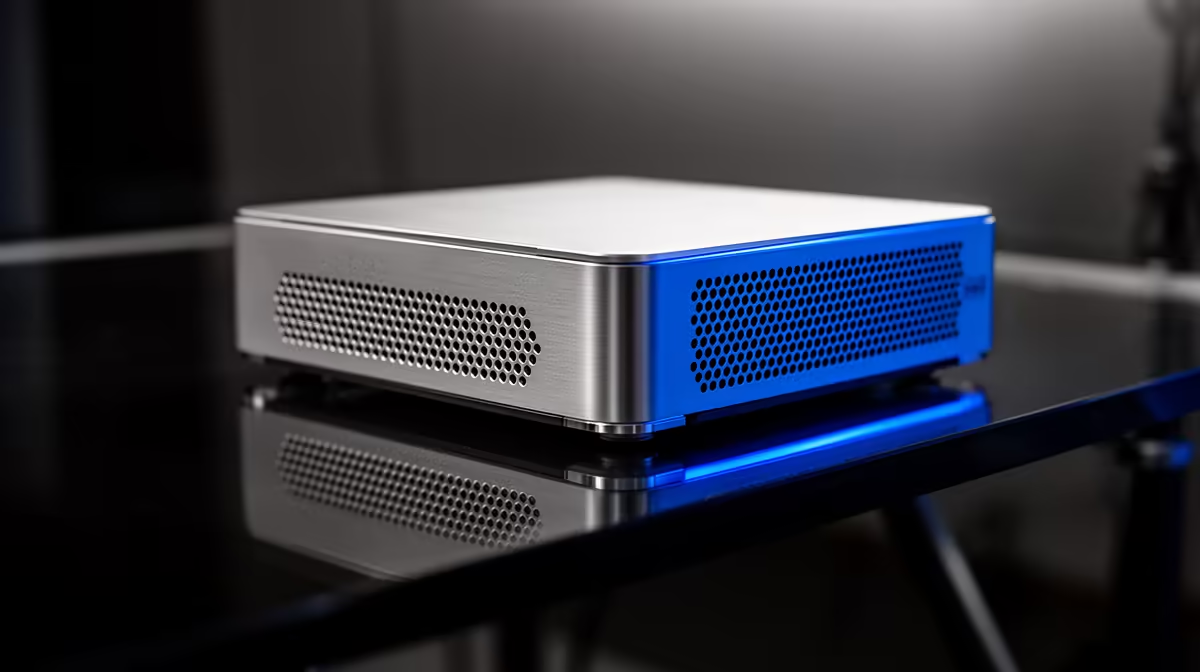
An Intel N100 mini PC sips power and costs little, which makes it the perfect always-on Jellyfin box, right up until a 4K file stutters because the CPU is trying to transcode in software. The fix is to hand that work to the chip's built-in graphics. Setting up Jellyfin hardware transcoding on an N100 turns a struggling little media server into one that handles 4K without breaking a sweat.
Quick Answer
In Jellyfin, open Playback then Transcoding and set hardware acceleration to Intel QuickSync (QSV). On Linux you must install the iHD VA-API driver and add the Jellyfin service user to the "render" group so it can access the N100's integrated GPU. Once that is in place, the iGPU handles 4K decode instead of the CPU.
Why Hardware Transcoding Matters on an N100
The N100 is a low-power chip with modest CPU cores. Ask those cores to transcode a high-bitrate 4K stream in software and they will max out, the video will buffer, and the whole box may become sluggish. Software transcoding is simply too heavy for this class of processor.
What rescues it is Intel QuickSync, a dedicated media engine inside the integrated graphics. QuickSync decodes and encodes video in hardware, far faster and at a tiny fraction of the power cost. With it enabled, the N100 transcodes 4K comfortably while the CPU stays mostly idle, which is exactly what you want from an always-on server.
Step 1: Confirm the iGPU Is Present
Before touching Jellyfin, check that the operating system sees the N100's integrated graphics. On Linux the GPU appears as a render device under /dev/dri, typically named renderD128. If that device is missing, the rest of the setup cannot work, so resolve it first by ensuring your kernel and graphics drivers are up to date.
A current Linux kernel matters here, because newer kernels carry better support for the N100's graphics. An older kernel may not recognise the iGPU properly, so update before going further.
Step 2: Install the iHD VA-API Driver
Jellyfin reaches the iGPU through VA-API, and on Intel that path needs the iHD driver. Install the Intel media driver package for your distribution, which provides the iHD VA-API driver the N100 requires. On Debian and Ubuntu-based systems this is the intel-media-va-driver package.
Without iHD in place, Jellyfin will either fall back to software transcoding or fail to start QuickSync at all. This driver is the bridge between Jellyfin and the hardware, so do not skip it.
Step 3: Add the Jellyfin User to the Render Group
This is the step most people miss, and it is the most common reason hardware transcoding silently does not work. The Jellyfin service runs as its own user, and that user needs permission to use the GPU's render device. On Linux, the render device belongs to the "render" group.
Add the jellyfin user to the render group, then restart the Jellyfin service so it picks up the new group membership. If you skip this, Jellyfin can see the driver but is denied access to the device, and it quietly reverts to the CPU.
Step 4: Enable QSV in Jellyfin
Now configure Jellyfin itself. Open the dashboard, go to Playback, then Transcoding. Set Hardware acceleration to Intel QuickSync (QSV). Confirm the device path points to the correct render device, and enable hardware decoding for the codecs you actually play, commonly H.264 and HEVC, which covers most 4K content.
Leave the more advanced options at their defaults to start. Save the settings and you are ready to test.
Step 5: Test and Verify
Play a high-bitrate 4K file that forces a transcode, for example by capping the playback quality below the source bitrate. While it plays, watch the CPU usage on the N100. If hardware transcoding is working, CPU load stays low and playback is smooth. If the CPU spikes to full, transcoding is still happening in software and one of the earlier steps needs revisiting, usually the render group or the iHD driver.
Jellyfin's playback dashboard will also indicate whether a stream is being hardware-transcoded, which is a quick confirmation that QuickSync is doing its job.
Keeping It Reliable
Once it works, an N100 running Jellyfin with QuickSync is a genuinely set-and-forget media server, quiet, cheap to run, and capable well beyond what its CPU alone suggests. Keep the kernel and media driver current, since updates continue to improve N100 graphics support. If you are still shopping for the hardware, the mini PC range at Evetech includes low-power N100-class machines well suited to this exact role, and the best-selling PCs at Evetech make it easy to compare which compact options ship with the specs this setup needs.
Frequently Asked Questions
Why is my N100 still transcoding on the CPU?
The most common cause is that the Jellyfin user is not in the render group, so it cannot access the GPU and falls back to software. The second is a missing iHD VA-API driver. Check both, then restart Jellyfin.
What driver does QuickSync need on Linux?
The Intel iHD VA-API driver, supplied by the intel-media-va-driver package on Debian and Ubuntu systems. It connects Jellyfin's VA-API path to the N100's integrated graphics so QuickSync can be used.
Can an Intel N100 handle 4K transcoding?
Yes, but only with hardware transcoding enabled. Software transcoding overwhelms its modest CPU, while QuickSync handles 4K decode and encode in dedicated hardware at low power, which is the whole point of this setup.
Do I need to add the Jellyfin user to a group?
Yes. On Linux the GPU render device is owned by the render group, and the Jellyfin service user must belong to it to access the iGPU. This single step is the most frequent fix for failed hardware transcoding.
How do I confirm hardware transcoding is working?
Play a file that forces a transcode and watch CPU usage. Low CPU with smooth playback means QuickSync is active. Jellyfin's playback dashboard also flags whether a stream is being hardware-transcoded.
Building a quiet, low-power media server? Browse the N100-class mini PCs at Evetech and set up Jellyfin with QuickSync for effortless 4K transcoding at home.











