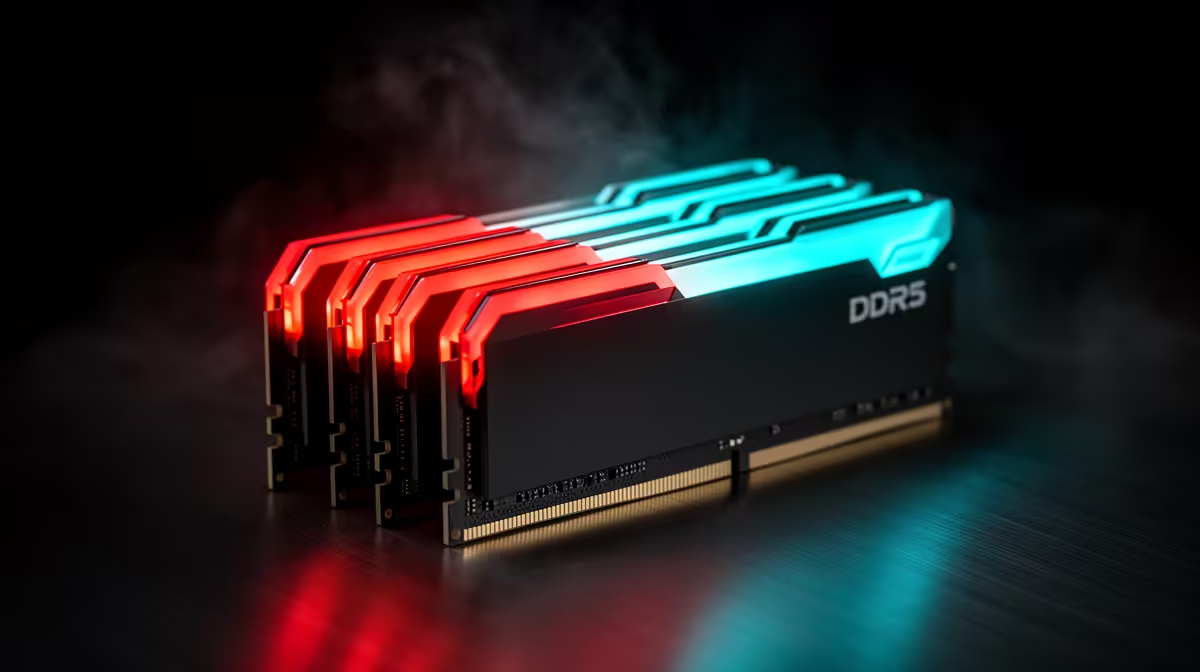
Two lighting apps can fight over the same memory LEDs and make every colour change unreliable. Fixing RAM RGB sync starts by choosing one controller, closing its rivals and confirming support for the exact modules.
Quick Answer
RAM RGB often stops syncing when two control programs compete for the same lighting device, but firmware, service failures and unsupported module detection can cause the same symptom. Pick one application as the owner, stop the others from starting, power-cycle the PC and rebuild a plain static profile before adding effects. Do not flash firmware or uninstall every motherboard service at once. A controlled reset preserves the clue that fixes the conflict.
Define the failure before changing software
Write down what the modules do at each stage: power-on, BIOS screen, Windows sign-in and after the RGB apps load. If both DIMMs light together until Windows starts, software control is the prime suspect.
If one module never lights, swap no hardware yet. Confirm memory capacity and stability first. Lighting failure and memory failure are separate paths, and reseating a stable kit adds risk without evidence.
Check whether the colour is wrong, effects are out of step or the modules disappear from one app. Save screenshots of device lists and version numbers.
Choose one lighting owner
Motherboard utilities, memory-maker tools, Windows lighting controls and open RGB applications may all claim the DIMMs. Decide which ecosystem will control the whole build.
Exit the other applications from the system tray. Then stop their background services or disable their start-up entries through supported settings. An app can keep control after its window closes.
Restart and test one static colour. If it works, add a slow effect and one device group at a time. Do not reinstall the other tools until you know why they are needed.
Some memory utilities include a motherboard-sync or third-party-control option. Enable only the mode documented for your software combination. Two apps both set to motherboard sync can still collide through separate services.
Perform a full lighting power reset
Fast Startup can retain driver state across a Windows shutdown. Use Restart first. If the conflict remains, shut down, switch off the PSU, disconnect power and wait for board lighting to go dark before reconnecting.
Do not remove DIMMs while standby power is present. Touch an earthed chassis point and follow the board manual if a reseat becomes necessary.
A BIOS lighting option may set behaviour while off or asleep. Record its current value before changing it, because it may have no control over Windows effects.
Repair software in a safe order
Update one chosen RGB application from its official source. Check its supported motherboard and memory list. If the app broke after an update, use its documented repair or rollback route.
Uninstall competing tools one at a time and restart between changes. Keep chipset, fan-control and hardware-monitoring components that the motherboard needs. A broad cleanup script can remove services unrelated to lighting.
After uninstalling, check Task Manager and Services for the named RGB component only. Avoid deleting registry keys or driver folders by guesswork.
Firmware comes after ordinary diagnosis
Motherboard BIOS updates can change SMBus access, device detection and lighting behaviour. Update only when the release notes or support guidance address your issue, or when the platform needs another fix.
Use the board's documented update method, stable power and the exact model file. Save BIOS settings first. A BIOS flash carries more risk than closing an RGB service.
Memory-module lighting firmware should use the maker's supported updater. Do not interrupt it or run another lighting app during the process.
Rule out hardware with position evidence
When one DIMM remains dark in every software state, inspect whether the fault follows the module or slot. Return memory settings to stable defaults, disconnect power and swap only if the board manual and warranty allow the test.
If the same module remains dark in another supported slot while memory function passes, capture that result for support. If the dark position stays with the slot, motherboard detection or socket contact deserves attention.
Never clean contacts with an abrasive. Do not touch the gold contacts. Use the support route for a covered kit.
Keep the final setup boring
Once sync returns, save one static fall-back profile and one effect. Disable auto-updates during a critical event or stream, then review updates at a planned time.
Export profiles where the software supports it. Record the versions that work together. Future diagnosis then begins from a known combination rather than another full reinstall.
Use the DDR5 memory range to confirm kit model and profile support. The memory best-seller page helps compare current RGB and non-RGB options when replacement is justified.
FAQ
Can two RGB apps cause the problem?
Yes. Their background services can both write to the DIMMs. Close and disable all but one owner for the test.
Should the RGB app start with Windows?
Only the chosen control service needs to start. Disable competing tools and keep a static hardware profile when supported.
Will reinstalling always fix it?
No. A competing service, unsupported version or hardware detection fault can survive one app reinstall.
Record when RAM lighting breaks, give one supported app full control and rebuild the profile from one static colour.