


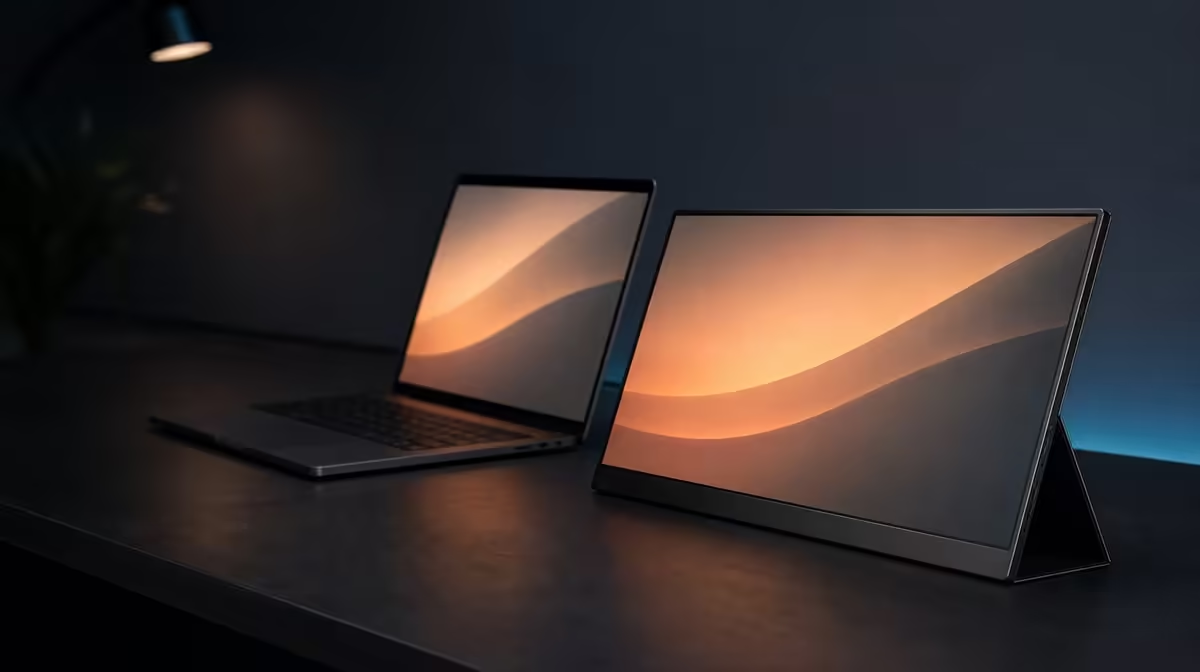
Warmer screen output can make long reading sessions feel calmer, but it should join a complete comfort routine. Using Low Blue Light mode well means comparing the altered image with the task, matching brightness to the room, and keeping posture, distance, reflections, and regular visual breaks in view.
Quick Answer
Enable Low Blue Light on the R5,999 UPERFECT UColor J5 for reading or extended viewing, then check whether its warmer appearance still suits the content. The mode can reduce blue-light output, but readable scaling, moderate brightness, controlled glare, a comfortable viewing distance, and breaks remain necessary.
🌙 Choose tasks that suit a warmer image
Low Blue Light mode is most straightforward for documents, browsing, and other work where exact colour judgement is not central. Turn it on, open a familiar page, and compare text comfort plus white backgrounds with the normal picture mode. Keep the mode only if the warmer output helps without making the task confusing.
For photo, design, or other colour-sensitive decisions, return to the normal reference before finalising work. The eye-comfort feature changes output; it does not prove that a warmer view represents the source faithfully for every purpose.
Create a clear switch rule. Use the warmer profile during a planned reading block, and use the general picture configuration for colour-dependent content. Buyers considering other sizes or eye-comfort options can explore Evetech's portable displays and compare the role of each feature.
☀️ Reduce brightness before fighting the image
The J5 carries a 400cd/m2 brightness rating, but a long indoor session rarely requires constant maximum output. Set the display against the room: a bright workspace may need more headroom, while evening use can be comfortable at a much lower level.
Low Blue Light is not a substitute for luminance control. A warmer image can still feel harsh when the panel is too bright. Display a white page, lower brightness until it stops dominating the room, and confirm that text remains legible.
Move or soften direct light that reflects from the IPS panel. Glare makes the eyes work around a bright obstruction and can encourage users to raise output unnecessarily. Evetech's wider monitor selection is useful when comparing portable and fixed-screen approaches to a controlled desk.
🔎 Make native 4K readable
The 17.3-inch J5 uses a 3840 x 2160 panel. Fine pixels can render sharp type, yet text may be physically small at unsuitable scaling. Increase operating-system scaling and application zoom before leaning closer or lowering the screen resolution.
Place the display where the whole page can be viewed without bending the neck or squinting. A larger portable screen offers useful area, but it does not automatically choose the correct distance. Align it with the primary display when working across two screens.
VESA support can assist a fixed setup by holding a repeatable height and angle. Verify the exact mount details, fasteners, load compatibility, and cable slack before using an arm. A travel stand and a desk mount can require different comfort checks.
⏳ Build breaks into the workflow
No picture mode removes the need to look away from the screen. Use natural task boundaries to change focus distance, blink, move, and reassess posture. A short pause is easier to repeat when tied to finishing a page, document section, or meeting.
Check comfort after a full work block rather than after one minute in the menu. Note whether brightness remained suitable as room light changed and whether the warmer image affected any task. Adjust one element before the next session.
HDMI and video-capable USB-C give the J5 source flexibility, but comfort settings may need confirmation after a device switch. Make sure the new host preserves native 4K output and readable scaling. Evetech's monitor best sellers page provides another current reference while checking the R5,999 display.
A useful long-session configuration is not one magic toggle. It is a warmer mode applied to appropriate content, a brightness level that belongs in the room, text large enough to read naturally, and a viewing routine that includes physical breaks.
Use a before-and-after session note to decide whether the warmer profile helps. Record the task, room light, brightness, scaling, distance, and how comfortable the eyes and posture feel at the beginning and end. Change only one part for the next session so the result has a clear cause.
Comfort can change when the monitor moves. A bright shared room may need more output and stronger reflection control; a residence desk at night may need far less luminance. Reapply the method instead of copying one numerical brightness choice to every place.
The 1000:1 contrast figure, FreeSync, and 10ms response do not replace any of these comfort checks. Keep motion features for entertainment, contrast as a picture reference, and Low Blue Light as one viewing option. Clear boundaries stop an attractive spec from being assigned a health promise it does not make.
If two people share the panel, let each keep a short comfort profile. Viewing distance, scaling preference, and tolerance for a warmer image can differ. The screen's R5,999 features stay the same, while the human-facing setup becomes personal and repeatable.
Treat the preferred comfort setup as a routine, not a single switch: set readable scaling, reduce distracting reflections, choose a sensible viewing distance, then enable Low Blue Light for the tasks that benefit. Recheck ordinary colour before image-sensitive work so the warmer presentation does not become an unnoticed default.
Frequently Asked Questions
Does Low Blue Light guarantee strain-free viewing?
No. It changes blue-light output, while brightness, glare, scaling, posture, distance, and breaks still contribute to comfort.
Can the mode affect colour appearance?
Yes. Compare the warmer view with the normal profile before doing work that depends on colour judgement.
Should 4K resolution be lowered for larger text?
Try system scaling and application zoom first so the panel can retain native 3840 x 2160 detail.
How should the setting be checked after travel?
Reassess room brightness, reflections, viewing distance, resolution, and scaling in the new location.
Ready to make long sessions kinder to your eyes and posture? Browse Evetech's portable monitor range and compare current screens by readability, brightness control, connections, and positioning options.









