Quick Answer
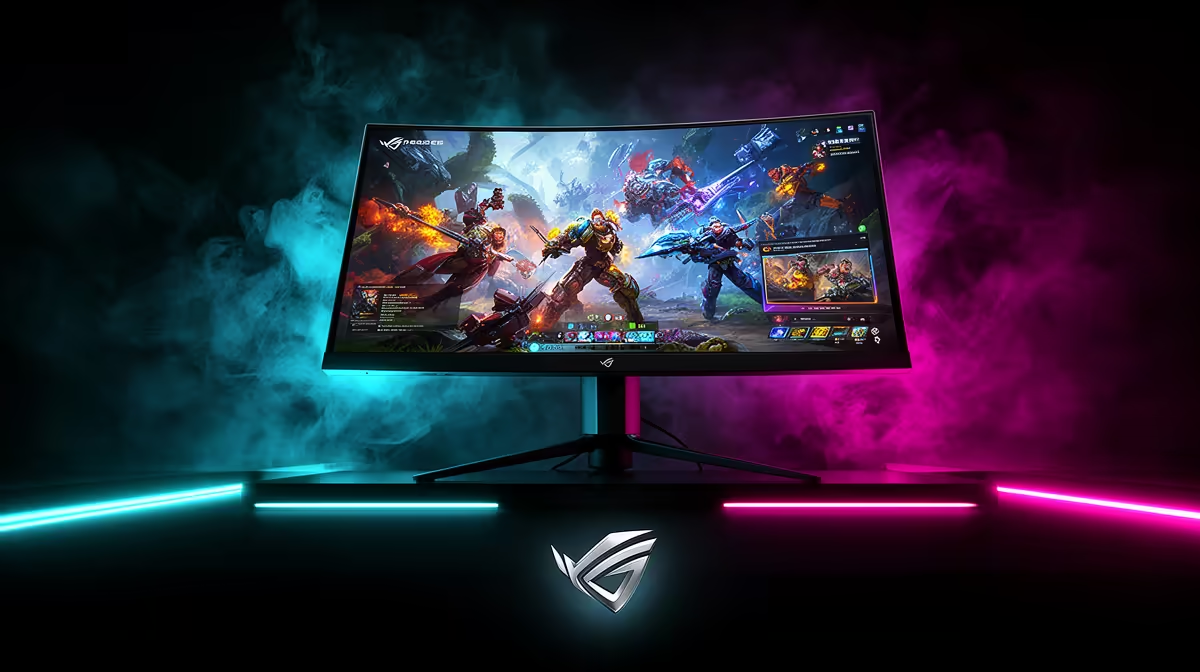
240Hz Monitor stuttering after a Windows 11 update is usually a refresh-rate, display-driver, cable, VRR, or overlay problem. Confirm the panel is still set to 144Hz, 165Hz, 240Hz, or its rated mode, then test the same game with a capped frame rate. Do not replace a monitor in the R4,000-R25,000 band until DisplayPort or HDMI, GPU driver, and VRR settings have been checked.
Check The Last Changed Driver First
Windows updates can reset a monitor to 60Hz or change colour and scaling settings. Open Advanced display, confirm the real refresh rate, then check NVIDIA Control Panel or AMD Software for matching resolution. A 3440x1440 ultrawide stresses the GPU more than 2560x1440, so a game that was smooth on a smaller panel may need a lower preset.
Separate Software Stutter From Hardware Failure
Use a certified DisplayPort 1.4 or HDMI 2.1 cable for high-refresh screens. If G-Sync Compatible or FreeSync starts pulsing, test with VRR off, then on again with a frame cap 3 fps below refresh. A 240Hz panel that swings between 90 fps and 220 fps can feel worse than a stable 141 fps cap on a 144Hz screen.
Decide When Replacement Makes Sense
SA buyers should check the monitor with another PC or laptop before logging a warranty fault. If the second device is smooth, keep the panel and focus on GPU drivers, game overlays, and shader cache rebuilds after the update.
FAQ
Should I uninstall the Windows update first?
Only do that after recording the symptom and checking the driver that changed with it. A targeted driver rollback is usually cleaner than removing every update at once.
How do I know it is not broken hardware?
Hardware becomes likely when the same fault repeats in a clean test, on another port or cable, and outside one game or app. If the symptom vanishes after a driver or power change, the hardware is probably usable.
What should SA buyers check before buying replacements?
Check warranty status, invoice date, cable quality, PSU or charger capacity, and whether the part fails on a second device. That protects the budget before spending on a new component.