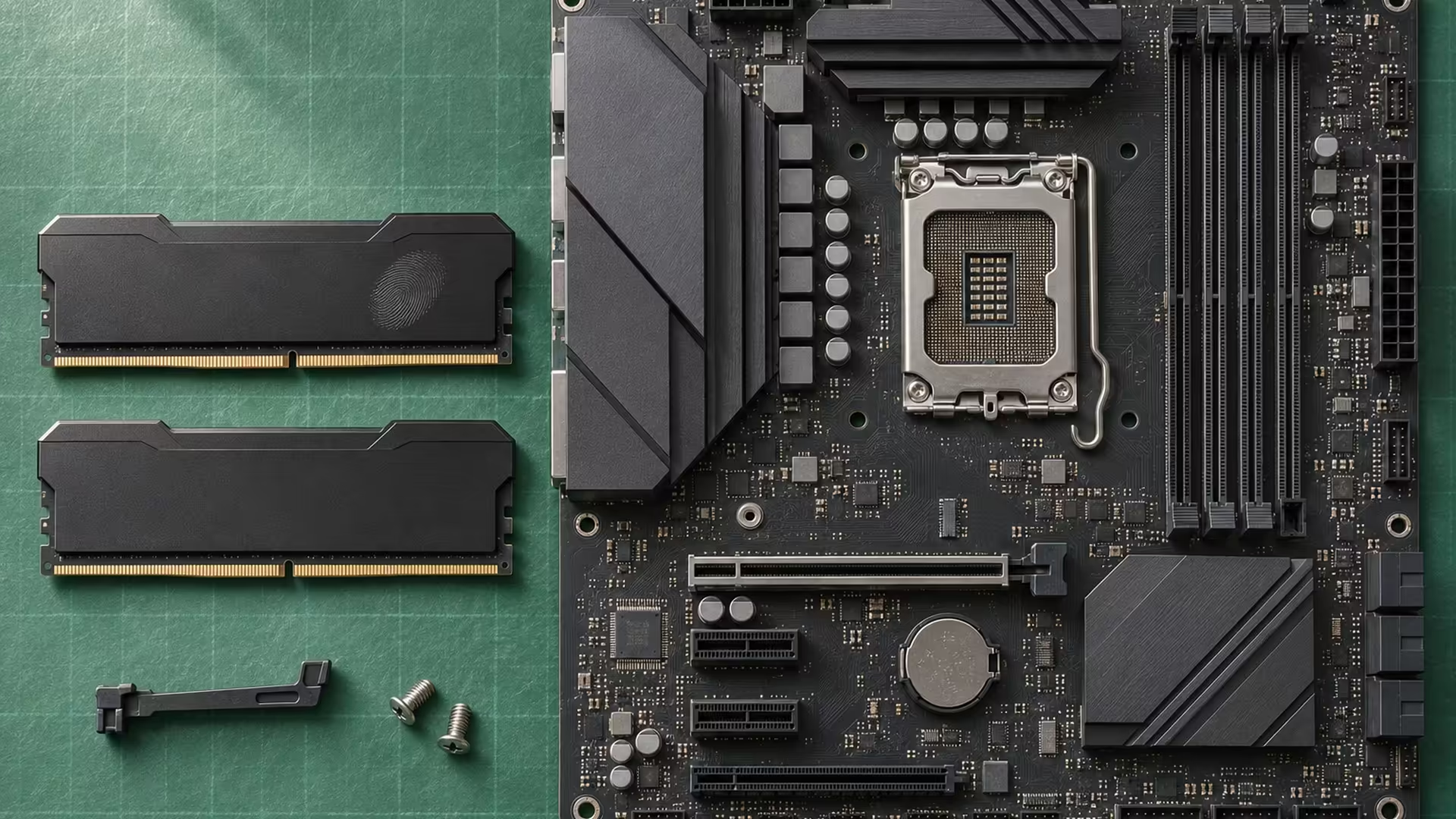
You bought a DDR5 kit by its advertised speed, but the firmware menu gives you no EXPO option. When you find AMD EXPO not showing in BIOS, start with the printed part number on the modules and the current board manual. Check the full part number, including the suffix.
Quick Answer
Check whether the exact DDR5 kit carries an AMD EXPO profile and whether the BIOS exposes it for that board. At Evetech on 22 November, an ADATA XPG Lancer Blade 16GB DDR5-5600 module listed with EXPO cost R4,999. Confirm the part number before buying a different kit.
🧾 Match the label to a real profile
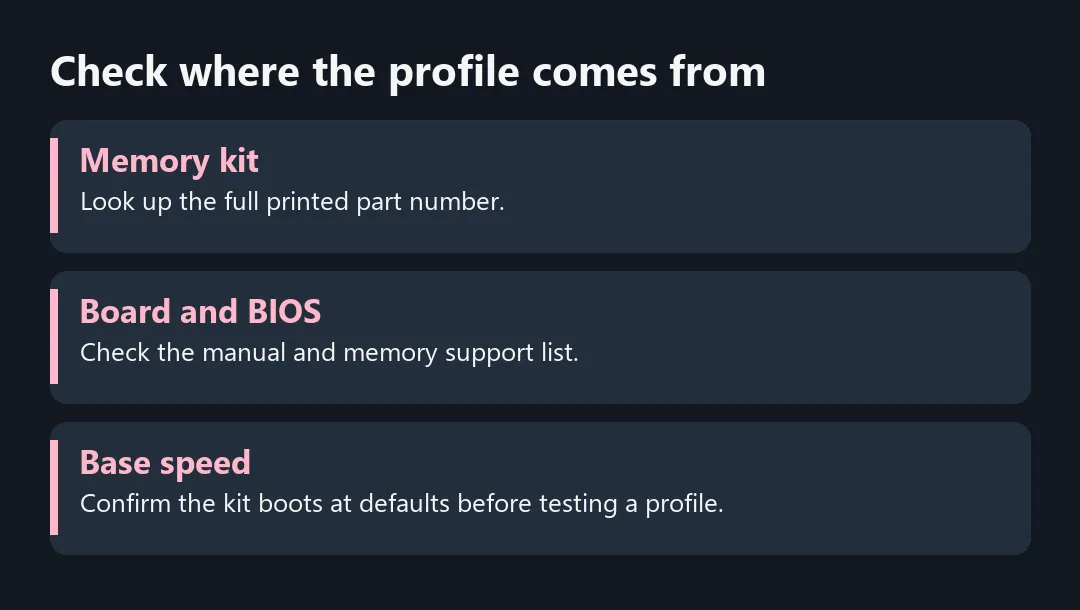
Read the memory specification for the exact SKU. A kit family can include modules with different speeds and profile support. AMD describes EXPO as a memory overclocking profile for DDR5 on compatible Ryzen platforms. The advertised data rate on the box can be a profile target while the computer starts up with a lower default rate. Compare the memory's stated profiles with the motherboard's memory support list for the intended CPU.
You might see a board-provided profile even if the kit has no EXPO settings of its own. Consult your own BIOS manual to tell those apart. On the ASUS AMD 600 series example, ASUS separates DIMM-supplied EXPO timings from the board's other memory options. Different boards put memory controls in different menus.
⚙️ Prove the configuration at default settings
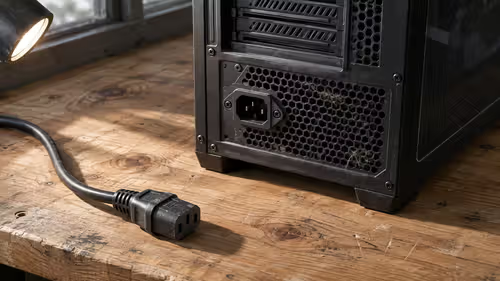
Check how much memory the board sees and whether it reports the expected modules. Follow the board's seating and slot order with the PC switched off and disconnected. If the system boots normally, explore the memory settings the manual names. A system that cannot start at its default settings needs a different diagnosis from one that boots reliably and has no EXPO switch.
If the vendor documents a relevant BIOS change, check the exact board revision before using any update. Keep a record of the working settings and the board's recovery procedure. After changing one memory profile, verify a cold boot and your normal work before deciding to keep it. A successful restart alone says little about stability in a long session.
🧩 Buy for the full combination
Compare DDR5 kits with the correct capacity, module count and profile support. For a new platform, check the memory lists of the B650 Motherboards you are considering. A supported module in one tested configuration does not establish that two separate kits will work together at the same rate.
If you need more capacity, ask whether a single matched kit meets your needs. If you only want the number on the box and the computer is already stable, price the change against a workload where the extra memory performance would actually matter.
Frequently Asked Questions
Does every DDR5 kit include EXPO?
No. Check the specification for the exact memory kit.
Can my PC run without EXPO?
A compatible kit can work at its default settings without applying a memory profile.
Is the number on the box the default speed?
It may describe a tested profile. Check the kit's baseline and rated profile separately.
Should I update BIOS immediately?
Confirm the motherboard model and read the release notes before deciding the update applies.
Can I mix two kits with the same advertised speed?
Matching speeds printed on boxes do not establish tested compatibility as one set.
What should I measure after enabling EXPO?
Check that the machine starts from cold, runs your usual tasks and passes a suitable memory stability test.
Check where the profile comes from
Check for an EXPO profile on the exact DIMM kit before replacing a board. Compare compatible options at Evetech.