A louder fan during a demanding session can sound alarming when the PS5 sits in a closed TV cabinet. Before you pay for a cooling stand, check where the air can go. If the console displays a temperature warning, end the session and look at the setup after it cools.
Quick Answer
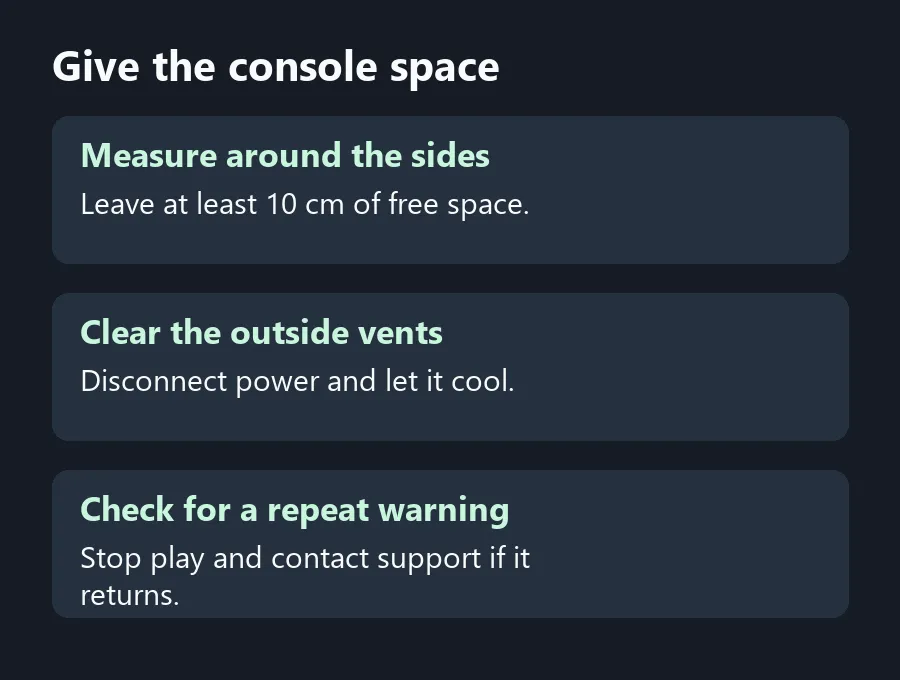
For PS5 overheating, shut the console down if it displays a temperature warning. Give it an open spot with at least 10 cm of free space around each side, keep the vents unobstructed and retest once it has cooled. Moving it to a suitable shelf costs R0.
🌬️ Measure the space with the cabinet in use
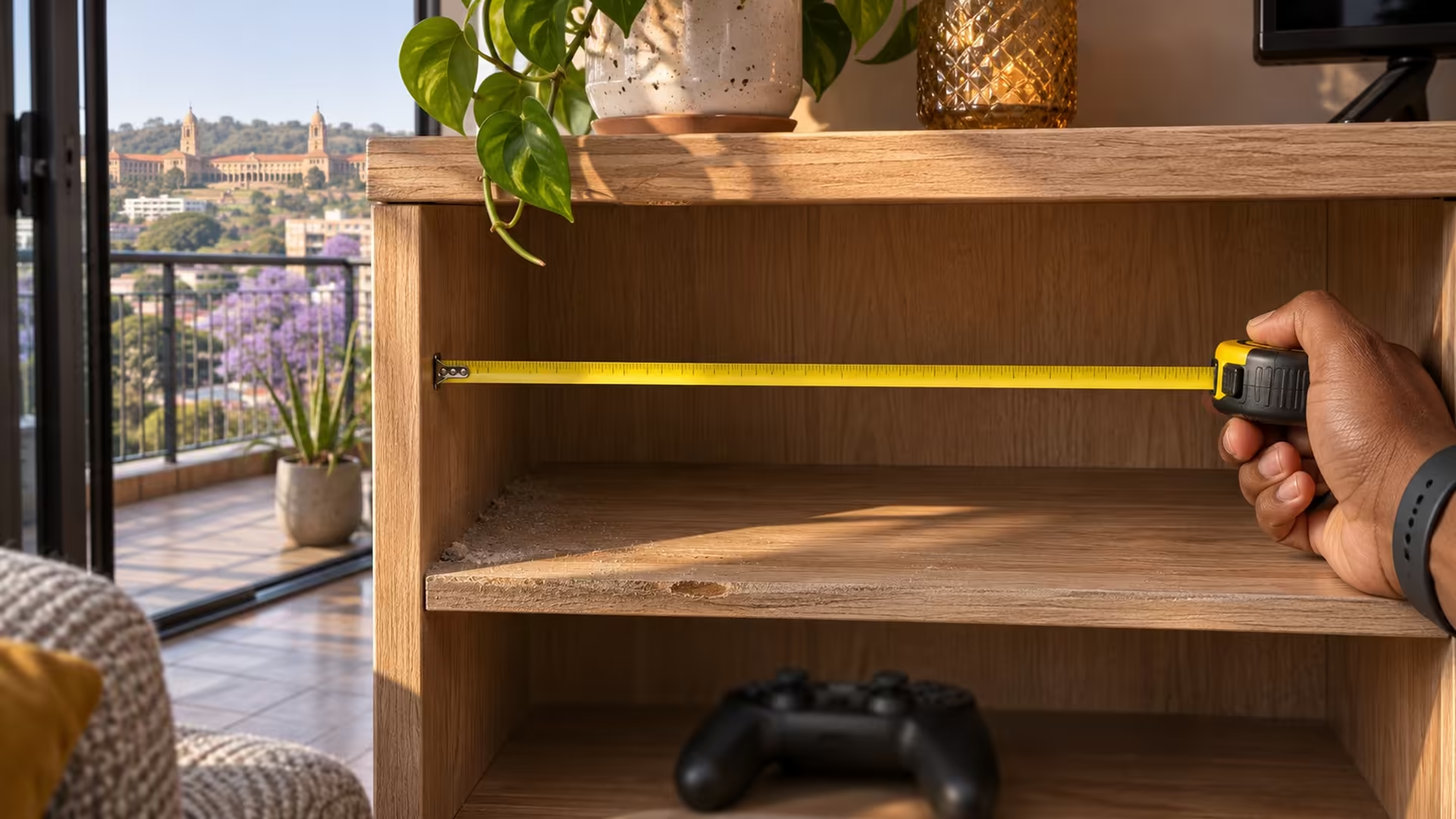
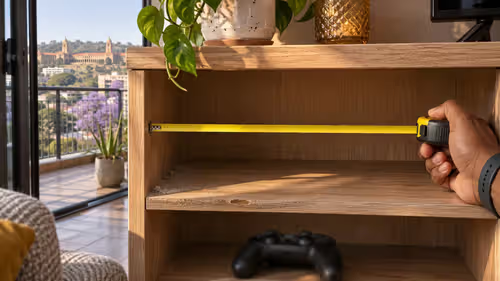
Check the console on the shelf where you normally play, with the door at the position you use during a session. Look along the sides and behind it. A stack of game cases or a cable bundle can block a vent after you thought you had left enough room. Use a tape measure and find a different spot if you cannot get the recommended clearance.
Use a firm, open surface away from direct sunlight and heat sources. Avoid a shaggy rug or thick carpet under the machine. Some games make the fan run faster while the system works harder. Note whether you heard only fan noise or also saw an on-screen temperature warning. Write down the warning time if you see one.
🧹 Clean around the vents with power disconnected
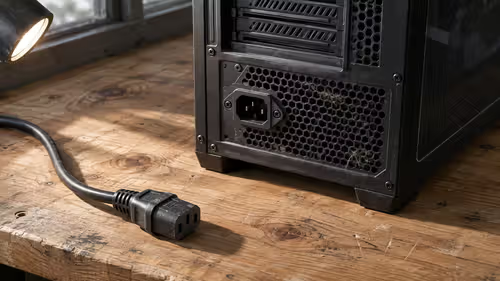
Turn the console off and disconnect the AC power cable. Let the console cool and use a low-powered vacuum around the exterior air vents to clear accumulated dust. Avoid drawing conclusions from how clean the glossy surfaces look; check the air openings themselves. Follow the directions for your model if they differ from the layout you expected.
Put it back in the open spot and try the game that brought up the warning. Keep the cabinet open if you use one for the test. If another heat warning appears, stop the session. Write down how long it took, where the PS5 was standing and what you saw on screen, then contact support. Leave the console off while you arrange help.
🎮 Keep the screen setup separate from the cooling check
A monitor or TV might be easier to reach from a well-ventilated shelf. If moving the console makes the existing lead too short, check Cable Solutions for the connection you need and route the lead without bunching it behind the rear vents. A nearby Gaming Monitors setup may also free the console from a tight cabinet. You can confirm the ventilation change with the screen and accessories you already own before spending money.
Frequently Asked Questions
How much space should I leave around my PS5?
PlayStation recommends at least 10 cm of free space around each side, with the vents unobstructed.
Does a loud PS5 fan mean it is overheating?
The fan can speed up during a game. Check for a temperature message and make sure the vents have space.
Can I clean the outside vents while it runs?
Switch the console off, disconnect its AC power cable and allow it to cool before cleaning.
What should I use around the vents?
PlayStation recommends a low-powered vacuum for dust around the external vents.
Should I put the console on a rug?
Use a firm, open surface. Keep it away from long carpet fibres and enclosed spaces.
When should I contact support?
Stop playing if a heat warning returns after the console has cooled and you have cleared and checked the vents.
Give the console space
Measure shelf clearance and check the vents before spending on a stand or changing your screen setup.