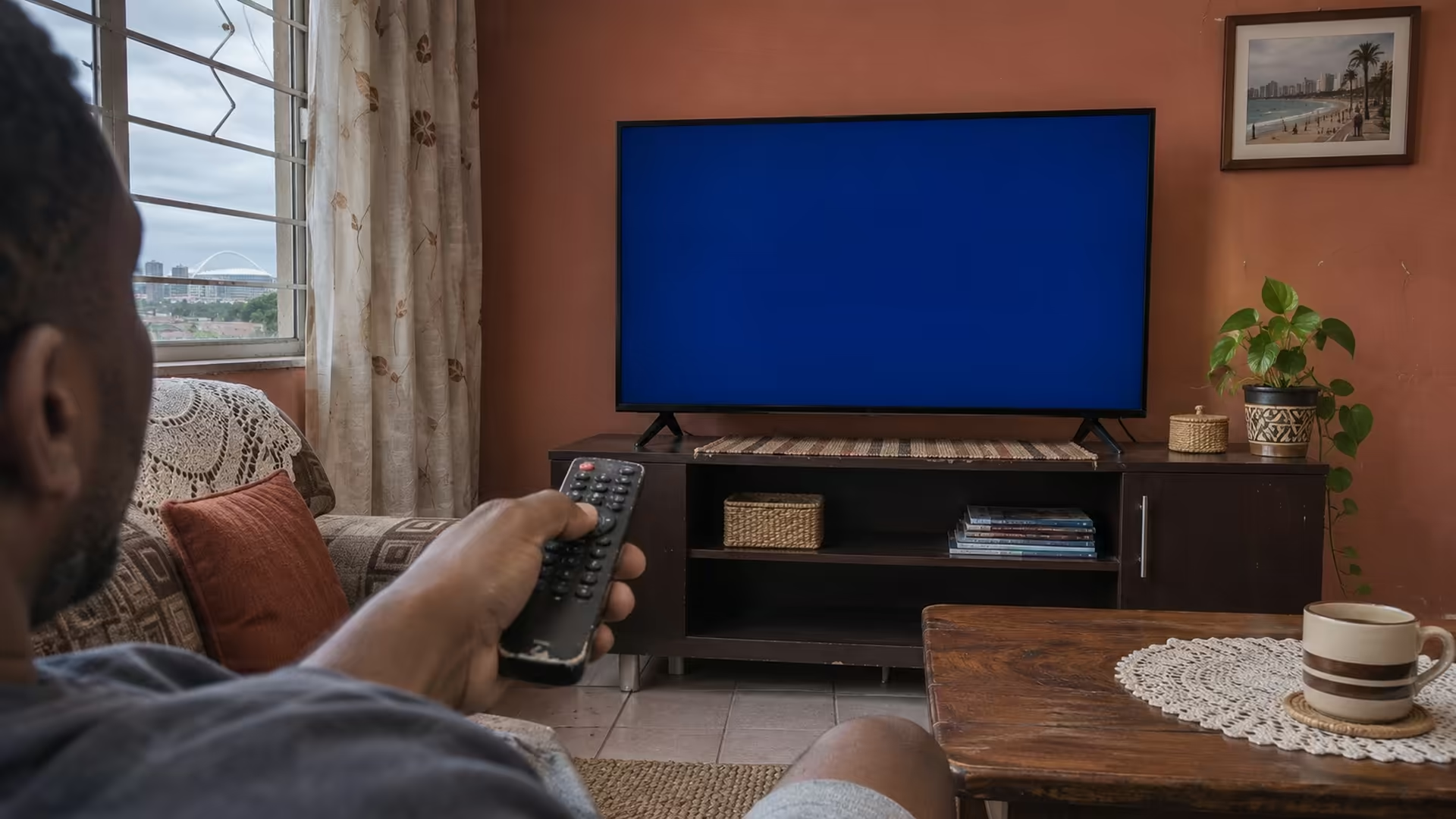
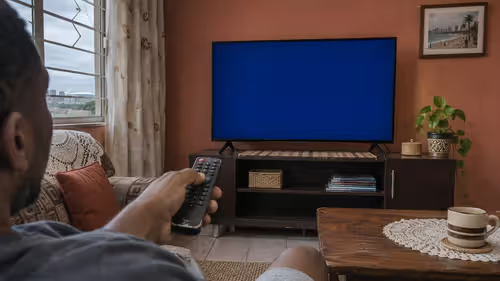
The Disney+ menu loads, you select an episode, and playback throws error 83. Before resetting the television or replacing a streaming stick, open the same title on a second supported device. Use the same home connection for both devices.
Quick Answer
For Disney Plus error code 83, confirm that Disney+ supports your device and the way you launched it. Reopen the app, then try the same title on another supported device on the same connection. Start with these R0 checks before buying a stick or changing your internet plan.
📺 Check the exact way you watch
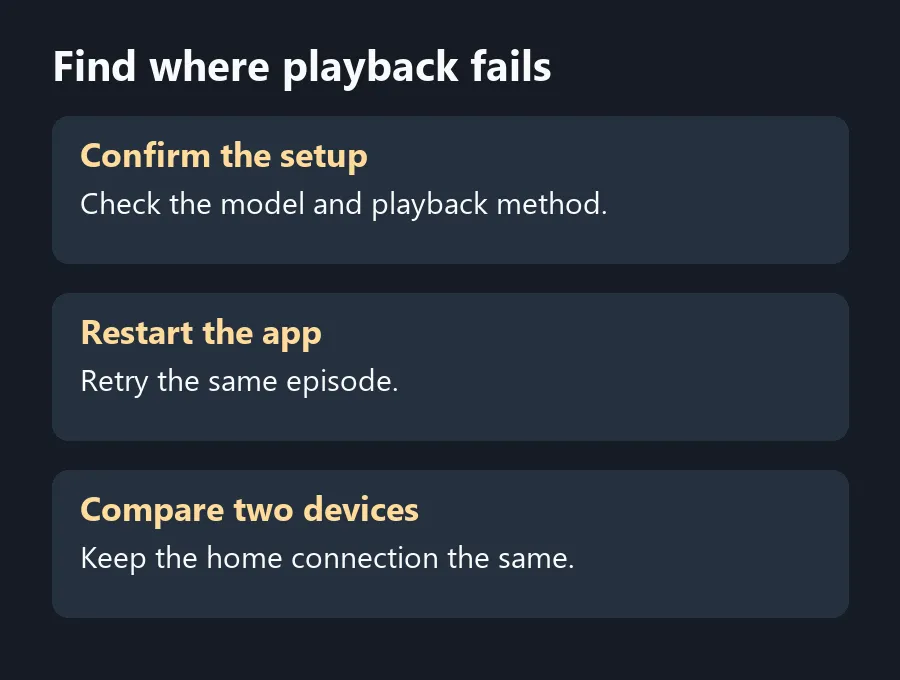
Write down where the error appears. A TV app, a laptop browser and a console app are three different starting points, even when they use the same screen. Check the Disney+ device list for the exact model and platform. The service notes that device support varies by territory. A smart TV badge on the box is too broad to tell you which app versions the set can run.
On a supported television, open the installed app from the home menu. On a laptop, check that the browser and system meet the supported setup. If you normally cast or open the service in a TV browser, try its supported app or a compatible computer browser first. Changing the playback method keeps your account and connection constant.
🔄 Change one thing between attempts
Close the app or refresh the browser, then try again. Restart the device if the error returns. Use the same episode when comparing attempts so the device or connection is the only change you made. If a laptop can play it on the same home connection while the TV still shows 83, check the TV's app and software updates before touching your router.
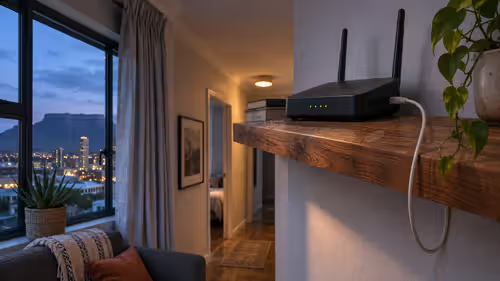
If two supported devices fail, try pausing big downloads and check whether other online services load. Restart the modem and router if the connection has just returned after an outage. Wait until the internet connection returns before reopening the app. If you use a metered mobile line as a comparison, stop the video once you know whether playback starts.
🔌 Decide what you actually need to replace
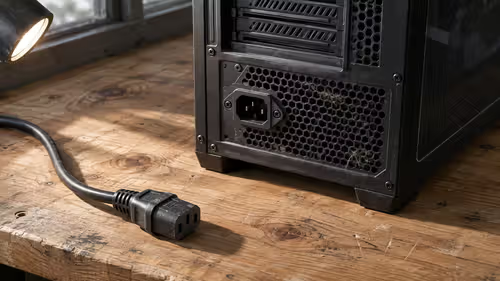
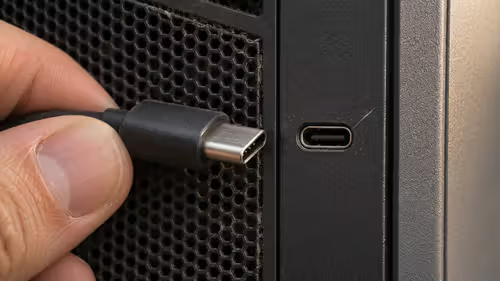
If Disney+ supports the TV and it fails after the basic checks, note the model, app version and exact error time for support. If the TV is outside the supported list and its screen still works, test an existing compatible console or laptop as the playback device. Cable Solutions can help if that setup needs a suitable display lead. Look at Gaming Monitors if you are also choosing a new display for PC or console use. A replacement screen alone tells you little about whether the original app will run.
Frequently Asked Questions
Why does Disney+ show error 83?
Disney+ lists an unsupported device or playback method and an unstable connection among the usual causes.
Does error 83 mean my TV is broken?
Check whether a supported app or second device can play the title before treating the screen as faulty.
Why does Disney+ work on my laptop but not my television?
If both use the same network, check the TV model's regional support, app and system updates.
What should I do after an internet interruption?
Restart the modem and router, wait for the connection to return, then reopen playback.
Can I check whether the problem affects one title?
Try that title on another supported device, then try a second title on the original setup.
What should I tell support?
Give the error code, device model, app version, when it happened and the results of your comparison.
Find where playback fails
Test the app and playback method before replacing a screen or changing your local internet plan.