A flick in a shooter lasts about a tenth of a second, and in that time a 4,000Hz mouse sends four hundred position reports where a 1,000Hz mouse sends a hundred. That is the arithmetic behind 4K wireless polling, and it is why the feature gets so much attention. Whether the extra reports reach your screen as a more direct cursor depends on the rest of the chain, from the sensor to the frame on the monitor. Here is the chain, step by step, and where it can break.
Quick Answer
On 2.4GHz, 4K polling reports every 0.25 milliseconds where 1,000Hz reports every millisecond, so fast sweeps can feel more direct if the PC keeps pace. The gain depends on the processor having spare time and on the screen refresh you use. The Aerox 3 Gen 2 Ghost sells for R2,499 including VAT through Evetech.
🔁 Follow one flick from hand to screen
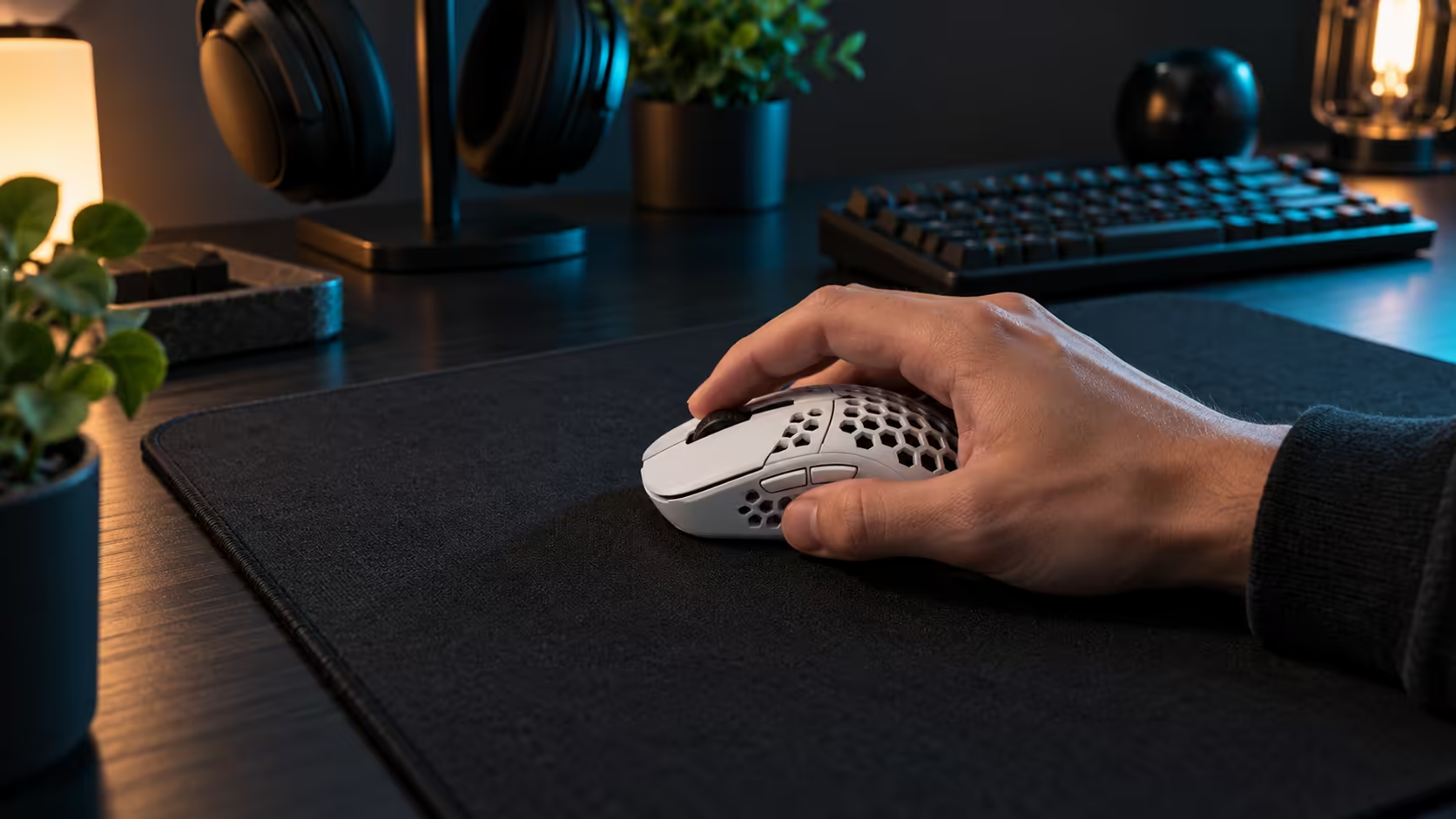
While your hand moves, the sensor keeps sampling the surface beneath it. Those readings become position reports, which the mouse sends over the 2.4GHz link to the receiver and on to the PC. Windows passes the input to the game, and the game uses the latest input when it builds the next frame.
Put numbers on a flick that lasts 100 milliseconds. At 1,000Hz the mouse sends about 100 reports during that flick. At 4,000Hz it sends about 400. The game, though, still draws a frame every 6.9 milliseconds on a 144Hz screen, so roughly 14 frames pass during the flick either way. The extra reports give the game finer detail about where the hand was, and that detail is what you feel as a smoother trail.
🧭 When the gain disappears
The chain has a weak link, and it is rarely the mouse. A busy processor can delay the reports, a hub can crowd the USB bus, and a game that caps its frame rate may ignore input that arrives between frames. In each case the extra reports queue or get dropped, and the cursor feels no different from 1,000Hz.
The receiver's position matters too. Put it behind a metal case or a monitor and the 2.4GHz link can get noisy, which shows up as a cursor that hesitates rather than one that runs faster. Keep the receiver on an open part of the desk, 30 to 50 cm from the rear USB port on an extension, and clear of the router.
🧪 A simple test you can run this week
Run a short test before you decide the feature is worth it. Set the mouse to 1,000Hz and flick across a wide practice area ten times, then set it to 4,000Hz and do the same ten flicks. Keep the DPI and the game the same, and try to note any difference in how the cursor settles on the target. If you are still choosing a mouse to run the test on, the wireless mouse options on Evetech are a good shortlist, and the gaming mice range shows the rest of the category.
Do the test on the evening you usually play, not in a quiet moment, because a busy PC is the real condition. If the 4,000Hz run shows stutter, go back to 1,000Hz. If it feels steadier and more direct over a week of play, the faster rate has earned its place on your desk.
Frequently Asked Questions
How many reports does a 4,000Hz mouse send per second?
That works out to 4,000 reports a second, spaced 0.25 milliseconds apart. A 1,000Hz mouse sends 1,000, one every millisecond.
Why would 4,000Hz not feel faster?
The game may draw frames more slowly than the reports arrive, or the PC may be too busy to process them promptly. A busy USB bus or a crowded receiver port can also flatten the gain.
Does 4,000Hz polling work over Bluetooth?
Only the 2.4GHz receiver link carries the 4,000Hz figure, so use the receiver for the faster rate.
Is the feature worth it for an ordinary gamer?
Often it is not. The gain shows up mostly in quick games on a fast screen with a steady PC, so test before you pay extra for the faster setting.
Want a mouse that holds its polling rate under load?
Browse the wireless mice on Evetech, check the 2.4GHz receiver setup against the tips here, and run your own test on the games you play most.