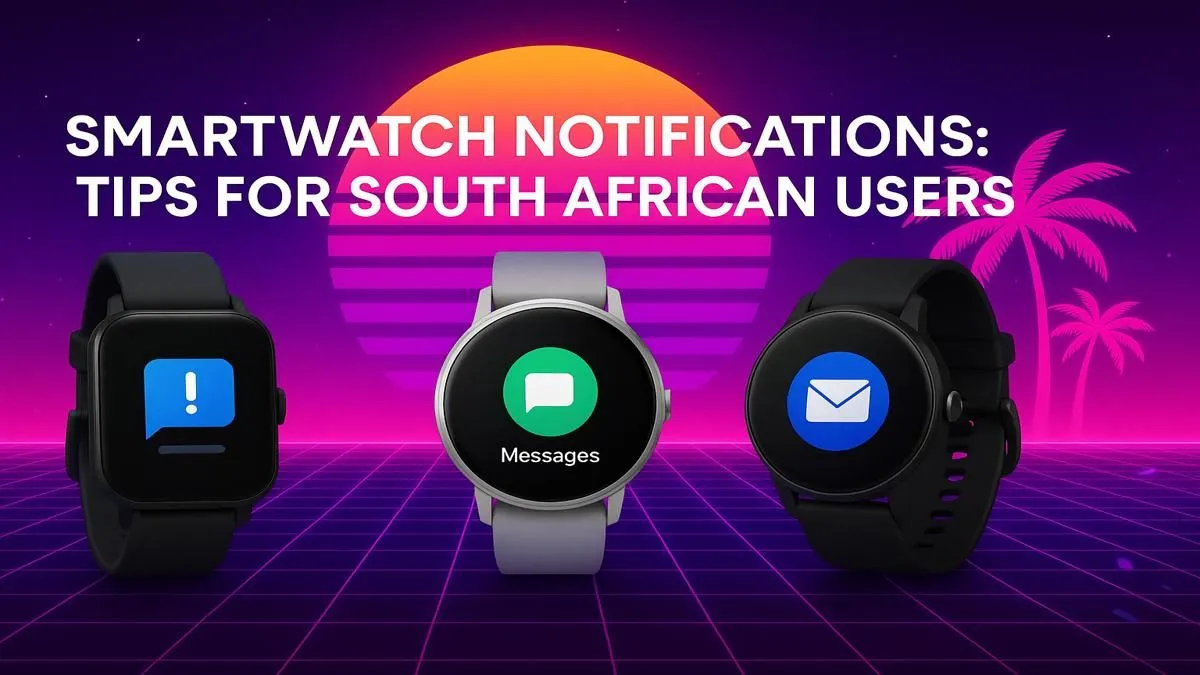
Is your wrist buzzing non-stop? Between work emails, family WhatsApp groups, and the latest an unexpected outage alerts, it’s easy to feel digitally overwhelmed. A smartwatch should bring convenience, not constant chaos. Learning how to properly manage smartwatch notifications is the single best way to reclaim your focus and make your wearable tech work for you. Ready to silence the noise and only get the alerts that truly matter? Let's dive in. ✨
Master Your Smartwatch Notification Settings
The first step to digital peace is customising which apps can buzz your wrist. Your smartphone is the command centre for this. Whether you're using a Wear OS or watchOS device, the companion app (like Galaxy Wearable or the Apple Watch app) is where the magic happens. A good rule of thumb is to disable notifications for any app that isn’t time-sensitive or essential for your daily workflow. Do you really need that game update alert right now? Probably not.
This simple act of curating your alerts transforms your device from a constant distraction into a genuinely useful tool. The goal is to make every vibration meaningful. By being selective, you ensure that when your watch does buzz, it’s worth a glance. This level of control is a standard feature across almost all of the latest smartwatches available in South Africa, giving you power over your digital day.
Use Focus Modes & VIP Lists for Ultimate Control
Once you've culled the non-essential apps, it's time to get smarter with your notification management. Most modern operating systems have powerful "Focus" or "Do Not Disturb" modes. You can set up profiles for Work, Sleep, or Driving that automatically filter notifications based on your activity. 🔧
For example, during "Work" hours, you can allow alerts only from your calendar and work-related apps. Everything else is silenced until you're done. This is also where VIP lists come in. You can designate specific contacts (like your boss or your partner) whose calls and messages will always break through, even when other notifications are muted. Many affordable options like those from Promate offer these core features, proving you don't need to spend a fortune to gain control.
Quick Tip: The Two-Minute Rule ⚡
When a notification arrives, apply the two-minute rule. If you can read and action it in under two minutes (like a quick reply), do it. If it requires more focus, dismiss it from your watch and address it later on your phone or PC. This prevents your smartwatch from becoming a black hole for your attention.
Fine-Tuning for a Quieter Life
Don't forget about notification delivery settings. You can often choose to have notifications delivered quietly to your watch's notification centre without a vibration or sound. This is perfect for lower-priority information you want to check later.
You might be surprised to learn that even many budget-friendly smartwatches under R1000 now include these granular controls. Taking 15 minutes to properly set up your device is an investment that pays off with hours of reclaimed focus every single week. 🚀
Ready to Find Your Perfect Match? Taming your digital life starts with the right gear. A great smartwatch isn't about getting more notifications... it's about getting the right ones. Explore Evetech's incredible range of smartwatches and find the perfect device to master your day.