



WhatsApp Business Replies Cost 12c From October
From 1 October 2026, WhatsApp Business Platform service replies in South Africa are expected to cost about $0.0076, or 12 cents, per delivered message.
Read moreRTX 5090 Not Showing in Device Manager: Fix. SA-focused analysis with local pricing data, real-world insights & actionable buying advice.
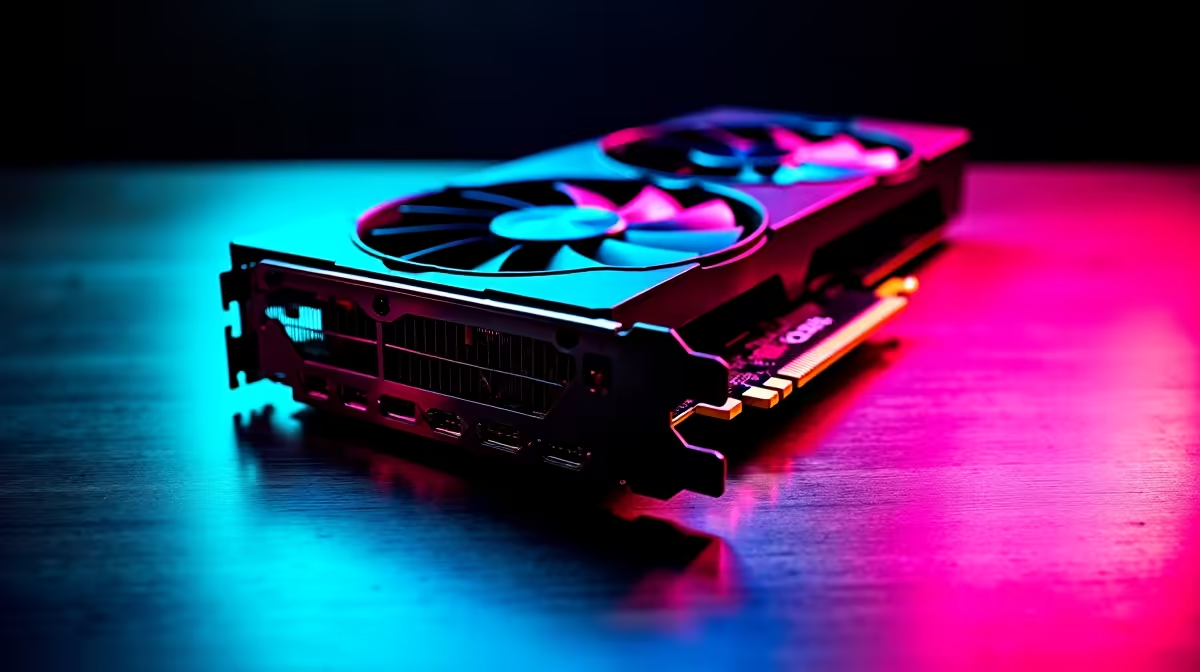
You just dropped a serious amount of ZAR on the ultimate GPU. You slot the beast into your rig, boot up, and... nothing. If your RTX 5090 is not showing in Device Manager, do not panic just yet. This terrifying blank screen is a common hurdle for builders. Let us walk you through the troubleshooting steps. We will get your flagship pixel pusher recognised and running.
Nvidia's 50-series hardware is massive. Sometimes the simplest fix is entirely physical. Did you hear that satisfying click when pushing it into the PCIe slot?
Because of its sheer weight, GPU sag can prevent proper contact. Make sure the card is seated perfectly. Browse our latest graphics cards to see how dimensions compare if you are upgrading from an older chassis.
The 5090 draws serious wattage. It relies on the new 12V-2x6 power connector. Ensure every single pin is seated flush against the GPU housing.
A slightly loose power cable will result in an unrecognised device. If your current power supply is struggling, you have options. Look at premium gaming PCs featuring built-in ATX 3.0 power supplies instead.
Motherboards can be stubborn. Older boards might need a BIOS update to recognise next-gen architecture. Boot into your BIOS and force the PCIe slot to Gen 4 or Gen 5 manually.
Tinkering with motherboard firmware can sound stressful. Grabbing a fully tested pre-built desktop takes all this hassle away.
Sometimes Windows sees the card but hides it. Open Device Manager. Click 'View' and select 'Show hidden devices'. If your RTX 5090 appears with a yellow warning triangle, you have a driver conflict.
Always use Display Driver Uninstaller (DDU) in Windows Safe Mode before installing a new flagship GPU. Wiping the old Nvidia or AMD drivers completely ensures your system has a clean slate to recognise your new hardware without software conflicts.
If you have reseated the card, flashed the BIOS, and checked the power cables... you might have a faulty unit. It is rare but it happens.
Keep your rank up with one of our powerful gaming laptops while waiting for an RMA. Or perhaps browse our current tech specials to find a temporary backup component.
Ready for a Hassle-Free Upgrade? Troubleshooting hardware can be stressful. If you want maximum power without the DIY headaches, Evetech has you covered. Explore our custom-built gaming rigs and let our experts handle the cable management, BIOS updates, and stress testing for you.
RTX 5090 Not Showing in Device Manager: available at Evetech.co.za with local warranty and fast delivery.
RTX 5090 Not Showing in Device Manager: - check Evetech for latest stock and SA pricing.
Depends on your use case. RTX 5090 Not Showing in Device offers good value at current Rand pricing.
From 1 October 2026, WhatsApp Business Platform service replies in South Africa are expected to cost about $0.0076, or 12 cents, per delivered message.
Read more
A Windows 11 Experimental Insider build adds per-app camera, microphone and location controls for Win32 programs, plus permission prompts.
Read more
Black Friday Gaming PC Timing is worth waiting for only if your current setup still works. SA gamers should balance timing, budget, warranty, and uncertainty before delaying a purchase on a R20,000 plan.
Read more
Black Friday Gaming PC Wait can help if your PC need is flexible. On a R12,000 SA budget, compare deal risk, component balance, warranty, and timing before waiting.
Read more
Pre-Black Friday 1440p monitor buying advice should be shortlisted around the job it must do. South African buyers should compare panel type, resolution, refresh rate, and ports, warranty path, and upgrade room before treating any pick as best.
Read more
Black Friday 2026 DDR4 RAM kit strategy in SA - what to buy, what to skip gets a cautious, practical look for South African readers. Compare fit, setup needs, compatibility, and upgrade timing before you shortlist options or plan your next move.
Read more From 1 October 2026, WhatsApp Business Platform service replies in South Africa are expected to cost about $0.0076, or 12 cents, per delivered message.
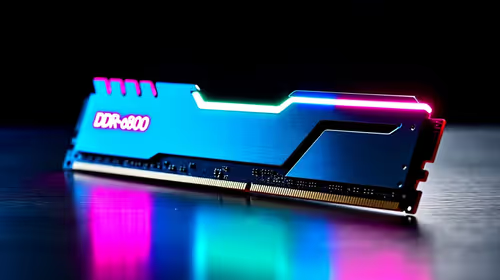
DDR5-8000 RAM Kits pros and cons depend on the build, budget, and workload. Weigh gaming needs, platform fit, power, cooling, warranty support, and South African pricing context before shortlisting it.

Wi-Fi 6E vs Wi-Fi 6 depends on AAA single-player gaming needs, platform limits, and budget fit. Compare compatibility, latency, upgrade path, and real setup constraints before choosing for an SA build.

Ryzen 9 9950X3D dead pixel checks should isolate the panel first. Run colour fills, inspect the monitor menu, test another cable or input, and capture proof before linking it to the SA CPU upgrade.

YouTube will count public views from the first frame across video formats from 24 August, while earnings and eligibility remain tied to engaged viewing.

Canonical expects Ubuntu on WSL users to outnumber native Ubuntu desktop users before the end of 2026. The software is open source and runs inside supported Windows PCs.

Telkom's daily bundles pair WhatsApp access with 10 all-network voice minutes. The R15 option includes 300MB, while the R17 option uses a fair-use threshold.

A 10,000-hour test found similar image retention across older and newer OLED TVs, while newer panels were brighter and more efficient. Local OLED monitors started at R9,999.
From 1 October 2026, WhatsApp Business Platform service replies in South Africa are expected to cost about $0.0076, or 12 cents, per delivered message.
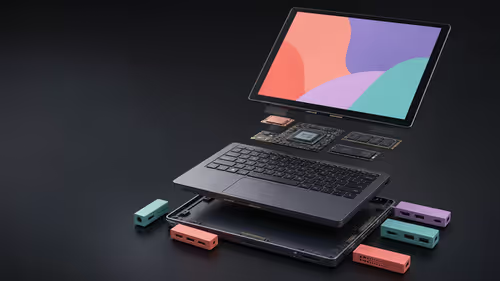
Framework has refreshed Laptop 12 with Intel Core Series 3 processors, Thunderbolt 4, a backlit keyboard and a claimed battery-life increase.
A Windows 11 Experimental Insider build adds per-app camera, microphone and location controls for Win32 programs, plus permission prompts.
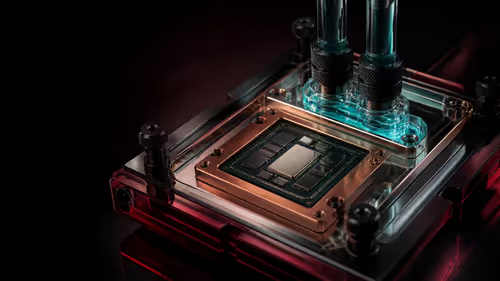
Thermal Grizzly is selling a tested, delidded Ryzen 9 9950X3D2 with its own 24-month warranty for experienced direct-die cooling builds.