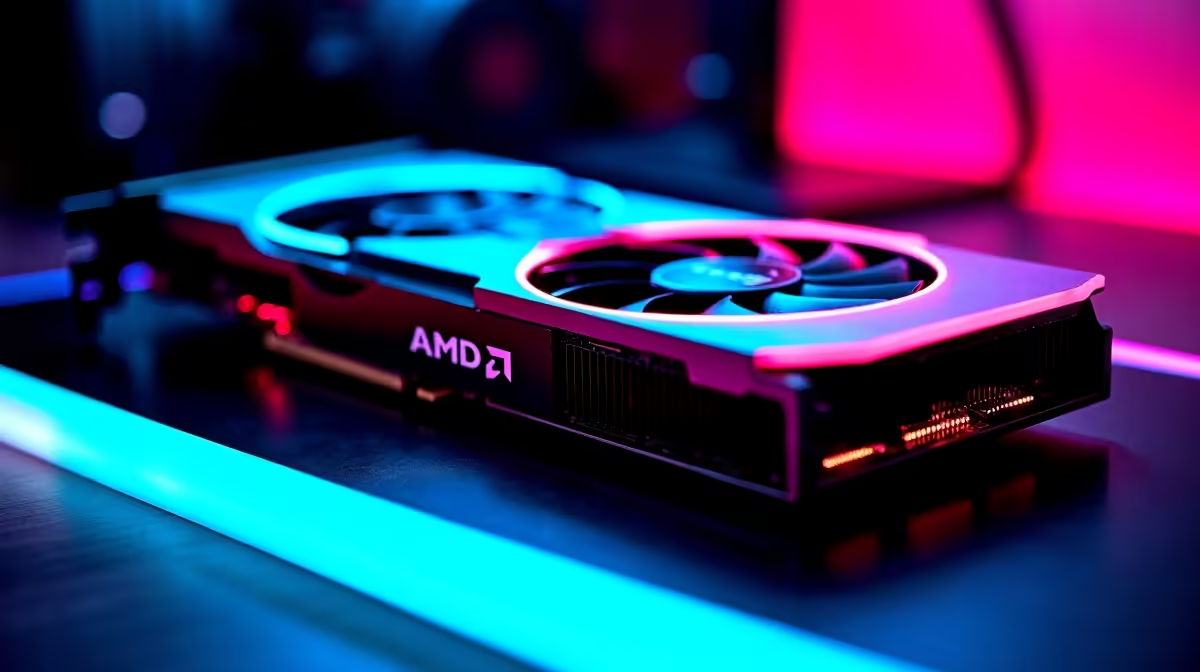
You just dropped a solid chunk of ZAR on a beastly new GPU. You boot up, ready to push those frames... only to find your graphics driver has vanished. If you need an RX 7800 XT driver rolling back on restart solution, you are not alone. Windows Update has a nasty habit of overwriting AMD software. Let us fix this frustrating loop so you can get back to gaming.
Why Your RX 7800 XT Driver Keeps Rolling Back
The root cause of this headache is usually Microsoft Windows. The operating system thinks it knows best. It quietly downloads an older, certified driver in the background and installs it over your shiny new AMD Adrenalin software.
Whether you built your rig from scratch or snagged one of the best gaming PC deals available, Windows treats automatic driver updates exactly the same way. When you restart your PC, the system applies the older Windows Update driver. This creates a version mismatch with your Adrenalin control panel... leaving you with error messages and terrible gaming performance.
The Step-by-Step RX 7800 XT Driver Rolling Back Solution
To break this cycle, we need to stop Windows from interfering and then perform a clean installation. Even if you bought one of our optimized pre-built PC deals, you still need to tweak this specific Windows setting manually to retain control over your GPU.
Step 1: Disable Automatic Driver Updates ⚡
First, press the Windows key and search for "Advanced system settings". Click on the Hardware tab, then select "Device Installation Settings". Choose "No" when asked if you want to automatically download manufacturers' apps and custom icons. Save your changes. This stops Windows from sneaking in older drivers behind your back.
Step 2: Wipe the Old Files Clean
Next, you need to remove the corrupted files. While mobile gamers browsing notebooks for sale in South Africa face similar software quirks, desktop users must rely on a tool called Display Driver Uninstaller (DDU) to wipe the slate completely clean. Download DDU and extract it to a folder on your desktop.
Safe Mode is Crucial 🔧
Always boot Windows into Safe Mode before running DDU. This prevents background processes from locking the display files, ensuring a completely clean wipe of those stubborn old AMD files.
Step 3: Reinstall AMD Adrenalin 🚀
Once DDU has finished and restarted your PC, head directly to the official AMD website. Download the latest Adrenalin edition for your specific card. Installing fresh drivers on a clean system is the ultimate RX 7800 XT driver rolling back on restart solution. It guarantees your hardware runs at peak performance... leaving you more time to browse our epic daily specials rather than troubleshooting software bugs.
Preventing Future AMD Software Clashes
To keep your system stable, always check your optional updates in Windows. Never select the AMD display driver from the Windows Update list. Always use the Adrenalin software to pull your updates directly from the source.
The RX 7800 XT is an absolute powerhouse for 1440p gaming. However, if you are currently battling these software clashes on an older, failing GPU... it might be the perfect time to buy graphics cards that actually match your performance needs. Upgrading your hardware is often the best way to leave legacy driver issues in the dust.
Ready for a Hassle-Free Upgrade?
Dealing with software bugs is frustrating, but your hardware should never hold you back. Whether you are hunting for a massive GPU upgrade or a completely new rig, Evetech has you covered with the best prices in South Africa. Explore our massive range of PC component specials and find the perfect hardware to conquer your next gaming session.