The new M.2 SSD appears in BIOS, but the older disk is gone. If a SATA drive disappears after installing M.2, check the motherboard's storage map before removing the new drive or letting Windows initialise anything.
Quick Answer
Some boards disable specific SATA ports when an M.2 socket is occupied. Read the storage table and move the older drive to a supported port with the PC disconnected. Evetech listed an ADATA SU650 512GB SATA SSD at R1,499 on 22 November. Test the port before replacing the drive.
🗺️ Find the socket and port labels
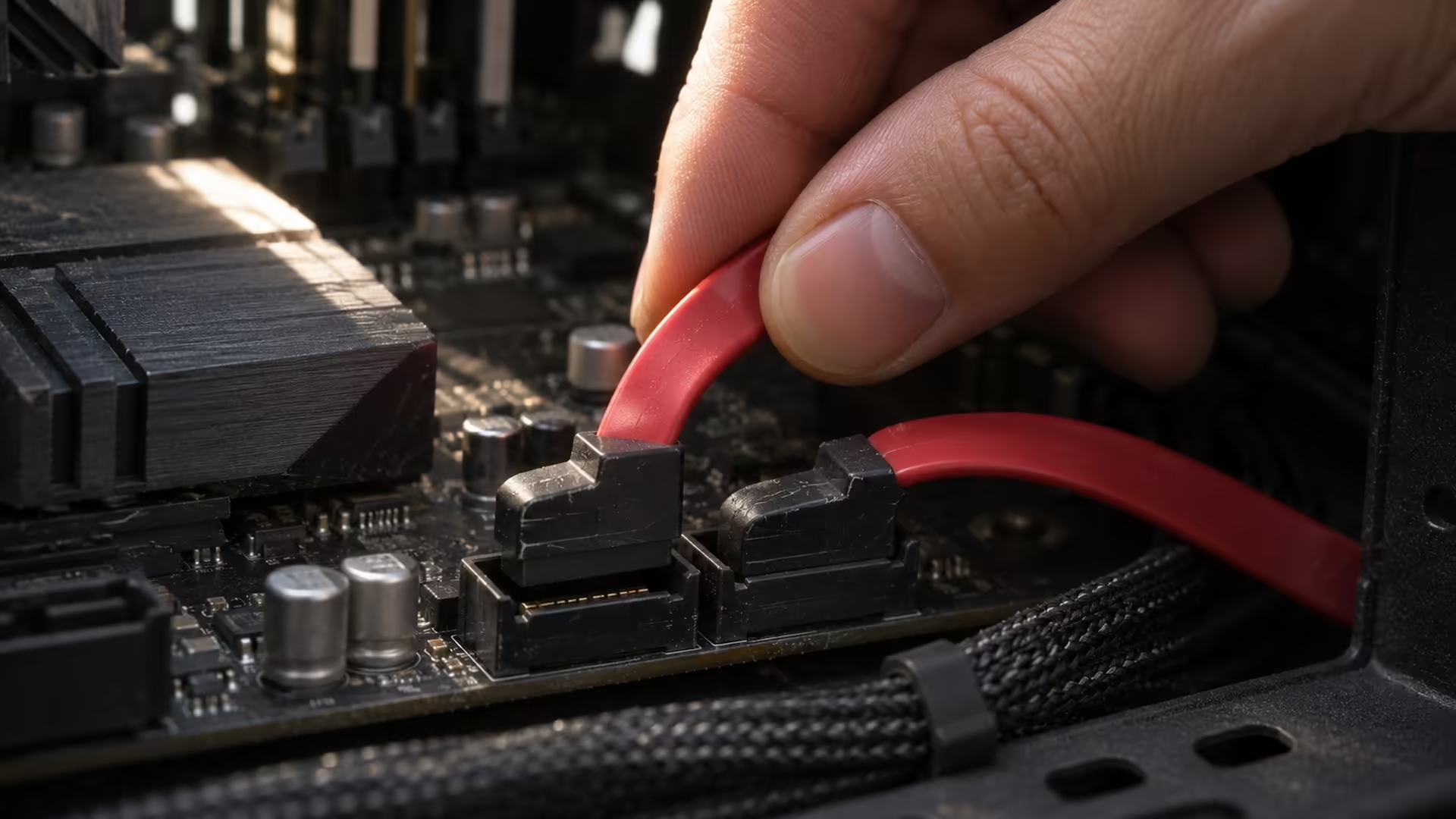
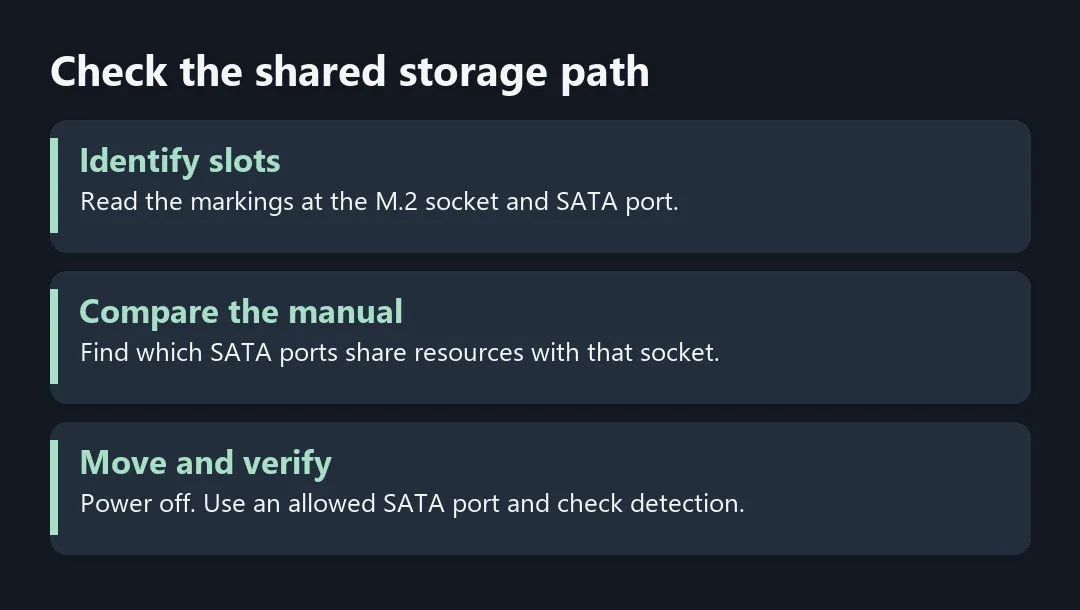
Look for the exact model and revision printed on the board. Open its manual at the storage table or the notes beside the motherboard layout. Write down the M.2 socket name and the SATA port number where your data cable sits. Physical proximity does not tell you which ports share resources. Two SATA connections next to each other can behave differently with a particular M.2 socket occupied.
MSI shows how this works with an example in which SATA2 is unavailable after an M.2 SATA module is fitted. On other boards the affected port may be different, or the rule may depend on the type of drive fitted. Check your own board's manual before choosing the replacement port.
🔌 Move and verify one connection
Shut down, disconnect the PC from mains power, then move the SATA data cable to an available port. Leave the drive's power cable in place if it is secure. Look for the drive in BIOS first. Confirm its model and capacity before changing anything in Windows. If it is still missing, inspect the data cable and power connection separately, using a known working cable if you have one.
If the drive carries a boot installation, check the boot entry after the move. A change in boot priority can look like a missing drive to someone who only watches Windows start. If the disk appears but the files remain inaccessible, stop before initialisation or formatting. Identify the correct drive and back up accessible data before further changes.
💾 Reserve compatible ports before upgrading
Check the storage layout on All Motherboards when you plan to keep several SATA drives and add M.2 storage. Count the ports you can use with all the slots populated as intended. If you need a new disk anyway, compare Internal SSDs with the interfaces you have left. The R1,499 ADATA example is a dated SATA price reference.
If the old drive returns and its files read normally on a supported port, keep the drive and note the port number on the case or in your build notes.
Frequently Asked Questions
Does installing M.2 erase a SATA drive?
Sharing a port can make a drive invisible without changing its contents.
Are all SATA ports disabled by an M.2 drive?
It depends on board layout, the chosen socket and sometimes the drive type.
Where do I find the exact shared-port list?
Look for the storage specification or lane-sharing notes in the manual for the exact board.
What if the drive is missing in BIOS?
Check shared ports, power and the data cable before opening disk tools.
Can I move the SATA cable?
With the PC shut down and disconnected, move it to an available port specified by the manual.
Should I initialise the disk when Windows asks?
Do not initialise or format an existing drive while investigating missing data.
Check the shared storage path
Check the board's shared ports before replacing or formatting a SATA drive. Compare compatible options at Evetech.