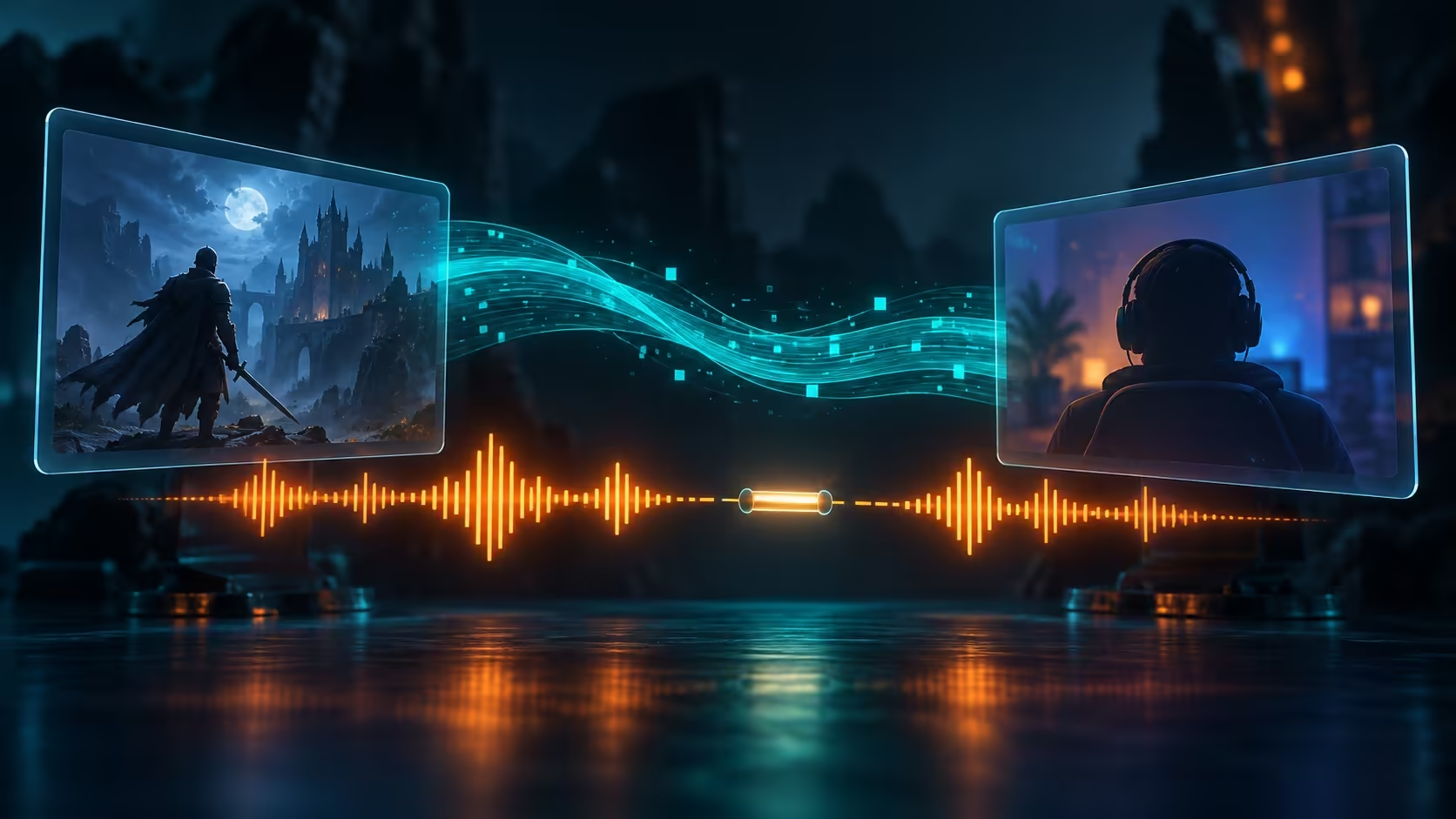
The stream looks smooth, the controls respond, and the game is completely silent. Steam Remote Play no sound is easier to diagnose when you stop treating the picture and sound as one signal. Test the host, the stream and the receiving device separately before blaming the headset or buying a faster router.
Quick Answer
Confirm that the game has sound on the host PC, then check audio streaming and the receiver's output. For Steam Link, Valve also recommends testing Stereo when a game's speaker configuration causes trouble. These checks cost R0 in new equipment; a Marvo Akari 50 wired headset was listed at R199 on 25 September 2026 only as a local fallback comparison.
🔊 Prove each endpoint works alone
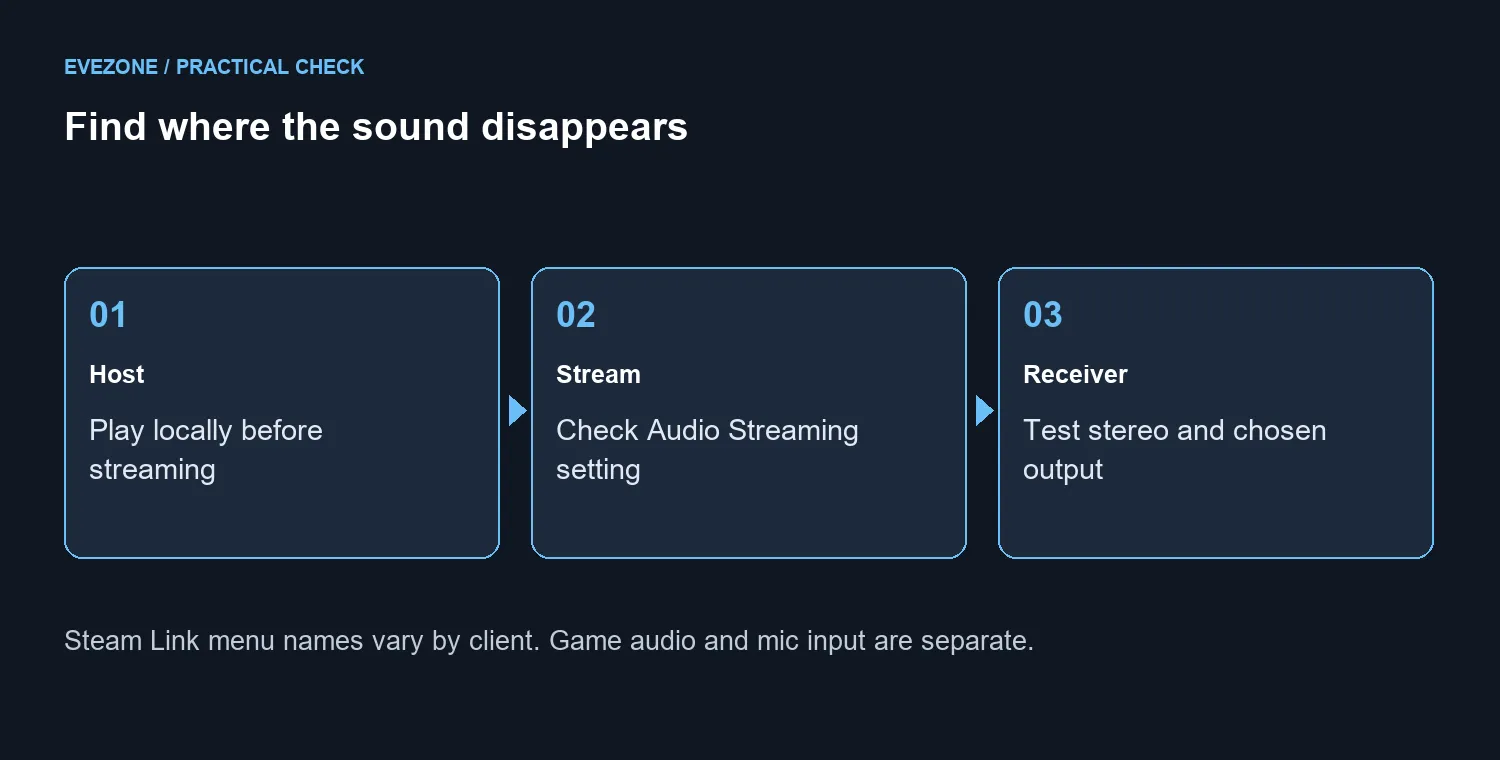
End the stream and play a familiar sound on the receiving device. Then check the game locally on the PC that runs it. Keep a short note of which test is silent. If the host itself has no game audio, changing the receiver's volume is unlikely to answer the underlying problem. If the receiver cannot play anything, investigate that device before changing the PC.
Borrowing a known-working headset is a useful comparison when the selected output is uncertain. Browse gaming headsets after that test establishes a hardware need, rather than replacing a pair that works correctly outside streaming. Remember that the game speaker output and the microphone input are separate: fixing one does not automatically repair the other.
📡 Inspect the stream's audio path
When Steam Link's menu has sound but the stream does not, Valve points to Audio Streaming and the host's default playback device. On the Steam Link interface, review the streaming settings and its advanced options to confirm that audio streaming is enabled. Client menus vary, so use the option names appropriate to the device rather than expecting an identical screen on every platform.
On the host, review the selected playback device in Windows sound settings. Note the current selection before changing it, then reconnect and test. Move through one output at a time. This preserves a clear route back to your original configuration and helps distinguish a capture problem from a receiver that is simply listening to the wrong output.
🎚️ Narrow a game-specific failure
If only one game is silent, try Stereo in Steam Link's audio speaker configuration and review that game's sound options. Retest another title as a control. Do not change network hardware merely because audio is absent: a routing or speaker-mode problem can remain silent even on a fast connection.
Save the working combination of host output, client speaker mode and game settings. If nothing changes, that record makes a support request much more useful than saying only that streaming is broken. The headset best sellers can help with a confirmed replacement need, but the R199 example is not a guaranteed cure for a software route. Keep the purchase decision separate from the diagnosis.
Frequently Asked Questions
What should I test first?
Stop streaming and check that the game produces sound on the host PC. Then test audio on the receiving device separately.
Why does the menu have sound but the game does not?
The stream uses a different audio path. Check audio streaming and the host playback configuration before replacing speakers.
What speaker setting is a useful test?
Valve recommends trying Stereo for Steam Link games with speaker-configuration problems.
Should I buy a new router immediately?
No. A missing audio route can persist on a fast network. Diagnose sound settings before attributing silence to bandwidth.
Buy for a confirmed listening need Explore Evetech headsets when endpoint tests identify a real replacement need, with compatibility checked first.