Pressing F12 without hearing a capture sound can make a working keyboard look broken. Steam screenshot not working needs a more careful test: did the key reach Steam, was capture available in that game, and was an image saved without an obvious notification? Answer those questions before reinstalling drivers or replacing the keyboard.
Quick Answer
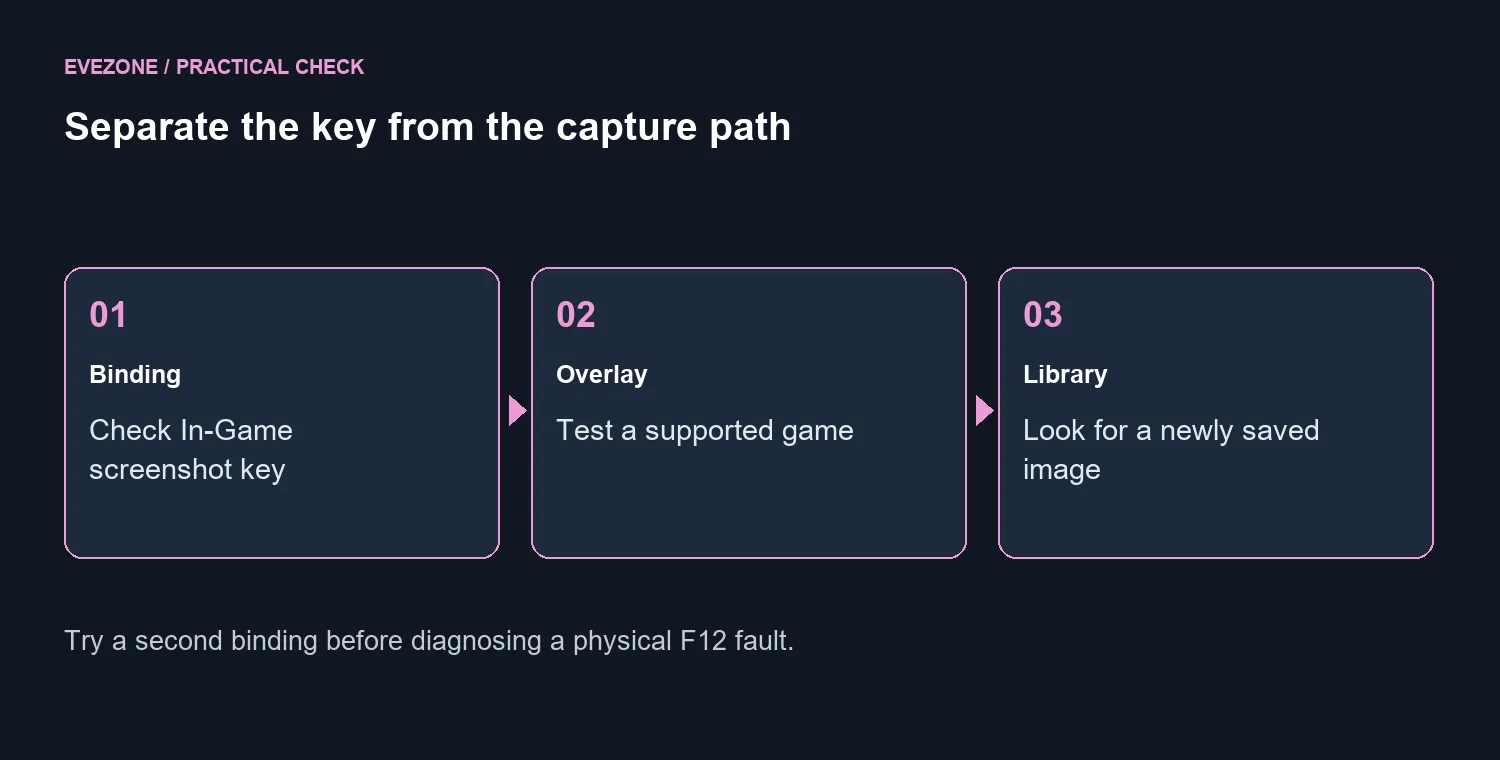
Check the screenshot binding in Steam's In-Game settings, test a different shortcut and inspect the screenshot library. F12 is the default, but the binding is configurable and overlay support matters. Start with an R0 settings test; the Logitech K120 was listed in stock at R129 on 25 September 2026 as a basic local hardware comparison, not the first fix.
⌨️ Test the command before the switch
Open Steam settings and inspect the screenshot shortcut rather than assuming it is still F12. Temporarily assign an unused key, return to a game that supports capture and try again. Keep the old binding written down. If the alternate shortcut works, you have narrowed the problem without changing anything about the game's graphics or the PC's storage.
On a keyboard with a function layer, the labelled F12 position may send a different command in its current mode. Check the keyboard's own instructions and try its required function combination. A compact layout is not automatically defective because it reaches function keys differently. Compare gaming keyboards by the controls you need daily only if the physical layout itself is becoming inconvenient.
🖼️ Separate capture from notification
Steam's screenshot feature works through the overlay, while developers can also integrate screenshot behaviour through Steamworks. Test whether the overlay works in the affected game, and compare with a second title. A fault limited to one game points you towards that game's interaction with capture, rather than immediately proving a broken key.
Look in the screenshot library after the attempt. An image that exists there means capture succeeded, even if the sound or pop-up did not draw your attention. Avoid deleting folders or resetting the whole client just to make a notification reappear. First establish whether the actual image is missing or whether only the expected feedback has changed.
🧪 Make the comparison repeatable
Use one game, one scene and one shortcut for the first test. Then change only the shortcut or only the game. This small sequence helps distinguish a key-layer problem, a particular game's capture support and a general Steam setting. Restore temporary changes once you have identified the cause so the next screenshot does not depend on a forgotten experimental binding.
If the evidence points to a physical key fault, borrow another keyboard before spending money. The R129 catalogue example gives a basic wired replacement a real local price, but it cannot tell you whether your existing switch is faulty. The keyboard best sellers are useful for a planned replacement; they are not a substitute for checking whether Steam already saved the picture you wanted.
Frequently Asked Questions
Which key takes a Steam screenshot by default?
F12 is the default. Steam lets you change the screenshot shortcut in its In-Game settings.
Does the Steam overlay matter?
Yes. Steam screenshot capture relies on overlay support unless the game supplies its own screenshot integration.
What if F12 changes volume or another laptop function?
Check the keyboard function layer and try a different Steam screenshot shortcut to isolate the key mapping.
Does no notification prove that capture failed?
No. Check the screenshot library for the latest image before changing hardware or reinstalling anything.
Find the layout that suits your hands Browse Evetech keyboards once shortcut testing separates a software setting from a hardware limitation.