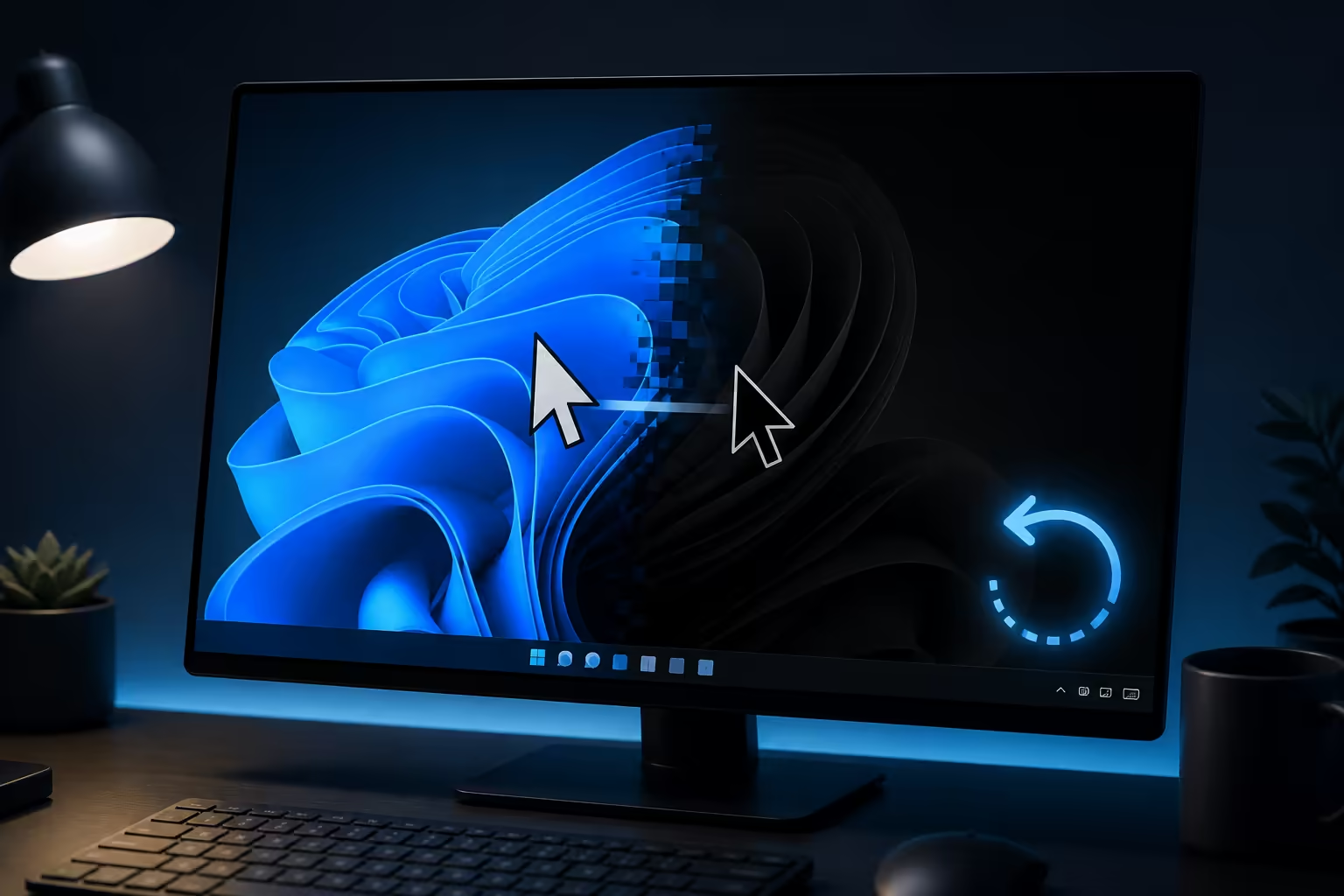
Microsoft has confirmed a Windows 11 problem in which mouse pointer personalisation can revert after installing the optional KB5120998 preview update. Separate user reports also describe desktop wallpaper turning black. The symptoms are disruptive, but they do not show that personal files have been deleted or that the mouse hardware has failed.
Quick Answer
If KB5120998 changed the cursor or wallpaper, first restore the preferred settings and restart. If the settings revert again, remove the optional preview update through Windows Update history, then pause optional previews until Microsoft provides a resolution. The issue is associated with Windows 11 versions 24H2 and 25H2. Unaffected systems do not need an automatic rollback.
Confirm the update before changing anything
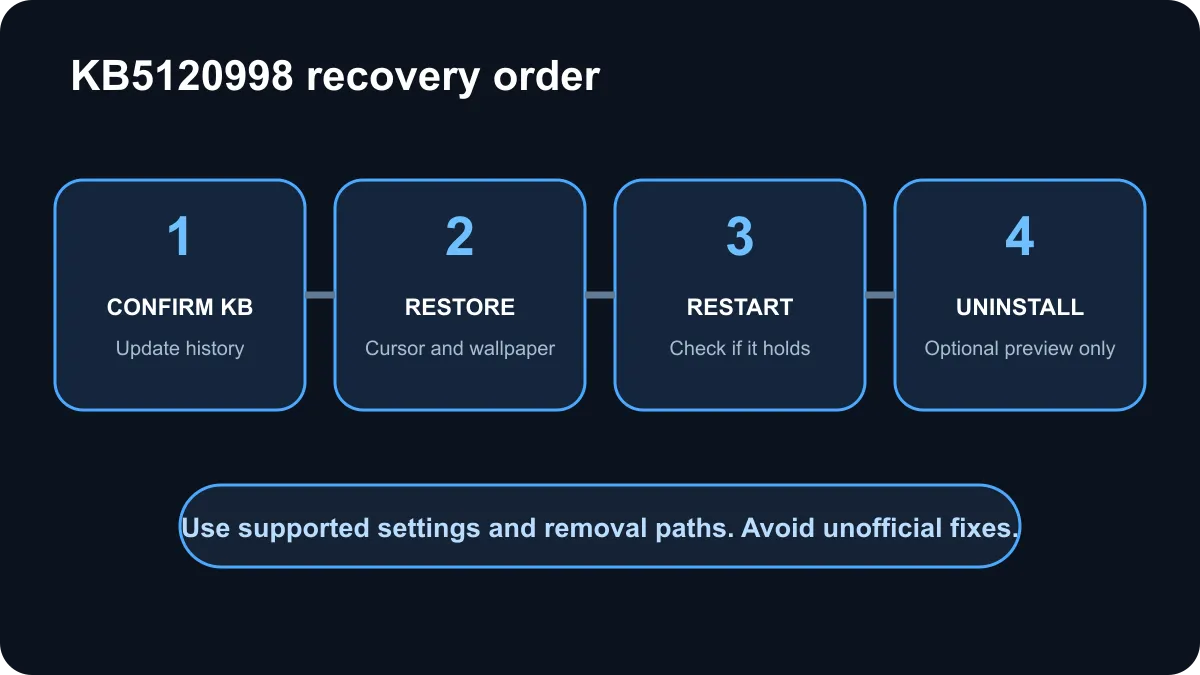
Open Settings, select Windows Update, then Update history. Look for KB5120998 in the recent quality updates. Record the installation date and the exact symptoms. A black desktop background can have other causes, including a missing image file, a theme change or a graphics-driver reset, so the update history gives the recovery process a firm starting point.
This is a new service problem in the same thread as the earlier KB5120998 feature preview. The earlier release introduced desktop controls; the current development is Microsoft's acknowledgement of a pointer personalisation regression.
Restore settings first
For the pointer, open Settings, go to Accessibility, then Mouse pointer and touch. Reapply the preferred style, colour and size. For the wallpaper, open Personalisation, then Background, and select the original picture or theme again. Restart the PC and check whether both settings remain.
This first step is reversible and preserves the rest of the update. It is the right response when the symptom happened once and the system is otherwise stable. Do not run registry cleaners or download an unofficial fix. The confirmed issue concerns personalisation state, so start with the supported settings pages.
Remove the optional preview if the problem returns
If the cursor or wallpaper resets again, return to Windows Update, open Update history, then Uninstall updates. Select KB5120998 and follow the supported removal process. Save open work before restarting. Because this is an optional preview update, waiting for the next cumulative release is a reasonable recovery choice for an affected PC.
Do not remove unrelated security updates. Confirm the KB number before selecting anything, and keep a note of the error in case the system needs further support. If the uninstall option is unavailable or the PC cannot start normally, use Windows Recovery options rather than forcing repeated shutdowns.
The Windows operating-system range is relevant when checking supported editions for a build, but this bug does not create a reason to buy a new Windows licence.
What unaffected users should do
If KB5120998 is installed and the cursor, wallpaper and desktop remain stable, there is no need to uninstall it pre-emptively. Watch Windows Update and Microsoft's release-health note for a resolution. Optional preview updates are designed to expose changes before the next broader cumulative release, so cautious users can simply avoid installing optional previews on a primary gaming PC.
For a new system, use current gaming PC deals or budget gaming PCs to compare hardware. A software personalisation bug should be repaired through Windows, not blamed on a new mouse, monitor or graphics card without evidence.
Frequently Asked Questions
What does KB5120998 break?
Microsoft confirms mouse pointer personalisation can revert, while user reports also describe desktop wallpaper becoming black.
Which Windows versions are affected?
The issue is associated with the optional preview update for Windows 11 versions 24H2 and 25H2.
Does a black wallpaper mean files are gone?
No. It is a display or personalisation symptom, not evidence that personal files were deleted.
What should users try first?
Reapply the preferred cursor and wallpaper settings, then restart and check whether they remain.
Can the update be removed?
Yes. Affected users can uninstall the optional preview through update history if restoring settings does not hold.
Should unaffected users uninstall it?
Not automatically. If the system is stable, wait for Microsoft's resolution and the next cumulative update.
Planning a stable Windows gaming setup?
Keep optional previews off primary machines, record update numbers and use supported recovery steps when a regression appears.