A fresh Windows 11 test found the full Weather app using more than 1.2GB of memory while open. Task Manager showed eight Chromium-based WebView2 processes behind the app. That is an unpleasant result for a simple forecast, but it is not proof that every Windows PC permanently loses 1.2GB to the weather icon.
Quick Answer
Open Task Manager and reproduce the problem on your own PC before changing anything. If the Weather app is using excessive memory, close it and compare the reading again. Turn off taskbar Widgets or uninstall the Weather app through normal Windows settings when you do not use it. Do not run unsupported removal commands or buy more RAM before confirming the app is the real pressure point.
What the test actually measured
The reported result concerns the full MSN Weather app after it was opened. The test observed up to about 1.2GB of memory use and found eight WebView2 subprocesses. The app is effectively presenting web content inside a Windows shell, including detailed forecasts, maps and advertising.
That distinction matters. The taskbar weather icon and the opened app are related, but they are not automatically the same memory load. Windows versions, app updates, location data and the pages loaded can change the number. Treat 1.2GB as a reproducible example, not a fixed specification.
The app can still provide useful information: hourly conditions, precipitation, air quality and radar. The issue is whether that convenience deserves the resources on your machine. A desktop with 32GB may never notice. An 8GB laptop running a browser, chat app and game launcher can feel the difference quickly.
Check your own PC in two minutes
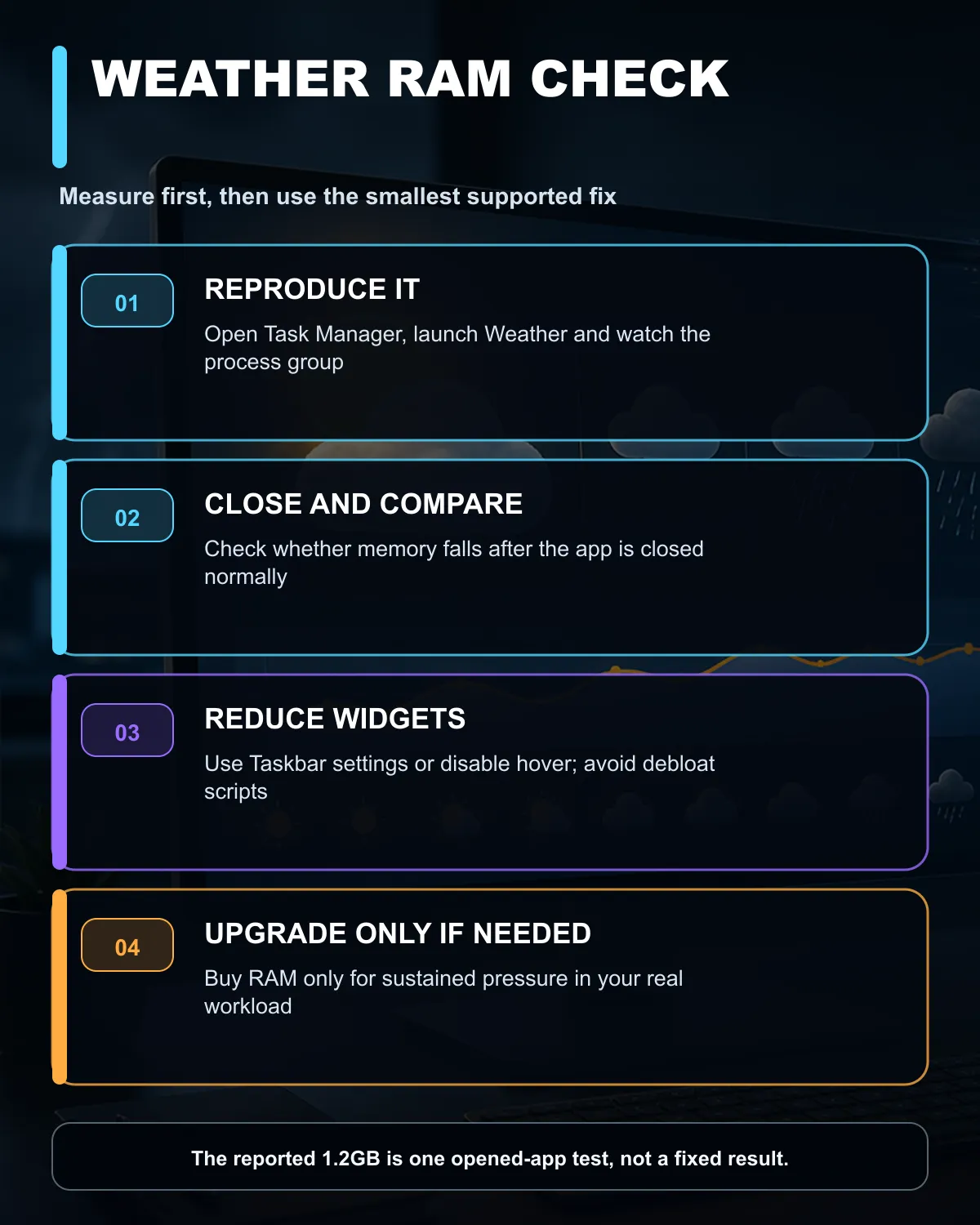
Press Ctrl+Shift+Esc to open Task Manager. Select Processes, then sort by Memory. Open Weather and use the same screens you normally view. Watch the Weather or WebView2 process group for a minute, then close the app and check whether the number falls.
Do not end every WebView2 process indiscriminately. Other Windows features and applications use the same runtime. Identify the process group associated with Weather, and use the normal close button first.
Repeat the check after a restart if the reading looks abnormal. An app update, stuck page or background task can produce a one-off spike. The goal is to find a consistent problem that affects the way you use the PC.
Reduce Widgets without risky tweaks
Microsoft provides a supported way to hide Widgets from the taskbar. Right-click the taskbar, open Taskbar settings and switch Widgets off under Taskbar items. This removes the live taskbar entry, although Windows+W can still open the Widgets board.
If hover activation is the annoyance, open the Widgets board, select Settings and turn off "Open Widgets board on hover." Individual cards can also be unpinned or hidden. These steps reduce accidental openings without changing system files.
To remove an app, use Start > All apps, right-click the app and choose Uninstall, or open Settings > Apps > Installed apps, find the entry and select More > Uninstall. Some built-in apps cannot be removed in a particular Windows version. Accept that boundary instead of downloading an unknown debloat script.
When more RAM is still the right fix
One inefficient app can expose a capacity problem without being the only cause. If Task Manager shows memory staying near full during the games and applications you use, an upgrade may help. Check whether the PC has replaceable memory, how many slots are free and whether it uses DDR4 or DDR5.
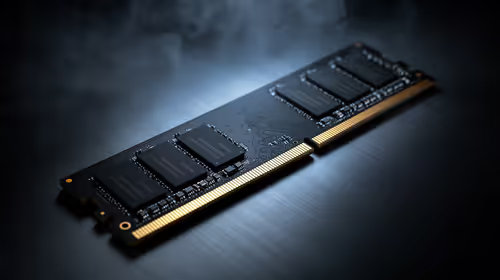
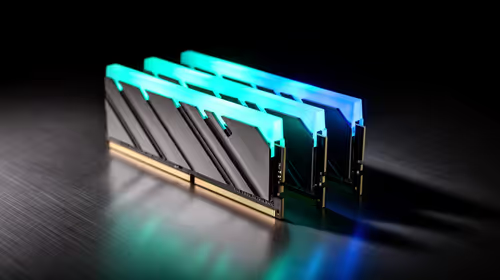
The DDR4 memory range suits compatible older desktops, while the DDR5 memory range belongs to newer DDR5 platforms. The two generations do not fit the same slot. A laptop may use soldered memory and offer no upgrade at all, so verify the exact model first.
A current laptop range is relevant only when the whole machine no longer meets the workload. Replacing a working computer to compensate for one app is usually the wrong first move.
A sensible order of fixes
First, measure the app. Second, close or disable the feature you do not need. Third, update Windows and the app through their normal channels. Fourth, check total memory pressure during a real workload. Only then decide whether the PC needs more RAM.
This order keeps the fix proportional. It also avoids turning a software annoyance into an unnecessary hardware purchase. If the machine has enough capacity and Weather is the only offender, removing or ignoring that app solves the practical problem.
Frequently Asked Questions
Does Windows Weather always use 1.2GB of RAM?
No. That is a measured example from one test of the opened app, not a guaranteed figure for every PC.
How can I check Weather memory use?
Open Task Manager, sort Processes by Memory, launch Weather and compare the process group before and after closing it.
Can I remove Widgets from the taskbar?
Yes. Right-click the taskbar, open Taskbar settings and switch Widgets off under Taskbar items.
Can I uninstall the Weather app?
Use Start > All apps or Settings > Apps > Installed apps. Some Windows builds may not allow removal of a built-in app.
Should I end every WebView2 process?
No. Other apps use WebView2. Close Weather normally and identify its process group before ending anything.
Should I upgrade RAM because of this report?
Only when Task Manager shows sustained memory pressure in your real workload after unnecessary apps and widgets are closed.
Is an 8GB or 16GB Windows PC feeling crowded? Measure the apps using memory first, remove avoidable background load, then confirm the memory generation and upgrade path before buying hardware.