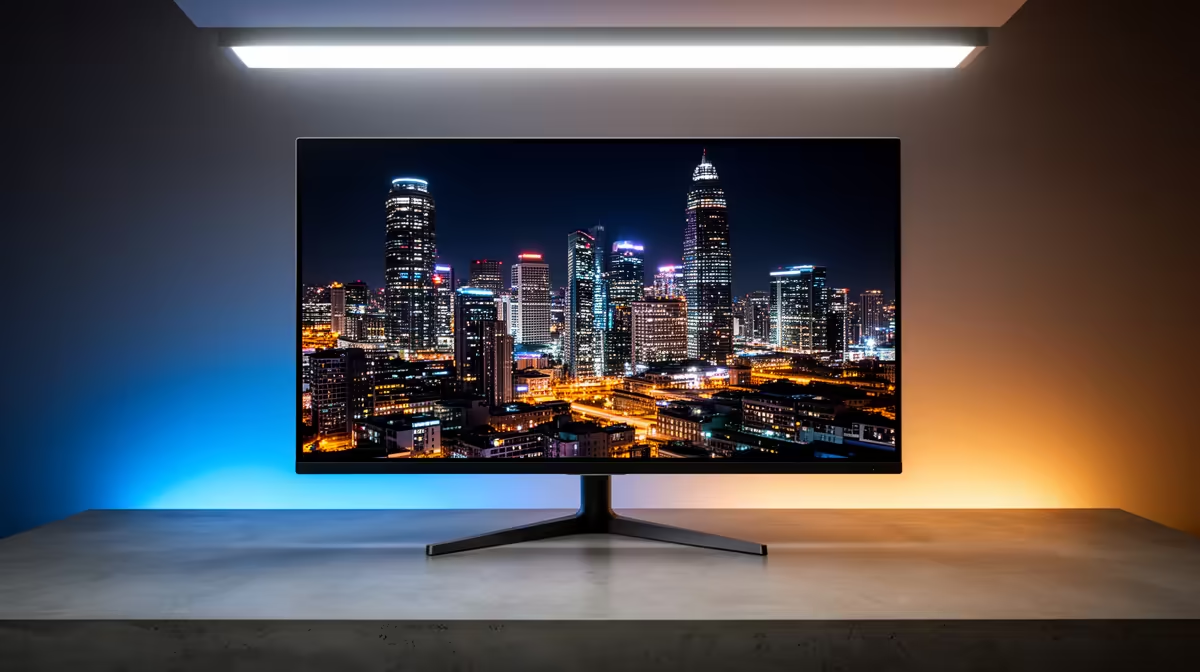
So, you’ve just unboxed your brand-new OLED monitor. The promise of perfect, inky blacks and colours that pop off the screen is thrilling. But after plugging it in, you’re… underwhelmed. The picture looks washed out, or maybe it’s searingly bright. The truth? Default settings rarely do these incredible panels justice. This guide will walk you through finding the best OLED monitor settings to unlock the jaw-dropping visual fidelity you paid for. Let's get it dialled in. ✨
Why Default OLED Settings Aren't Good Enough
Manufacturers ship displays in a "one-size-fits-all" mode, often cranked up to look impressive under the harsh fluorescent lights of a retail store. This is far from ideal for your gaming setup at home. Achieving the best OLED monitor settings requires a personalised approach because every panel has slight variations, and your room's lighting plays a massive role.
Before you even open the on-screen display (OSD) menu, make sure Windows is correctly configured. Search for "Display settings," click on your OLED monitor, and toggle on "Use HDR." This is the first critical step. From there, we can dive into the monitor’s own menu to fine-tune the experience. The world of PC monitors can be complex, but a few key adjustments make all the difference.
Dialing In The Best OLED Monitor Settings: A Step-by-Step Guide 🔧
Getting your OLED customization right involves a few core settings. Forget presets like "Cinema" or "Vivid" for a moment. We're going to build your perfect picture from the ground up using a manual or custom mode.
OLED Pixel Brightness & Contrast
This is the most important setting. Unlike LCDs, "Brightness" on an OLED controls the light output of the pixels themselves, not a backlight.
- For SDR content (most websites, older games): Start with a brightness level that's comfortable for your eyes in your typical lighting conditions. A value between 100-150 nits is a common target, which often corresponds to a setting of 40-60 in the OSD.
- For HDR content: The monitor will automatically manage this to hit peak brightness highlights.
- Contrast: This controls the white level. A setting around 90-95 is usually the sweet spot, providing punchy whites without crushing detail.
Colour & Gamma
Accurate colour is what makes an OLED panel sing.
- Colour Temperature: Aim for "Warm" or 6500K. This is the industry standard for colour accuracy and prevents the image from looking too blue or "cool."
- Gamma: For SDR, Gamma 2.2 is the universal standard. Anything else will make the image look either washed out or too dark. HDR content uses a different curve (ST.2084), which the monitor handles automatically in HDR mode.
Sharpness
This one is simple: less is more. Most monitors add artificial "sharpening" that creates ugly white outlines around objects. Find the setting that results in no added sharpening. This is often a value of 0 or 50, depending on the manufacturer. This principle applies across all our gaming monitors, not just OLEDs.
Optimising Your OLED for Gaming Dominance 🚀
Once your base picture is set, it's time to optimise for gaming. The right OLED monitor settings can give you both a competitive edge and an unparalleled immersive experience.
First, run the Windows HDR Calibration app. This free tool from the Microsoft Store creates a custom colour profile for your specific display, ensuring games look exactly as their developers intended.
Next, explore game-specific features. Many OLEDs have a "Black Stabilizer" or "Shadow Boost" setting. While cranking this up can make it easier to spot enemies lurking in dark corners in competitive titles, it will also ruin the perfect black levels for cinematic games. Create a separate picture profile for competitive play and another for story-driven experiences. The immersion you get from a perfectly calibrated panel, especially on widescreen curved monitors, is simply incredible.
Check Your Black Levels ✨
Use an online test pattern like the Lagom LCD test pages. The "Black Level" test is perfect for this. On a properly calibrated OLED, you should be able to distinguish every dark grey square from the pure black background. If the first few squares blend into black, your brightness might be too low or your black stabilizer is set too aggressively.
Essential OLED Care: Preventing Burn-In
The fear of "burn-in" or permanent image retention is a common concern. While modern OLEDs have sophisticated protection features, a few good habits will ensure your display lasts for years.
- Enable Pixel Shifting: Most OLED monitors have this feature, which subtly moves the entire image by a few pixels periodically to prevent static elements from "burning" into one spot.
- Hide Your Taskbar: Set the Windows taskbar to auto-hide. It's one of the most common sources of static imagery.
- Use a Screen Saver: Set your screen to turn off after 5-10 minutes of inactivity. A simple black screen is the most effective screen saver.
- Vary Your Content: Simply using your monitor for different tasks—gaming, browsing, watching videos—is one of the best ways to prevent burn-in.
These simple steps are crucial for protecting your investment, whether it's a large desktop display or one of the newer portable monitors hitting the market. The pixel-level precision is especially noticeable on the stunning 4K monitors where static UI elements are more common.
Your Perfect Picture Awaits
Don't let your premium hardware go to waste with subpar factory settings. By taking 20 minutes to follow this guide, you can configure the best OLED monitor settings for your specific panel and environment. The result is a richer, more accurate, and more immersive visual experience for everything you do.
Of course, achieving picture perfection starts with choosing the right panel in the first place. Once you know what to look for, finding the hardware is the easy part, especially when you can find some of the best PC monitor deals right here in South Africa.
Ready to Experience True OLED Brilliance?
Getting the settings right is half the battle; the other half is choosing the perfect panel for your needs. Explore our massive range of PC monitor deals and find the perfect screen to conquer your world.