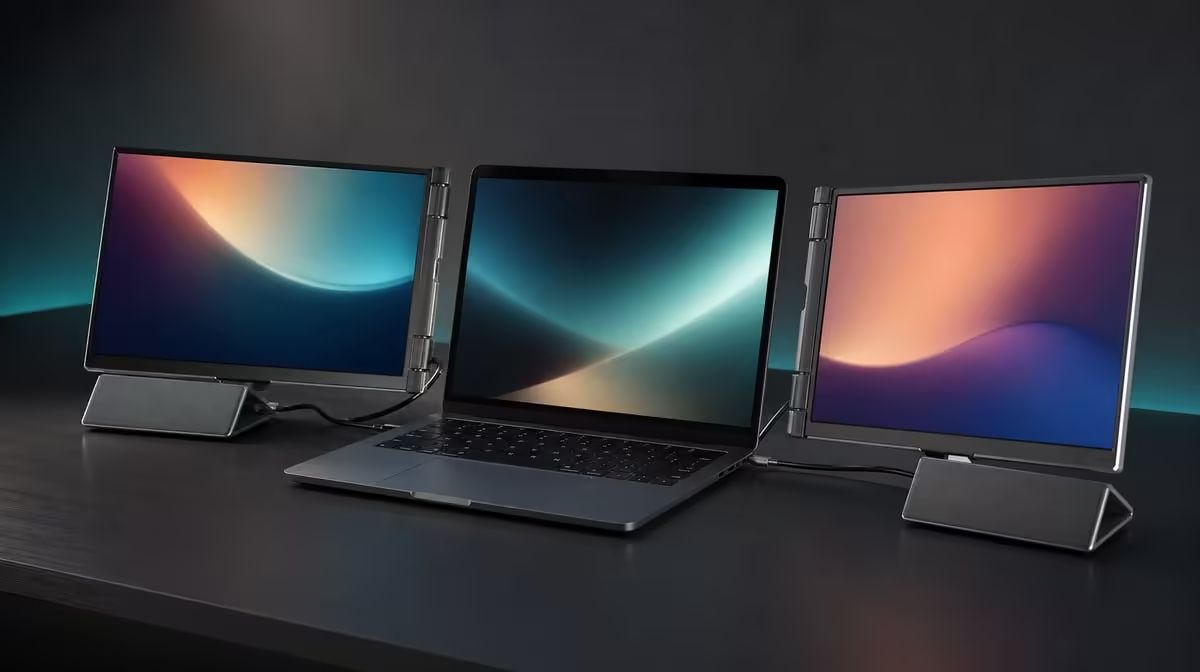
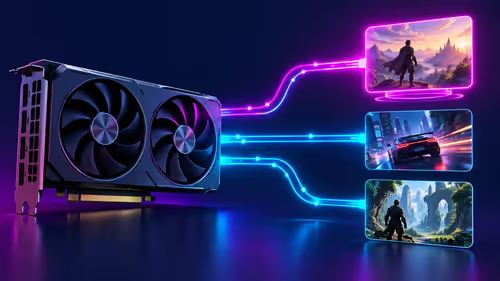
QHD dual touchscreens combine high-detail viewing with direct input, so neither the picture nor the touch layer can be evaluated alone. This guide to QHD dual touchscreen monitors uses the Delta Pro Touch to connect laptop output, readable scaling, app support, colour, movement and physical stability.
Quick Answer
Confirm that the source drives both 2560 x 1600 panels, then map touch, test supported gestures and verify pressure inside the intended application. At R11,999, the Delta adds 100% sRGB, gravity-sensing rotation and an ergonomic stand, creating a specialist workstation whose full value depends on compatible work.
🖥️ Configure the two QHD displays
Place the Delta beside the laptop and identify every active screen. Set both 16-inch panels to their native 2560 x 1600 output, then arrange the desktop rectangles to match the physical layout. Move a labelled window across all boundaries.
Choose scaling through the text, menus and touch targets used daily. QHD can retain fine rendering while presenting a larger interface. Reducing resolution should not be the first response to controls left too small.
Evetech's portable-monitor selection gives buyers alternatives for expanding a laptop, but the same source and project should be used for every comparison.
Assign screen roles
Put the primary document, canvas or model on one panel and tools, preview or source material on the other. Use the built-in panel only for a defined third job.
Work for a representative block and count window switches, pointer travel and any need to lean closer. Two screens provide useful area only when their arrangement remains readable and comfortable.
Test source performance
Start with a quiet desktop, then open applications in stages. Observe responsiveness while windows, media and touch input span the panels. Close live content that the task does not need.
Save the stable arrangement and repeat after a restart. A high-resolution workstation should recover predictably before it carries important work.
👆 Map the interactive surfaces
Open a simple canvas on the first panel. Tap the centre, corners and edges, then draw straight lines. Repeat on the second screen. Correct input assignment without disturbing a visual layout that is already accurate.
Add multi-finger actions only in software that visibly supports them. Ten-point control describes contact capacity; the application decides which gestures have meaning.
Separate fingers from pressure
Use fingers for navigation and selection, then choose a compatible tool for a pressure-aware control. Compare light and firmer strokes on both panels.
Do not infer a particular included pen or a number of pressure levels. Preserve the demonstrated application-and-tool behaviour as the useful evidence.
Check edges after window movement
Move the app to the other QHD panel and repeat its touch sequence. Drag near the screen boundary and watch for an unexpected jump. This catches assignments that work only in the first opening position.
Increase application zoom where small controls cause missed input. Interface density and touch accuracy should not be confused.
Build a safe application test
Use a disposable file for unfamiliar multi-contact gestures. Add one finger at a time and record what changes. Move to real work only when the command sequence is predictable.
Repeat after the software or operating system changes. Hardware capability can remain constant while application interpretation moves.
🎨 Match picture capabilities to the task
The Delta's 100% sRGB coverage gives creators a defined gamut for sRGB-oriented output. Gamut coverage is not calibration evidence. View familiar material at sensible brightness and complete the normal export process.
Its 25ms response should be checked with representative motion. A buyer focused on fast competitive play may weight this differently from someone building a detailed interactive editing workspace.
Compare Evetech's PC-monitor category when a fixed screen could satisfy the visual requirement without portable touch.
Use both panels for colour-aware work
Place the canvas or preview on one screen and references, tools or timeline on the other. Move the same image between them under comparable settings and record visible differences.
Keep calibration needs in a separate evidence column. The gamut statement and the creator's workflow observation answer useful but narrower questions.
Adjust brightness to the environment
Open a white page and a familiar sRGB image. Control reflections with angle and position before raising output. Repeat later in the day or at another regular desk.
Save a useful range instead of treating one setting as universally correct. Portable use changes the room around the panels even when their specifications remain the same.
🔄 Test orientation, support and recovery
Shift one screen to a useful angle inside its 180-degree span and let gravity sensing settle. Confirm picture direction, application location and touch mapping. Return to the main arrangement and repeat the check.
Apply normal taps and pressure-aware strokes at the chosen angle. The ergonomic support should remain steady without placing the laptop in an awkward position.
Use Evetech's monitor best-seller page for current comparison context around the R11,999 Delta. Check live availability when buying.
Clear the physical path
Position cables and the laptop so panel movement does not pull a connector or collide with the work surface. Test the full system on the smallest normal desk.
Measure the monitor and its companion equipment directly against the carrying plan, including the intended bag and protection.
Rehearse relocation
Disconnect through the normal routine, move the equipment and rebuild the screen map. Restore native resolution, readable scale and touch assignment before reopening a heavy project.
Time the process and record repeated repairs. Mobility adds value when the working state travels as predictably as the hardware.
Avoid the most damaging setup mistake
Do not change resolution, screen order, input mapping, orientation and app settings simultaneously. Establish a known baseline and alter one layer at a time.
This discipline makes failures diagnosable and protects a correct part of the workspace from being disrupted while another is fixed.
Build a buyer's evidence table
Create columns for dual-image output, readable scale, touch placement, supported gestures, pressure response, sRGB workflow, motion, rotation and stability. Enter a pass, failure or unknown for every shortlisted monitor.
Keep the exact price beside the demonstrated result. An unknown should remain visible rather than being filled with a hopeful interpretation of another specification.
Run a complete acceptance project
Choose a small task that uses the main features being purchased. Configure the laptop, open the project, use both panels, exercise direct input and complete the intended output. Include one orientation change only if the workflow requires it.
Close the applications, restart and restore the project. This end-to-end exercise reveals whether individual successful checks combine into a dependable workstation.
Preserve maintenance references
Save one touch canvas, sRGB image, motion sample and screen-layout note. Reopen them after travel, software updates or unexpected behaviour.
These files create a quick health check without inventing new specifications. A changed result can be traced to the affected layer before the user edits every setting at once.
Frequently Asked Questions
What resolution defines this QHD example?
Each Delta panel runs at 2560 x 1600.
How is interface size controlled at QHD?
Operating-system scale and application zoom enlarge controls while native resolution remains active.
What does 10-point pressure-sensitive touch provide?
It combines multi-contact capacity with separate pressure-aware input for compatible software.
Why is touch mapping part of setup?
The laptop must assign contacts to the screen being touched.
What colour capability serves creators?
Both panels cover 100% of the sRGB gamut.
Why does the stand belong in the guide?
Direct input and rotating panels need stable support at a usable angle.
Ready to configure QHD picture, touch and movement as one system?
Compare Evetech's portable monitors with your laptop, applications and physical work routine mapped from the start.