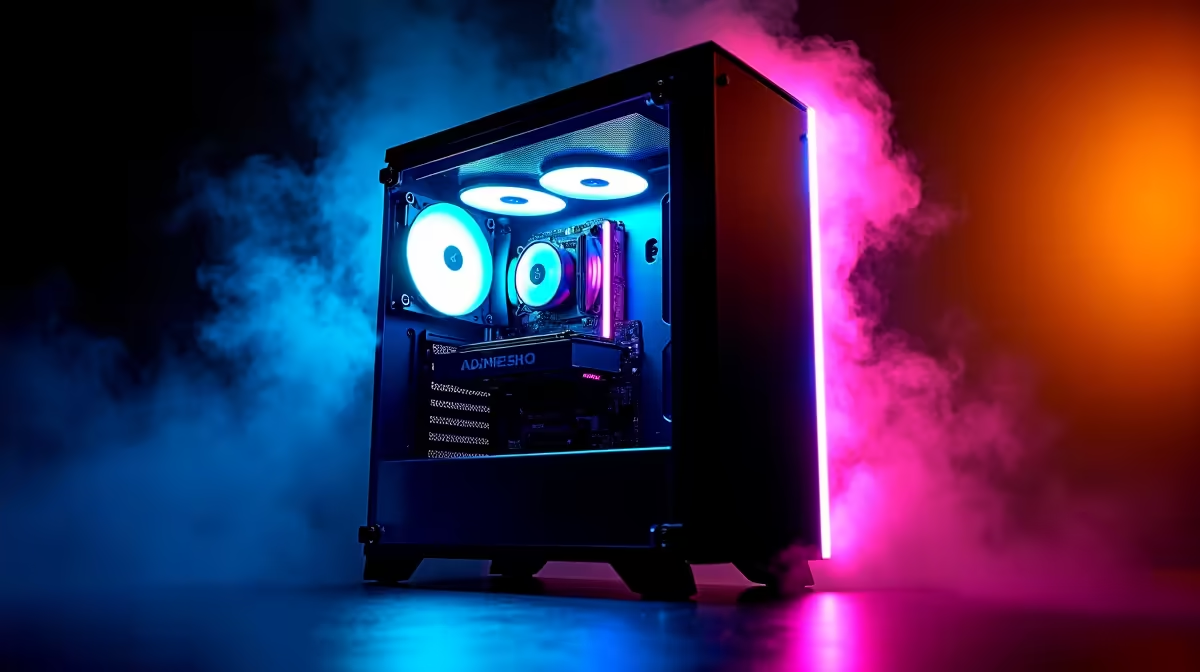
So, the courier just left. That massive Evetech box is sitting in your room, smelling of fresh components and victory. You've unboxed your new beast, but what now? That first week with a new gaming PC is crucial. A proper first week setup for your desktop gaming rig isn't just about plugging it in; it's about unlocking its full potential and ensuring it runs smoothly for years. Let's get your new rig dialled in. 🚀
Day 1: Unboxing and First Boot Essentials
Before you even think about software, let's nail the physical setup. Pop open the side panel (if it's safe to do so) and double-check that everything is seated correctly after its journey… your graphics card, RAM, and cables should all be snug.
Once you're happy, connect your peripherals, plug it into the wall, and hit that power button. Don't load into Windows just yet. Instead, tap the 'Delete' or 'F2' key to enter the BIOS/UEFI. This is your PC's command centre. Here, you want to do two things:
- Confirm all your components (CPU, RAM, SSDs) are detected.
- Enable the XMP (for Intel) or EXPO (for AMD) profile. This simple click ensures your RAM runs at its advertised speed, not the slower default.
This initial check is a vital first step in setting up your new gaming rig, and it applies whether you've found one of the best gaming PC deals or built a monster from scratch.
Days 2-3: Drivers and OS Optimisation
Now for the software foundation. Your PC likely came with Windows pre-installed, which is great for getting started instantly. The next step is updating everything. Run Windows Update repeatedly until it says you're completely up to date.
Next up, graphics drivers. This is non-negotiable for performance.
- For Team Green, head directly to NVIDIA's website to grab the latest GeForce Game Ready Driver.
- For Team Red, AMD's site has the latest Adrenalin Software.
Installing drivers directly from the source ensures you have the latest performance optimisations and bug fixes, which is critical for both top-tier NVIDIA GeForce gaming PCs and powerful AMD Radeon gaming PCs. While you're at it, grab the latest chipset drivers from your motherboard manufacturer's website (e.g., ASUS, MSI, Gigabyte) for maximum stability.
Days 4-5: Installing Your Software Suite
With a stable, updated system, it's time to install the essentials. This is the fun part of your new gaming PC setup. Get your core applications sorted: Steam, Discord, your favourite web browser, and maybe Spotify for those late-night gaming sessions. ✨
This is also the perfect time to personalise your experience. Dive into Windows settings to:
- Set your monitor's refresh rate: A 144Hz monitor is useless if Windows has it set to 60Hz!
- Customise your power plan: Select the "High Performance" or "Ultimate Performance" plan.
- Organise your desktop: A clean desktop is a clean mind.
Whether you're working with a powerful Intel build or one of the latest AMD Ryzen machines, these small tweaks make a huge difference to your daily experience.
Pro Tip: Check Your Refresh Rate!
Don't let your high-refresh-rate monitor go to waste. Right-click your desktop > Display settings > Advanced display settings. Under "Choose a refresh rate," make sure you've selected the highest value your monitor supports. It's one of the most common setup mistakes we see!
Day 6: Stability Testing and Benchmarking
How do you know your new rig is running at 100%? You test it. Stress testing and benchmarking are key parts of any thorough first week setup for a desktop gaming rig. This helps you confirm system stability and establish a performance baseline.
Use free tools like:
- Cinebench R23: A great way to test your CPU's cooling and performance.
- Heaven Benchmark: A classic for stressing your GPU and checking for visual artefacts.
- HWMonitor: Keep this open during tests to monitor your CPU and GPU temperatures.
Pushing your system hard now reveals any potential cooling or stability issues early on. This is especially important for high-end systems, from cutting-edge modern DDR5 gaming PCs to demanding premium rigs above R20k. Even our high-performance workstation PCs go through rigorous testing to ensure they can handle any load.
Day 7: Game On… The Smart Way 🔧
You've made it. Your rig is stable, optimised, and ready for action. Now, install your favourite games. But don't just jump in and max out every setting. Spend a few minutes in the graphics options for each game.
Focus on finding a balance that gives you a smooth, high frame rate without sacrificing too much visual quality. Start with a preset ("High" or "Ultra") and then tweak individual settings like shadows, anti-aliasing, and textures.
This final step of your gaming rig's initial setup ensures you get the best possible experience, whether you're on one of our accessible gaming PCs under R20k or a wallet-friendly champion from our range of budget gaming PCs. A well-configured machine always punches above its weight.
Ready to Build Your Perfect Rig?
A solid setup starts with a solid foundation. Explore our wide range of expertly built machines and find the perfect starting point for your gaming journey. Check out our latest pre-built PC deals for performance that leaves lag in the dust.