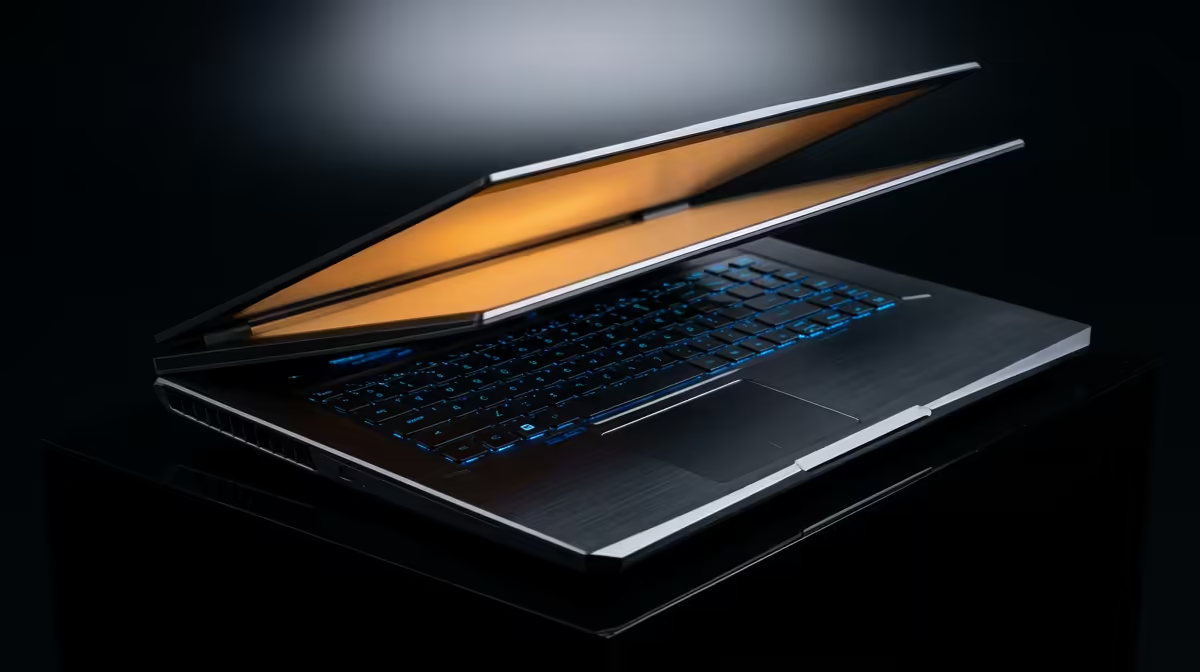
Is your ASUS gaming laptop hot enough to fry an egg? You’re in the final circle, the tension is palpable… and then it happens. Stutter. Lag. Your frame rate plummets as your machine throttles itself to avoid a meltdown. An overheating ASUS gaming laptop isn't just an annoyance; it's a performance killer. Before you lose another match to thermal throttling, let's dive into some pro fixes and cooling tips to get your rig running cool and fast again.
Why Your ASUS Gaming Laptop is Overheating
At its core, an ASUS gaming laptop packs immense power into a slim chassis. High-performance CPUs and GPUs generate a serious amount of heat, and the built-in cooling system has to work overtime to dissipate it. When an ASUS gaming laptop is overheating, it's usually down to a few common culprits:
- Dust Bunnies of Doom: Over time, dust and lint clog fans and heatsink fins, trapping hot air inside.
- Blocked Airflow: Using your laptop on a soft surface like a bed or couch is a surefire way to suffocate its air vents.
- Aging Thermal Paste: The conductive paste between your CPU/GPU and the heatsink degrades over years, becoming less effective at transferring heat.
- Demanding Software: Pushing max settings on the latest AAA titles for hours will naturally test any laptop's cooling limits.
Quick Fixes for an Overheating ASUS Laptop 🔧
Before you start thinking about complex hardware changes, let's tackle the low-hanging fruit. These simple steps can dramatically reduce your temperatures and solve many issues related to your ASUS laptop getting hot.
1. Give it Some Breathing Room
The easiest fix? Lift your laptop. Placing it on a hard, flat surface like a desk is the bare minimum. For a real boost, use a laptop stand to increase the space underneath, allowing for much better airflow to the intake vents. Never game with it on your duvet.
2. Clean Your Vents and Fans
Dust is the number one enemy of cool components. Grab a can of compressed air and, with your laptop turned off and unplugged, give the intake and exhaust vents short, controlled bursts. This clears out the debris choking your fans. Even the most rugged and reliable ASUS TUF Gaming laptops need a regular clean-out to perform at their best.
3. Optimise Your Software
ASUS Armoury Crate is your best friend here. Switch between performance profiles (Silent, Performance, Turbo) to match your task. For intense gaming, Turbo mode cranks the fans to maximum. Also, consider dialling back a few in-game graphics settings—going from Ultra to High can significantly lower the load on your GPU, reducing heat without a huge visual sacrifice.
Monitor Your Temps Like a Pro ⚡
Download a free tool like HWMonitor or MSI Afterburner. These utilities let you see your CPU and GPU temperatures in real-time. Knowing your baseline temps helps you spot when an ASUS gaming laptop is overheating and confirm if your fixes are actually working. A good target under load is to stay below 90-95°C.
Advanced Cooling Solutions for Peak Performance
If the basic fixes aren't enough, it's time to bring in some reinforcements. These solutions offer more significant cooling improvements for your machine.
4. Invest in a Quality Cooling Pad
A good laptop cooling pad is more than just a stand. It features one or more large fans that actively push cool air into your laptop's intake vents, providing direct assistance to the internal cooling system. It's a fantastic, cost-effective upgrade that can shave several degrees off your peak temperatures, especially for the powerful components found in the ASUS ROG series in South Africa.
5. Replace the Thermal Paste
This one is for the more technically confident user. After 2-3 years, the factory thermal paste can dry out. Replacing it with a high-quality compound like Noctua NT-H1 or Thermal Grizzly Kryonaut can create a much more efficient thermal transfer, leading to a massive drop in temperatures. If you're not comfortable opening your laptop, our technicians can help.
Is It Time for a Cooling System Upgrade? ✨
You've cleaned the fans, optimised the software, and even tried a cooling pad... but your ASUS gaming laptop is still overheating. If your machine is a few years old, it might be struggling to keep up. Newer laptops feature vastly superior cooling technology, from vapour chambers to liquid metal thermal compound applied directly at the factory.
Cutting-edge models like the ASUS ROG Zephyrus showcase just how far thermal design has come, allowing for desktop-level performance in a portable form factor without throttling. If you're tired of fighting with heat, exploring the latest range of ASUS gaming laptops might reveal a rig that's built to stay cool under pressure, right out of the box.
Ready to Level Up Your Cooling Game?
An overheating laptop might be a sign that it's time for an upgrade. Explore our massive range of laptop specials with cutting-edge cooling technology and find the perfect machine to conquer your world, lag-free.
Explore our massive range of laptop specials