



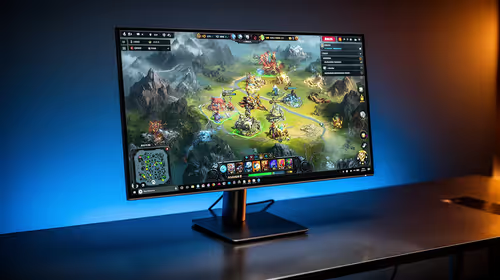
IPS vs VA for Strategy and Sim Games in SA
IPS vs VA for strategy and sim games should be judged by fit, not a single winner. Compare compatibility, latency, capacity, upgrade path, cost planning, and South African setup needs.
Read moreGet budget gaming accessories working smoothly in South Africa! Discover fixes for compatibility issues, optimize your setup 🎮🔌
You’ve just unboxed that slick new gaming mouse you scored for a steal. You plug it in, ready to dominate, but… nothing. Or worse, it disconnects mid-firefight. For many South African gamers, finding affordable gear is a win, but trying to fix budget gaming accessories compatibility issues can feel like a nightmare boss battle. Don't rage-quit just yet. We’ve got the fixes to get you back in the game, fast. ⚡
So, why does this happen? Often, budget peripherals cut costs on software development. Instead of custom drivers, they rely on generic Windows drivers, which don't always play nice with every system or game. You might find some incredible great gaming accessory deals online, but if the manufacturer hasn't invested in proper software support, you could face conflicts, especially with anti-cheat software or other branded peripheral apps. This is a common source of budget gaming accessories compatibility issues in SA.
Before you toss that new headset, run through these simple checks. Fixing compatibility problems with budget accessories is often about methodical troubleshooting.
It sounds basic, but it works. Try plugging the device into a USB 2.0 port instead of a 3.0 (or vice versa). Sometimes older devices get confused by the higher bandwidth. Also, plug directly into your motherboard's rear I/O panel, not a front-panel port or a hub, to ensure maximum power and a stable connection.
Right-click your Start button and open Device Manager. See any yellow exclamation marks? That's Windows telling you there's a driver problem. Try right-clicking the problematic device and selecting "Update driver," then let Windows search automatically. If that fails, a manual driver install from the manufacturer's (often tricky to find) website is your next step.
When in doubt, uninstall the device completely from Device Manager (tick "Delete the driver software for this device" if available), unplug it, restart your PC, and then plug it back in. This forces a fresh handshake between your PC and the accessory.
Are you running software for another mouse or keyboard brand? Sometimes these apps fight for control. Try temporarily closing programs like Razer Synapse or Logitech G Hub to see if your new budget gear suddenly works. When looking for your next upgrade, it's always wise to browse a collection of well-vetted compatible gaming accessories.
The best fix is prevention. When shopping for budget gaming gear in South Africa, a little pre-purchase homework saves a ton of frustration. Look for products with plenty of positive local reviews. Check if the brand has a proper website with a downloadable driver or software—it’s a great sign they offer some level of support. Choosing peripherals from a trusted retailer ensures you have local support and a solid warranty if things don't work out.
Skip the Headache, Get Gear That Works Stop gambling on random online deals and start playing. Evetech's massive range is tested and trusted by SA gamers just like you. Shop our full range of PC gaming accessories and get back to winning.
Ensure correct firmware updates and use certified adapters for seamless controller fixes.
Yes, but verify jack type or use compatible adapters for budget gaming headphone issues.
Console setups may need specific USB ports or adapters for gaming mice compatibility.
Yes, use branded or certified adapters to resolve adaptation challenges with budget gaming accessories.
Confirm the USB version and power delivery for your budget gaming peripherals.
Use official product websites and user forums, as well as stores like Evetech for verified compatibility fixes.
Check local retailers like Evetech for solutions tailored to common gaming gear compatibility.
IPS vs VA for strategy and sim games should be judged by fit, not a single winner. Compare compatibility, latency, capacity, upgrade path, cost planning, and South African setup needs.
Read more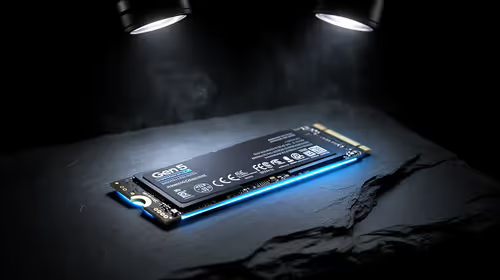
Gen 5 NVMe SSD guide for Bloemfontein gamers should be shortlisted around the job it must do. South African buyers should compare capacity, speed, thermals, and motherboard support, warranty path, and upgrade room before treating any pick as best.
Read more
Skip the RTX 5070 if your first-time builder budget needs better balance. Better SA picks can free room for the right CPU, PSU, case, monitor, storage, and cooling while still giving a strong first gaming PC experience this year in South Africa.
Read more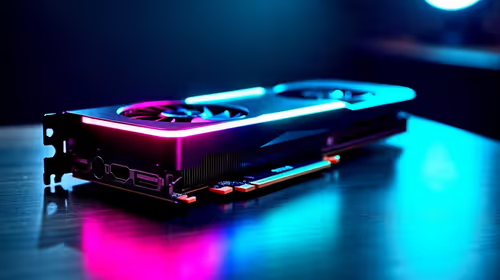
RTX 5080: weighing the pros and cons for SA should be shortlisted around the job it must do. South African buyers should compare GPU tier, VRAM, cooling, and PSU headroom, warranty path, and upgrade room before treating any pick as best.
Read more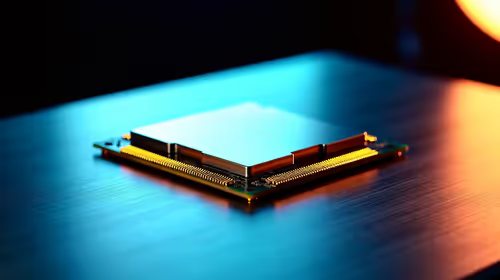
Core i5-13400F gives South African PC builders a capable mid-range CPU choice with clear limits. Check its gaming fit, discrete GPU requirement, LGA1700 platform costs, and upgrade path before locking in your parts list.
Read more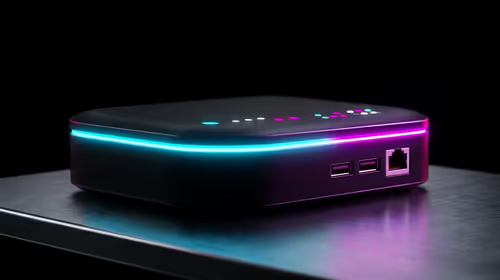
Pros and cons of the Wi-Fi 7 routers for SA should be shortlisted around the job it must do. South African buyers should compare WiFi standard, coverage, latency, and device support, warranty path, and upgrade room before treating any pick as best.
Read more
Steam content servers unreachable needs a download-path check, not an immediate reinstall of every game. Restart the client, inspect download settings and compare another connection when practical. Clearing the download cache is separate from deleting installed games.

Keychron G6 HE has built-in and swappable battery versions with different weights. The product brief lists 42g and 46g respectively, each with a 3g tolerance. Choose by grip and battery preference before treating one headline weight as universal.

Corsair HS80 v2 MAX supports 2.4GHz wireless and Bluetooth. Its maximum battery figures use RGB-off conditions and differ by connection. Check microphone routing, comfort and the exact device support before assuming every wireless mode behaves alike.

Windows taskbar notification badges can be shown or hidden in Taskbar behaviours. This changes the small app indicators, not the underlying messages. Choose a calmer desktop while keeping a deliberate routine for checking important conversations and app updates.
Windows taskbar notification badges can be shown or hidden in Taskbar behaviours. This changes the small app indicators, not the underlying messages. Choose a calmer desktop while keeping a deliberate routine for checking important conversations and app updates.

Windows USB device in use can mean a program still has the drive open. Finish transfers and close files before retrying ejection. Better performance caching requires safe removal; a replacement drive is not the first fix for an open-file warning.

Windows Nearby Sharing not working starts with feature, Bluetooth and visibility checks on both PCs. My devices only depends on matching Microsoft accounts. Test a small harmless file before buying networking hardware or changing your home router.

Windows hardware reserved RAM is different from memory used by applications. Compare installed memory with firmware detection and the usable amount before buying modules. Reservations and reporting limits vary by system; no universal setting restores every byte.
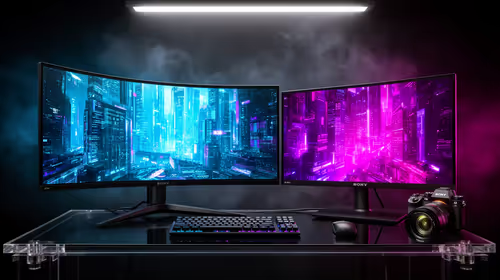
32:9 Super-ultrawide Or Dual-monitor Setup should be judged by your current setup, workload, and upgrade path. SA buyers should compare compatibility, likely gains, support, and timing before changing hardware.
IPS vs VA for strategy and sim games should be judged by fit, not a single winner. Compare compatibility, latency, capacity, upgrade path, cost planning, and South African setup needs.
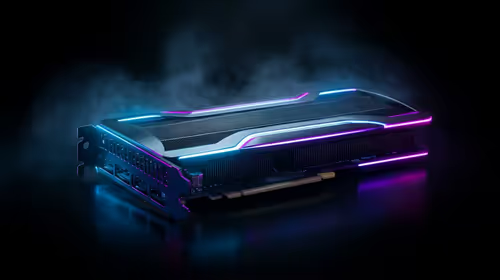
RTX 5090 for Horizon Forbidden West at 1440p should be judged by settings, CPU balance, drivers, and display goals. Use this as cautious SA build planning, not a fixed frame-rate promise or live benchmark claim.
Gen 5 NVMe SSD guide for Bloemfontein gamers should be shortlisted around the job it must do. South African buyers should compare capacity, speed, thermals, and motherboard support, warranty path, and upgrade room before treating any pick as best.