You’re in the final circle, victory is seconds away, and then it happens… a massive lag spike. Your connection drops, and you’re back in the lobby, fuming. Frustrating Lenovo gaming laptop WiFi issues can ruin a perfect session, but don’t blame your fibre just yet. Often, the fix is simpler than you think. This guide will walk you through the most common solutions to get your connection stable and your pings low. Let's get you back in the game. 🚀
Why is Your Lenovo Laptop WiFi Dropping?
Before we dive into the fixes, it helps to understand the culprit. Most connectivity problems on even a solid machine like a Lenovo IdeaPad 3 Gaming laptop boil down to a few key areas:
- Outdated Drivers: Your WiFi adapter's driver is the software that lets it talk to your operating system. If it's old, buggy, or corrupted, your connection will suffer.
- Aggressive Power Settings: Windows loves to save power, and sometimes it does this by putting your WiFi adapter to sleep... even mid-game.
- Network Congestion: Too many devices on the same WiFi channel can cause interference, leading to an unstable connection.
Your Step-by-Step Fix for Lenovo Gaming Laptop WiFi Issues
Work through these steps methodically. The majority of Lenovo gaming laptop WiFi issues can be resolved with one of the first three solutions.
Step 1: The Classic "Off and On Again"
It sounds too simple, but it works wonders. A full power cycle can clear temporary glitches in both your laptop and your router.
- Shut down your Lenovo laptop completely (don't just restart).
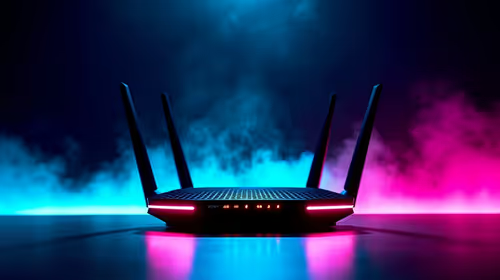
- Unplug your router from the wall. Wait a full 60 seconds. This allows the internal components to fully reset.
- Plug the router back in and wait for all the lights to become stable.
- Boot up your laptop and try connecting again.
Step 2: Update Your Network Drivers 🔧
An outdated network driver is the number one cause of WiFi problems. Even a powerful Lenovo Legion needs the latest software to perform at its peak.
- Option A (Easiest): Use Lenovo Vantage. This pre-installed app is the best way to get official, tested drivers. Open Vantage, go to "System Update," and run a scan for new drivers.
- Option B (Manual): Use Device Manager. Right-click the Start button, select "Device Manager," expand "Network adapters," right-click your WiFi card (e.g., Intel Wi-Fi 6, Realtek Gaming), and select "Update driver."
Step 3: Optimise Your Power Management Settings
This is the secret fix that solves countless random disconnects. Windows is trying to be helpful, but it's actually sabotaging your game.
- Open Device Manager again.
- Find your WiFi adapter under "Network adapters."
- Right-click it and select "Properties."
- Go to the "Power Management" tab.
- Uncheck the box that says "Allow the computer to turn off this device to save power."
- Click OK and restart your laptop.
WiFi Pro Tip ⚡
Your router is likely broadcasting on both 2.4GHz and 5GHz bands. For gaming, always connect to the 5GHz network if possible. It offers faster speeds and is less prone to interference from other household devices like microwaves and Bluetooth speakers. It's a simple switch that can drastically improve connection stability.
Step 4: Check for Network Interference
If you live in an apartment complex or a busy household, your WiFi might be fighting for airtime. The latest gaming laptops, including many new Lenovo LOQ models, often support WiFi 6/6E, which helps with this, but it's still worth checking. You can use a free app like "WiFi Analyzer" on your phone to see which channels are the most crowded and then log into your router's settings to switch to a less congested one.
Still Struggling? It Might Be Time for an Upgrade
If you've tried everything and your older laptop is still dropping connection, the hardware itself might be the bottleneck. Older WiFi cards can't take full advantage of modern fibre speeds and router technology. Sometimes, the most reliable fix for persistent Lenovo gaming laptop WiFi issues is upgrading to a machine with the latest connectivity standards. ✨ Exploring the entire range of Lenovo gaming laptops can reveal options with WiFi 6E and other modern features built for flawless online gaming.
Ready for a Lag-Free Experience?
A stable connection is non-negotiable for serious gaming. If your old machine is holding you back, it's time to upgrade. Explore our massive range of Lenovo gaming laptops and find the perfect rig to dominate the competition.