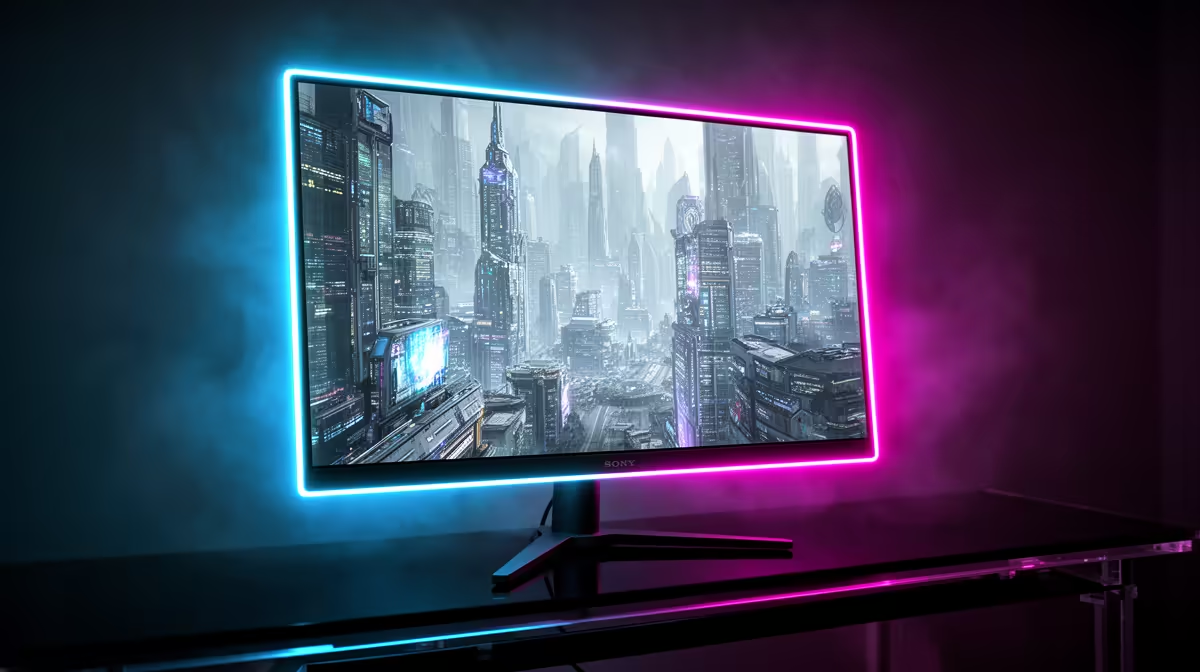
Tired of squinting in dark game dungeons or having sunlit skies look like a washed-out white sheet? That’s your old monitor struggling. A proper HDR gaming display isn’t just brighter; it’s a portal to a more realistic, immersive world. This guide is your ultimate HDR gaming monitor test, helping you understand the tech that separates a truly breathtaking visual experience from a marketing gimmick. Let's dive in and find the right panel for you. ✨
Demystifying HDR: More Than Just a Sticker on the Box
First things first, what is High Dynamic Range (HDR)? In simple terms, it’s a technology that allows your display to show a much wider range of brightness and colour than a standard monitor. Think about the difference between the deepest, inkiest black of space in Starfield and the blindingly bright flash of a muzzle flare. A standard monitor crushes these details together, but an HDR monitor can display both extremes in the same scene, creating incredible depth and realism.
This isn't just a minor tweak; it's a fundamental upgrade to how you see your games. For anyone looking to build or upgrade their setup, understanding HDR is as crucial as picking the right GPU. It's a key feature across many modern PC monitors, but not all HDR is created equal.
The Real HDR Gaming Monitor Test: Key Specs to Check
When you're browsing for a new screen, the "HDR" label can be misleading. To conduct a proper HDR gaming monitor test before you buy, you need to look past the marketing and focus on three core specifications. These numbers will tell you the real story about a monitor's performance.
Brightness Measured in Nits
Brightness is the cornerstone of a great HDR experience. It's measured in "nits" (or candelas per square meter, cd/m²). While a typical office monitor sits around 250-300 nits, true HDR starts much higher. Look for the VESA DisplayHDR certification:
- DisplayHDR 400: This is the entry-level spec. While better than nothing, it often lacks the peak brightness and local dimming needed for a transformative experience.
- DisplayHDR 600: This is the real sweet spot for most gamers. It offers a significant jump in brightness, making highlights pop and delivering a noticeable impact.
- DisplayHDR 1000+: This is the premium tier. At 1000 nits or more, you get scorching highlights and an incredibly lifelike picture, perfect for cinematic games.
A higher nit count is a critical part of any effective guide to brightness and colour accuracy.
Colour Accuracy and Gamut
A bright picture is only half the battle. HDR also requires a wider range of colours. This is measured by the "colour gamut," which tells you what percentage of a specific colour space the monitor can display. Look for coverage of the DCI-P3 colour space—the standard used in cinema. A monitor with over 90% DCI-P3 coverage will produce the rich, vibrant, and saturated colours that HDR content is known for. This is a must-have feature on the best all gaming monitors available today.
Local Dimming: The Secret Sauce 🚀
Local dimming is arguably the most important feature for achieving stunning HDR. It allows the monitor's backlight to dim specific zones of the screen to create deep blacks right next to bright highlights. Without it, blacks can look grey and washed out.
- Edge-Lit Dimming: Zones are arranged along the edges of the screen. It's better than no dimming but can be imprecise.
- Full-Array Local Dimming (FALD): The backlight is a grid of hundreds (or thousands) of individual zones. This is the gold standard, offering precise control and incredible contrast.
Beyond Brightness: Does Resolution and Panel Shape Matter?
While the core HDR specs are key, other factors complete the picture. Pairing HDR with a high resolution creates an unbeatable combination. The extra detail of a 4K panel allows the enhanced brightness and colour to truly shine, making it a popular choice for enthusiasts looking at premium 5K & 4K monitors.
The shape of your screen can also boost the experience. The gentle wrap-around effect of curved monitors pulls you deeper into the game world, making that stunning HDR imagery even more immersive. And this tech isn't just for your desktop anymore; you can now find impressive HDR capabilities in high-end portable monitors, perfect for gaming on the go with a laptop or console.
Windows 11 HDR Pro Tip 🔧
Don't forget to calibrate! Go to Settings > System > Display > Use HDR. Then, run the Windows HDR Calibration app (a free download from the Microsoft Store). This simple step ensures your brightness and colour accuracy are perfectly tuned for your specific monitor and room lighting.
Optimising Your Setup for the Best HDR Experience
Getting a great HDR monitor is the first step. To ensure you're getting the best possible performance, make sure you have the right gear to support it. A high-quality DisplayPort 1.4 or HDMI 2.1 cable is essential for carrying the massive amount of data required for high-resolution HDR gaming.
Furthermore, positioning your screen correctly can make a world of difference. Investing in a good VESA mount or adjustable stand allows you to get the perfect viewing angle, reducing glare and improving comfort during long gaming sessions. You can find a wide variety of these essential monitor accessories to complete your ultimate gaming battle station.
Ready to See Your Games in a New Light?
A true HDR display is one of the biggest upgrades you can make to your gaming rig. Now that you know how to conduct your own HDR gaming monitor test, you're ready to choose with confidence. Explore Evetech's massive range of gaming monitors and find the perfect panel to bring your virtual worlds to life.