



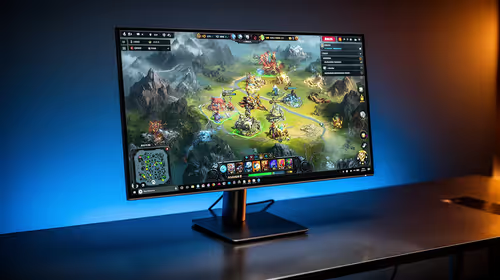
IPS vs VA for Strategy and Sim Games in SA
IPS vs VA for strategy and sim games should be judged by fit, not a single winner. Compare compatibility, latency, capacity, upgrade path, cost planning, and South African setup needs.
Read moreHDR gamut mapping fails on Windows? 💥 Discover proven fixes and reclaim vibrant colors. ⚙️ Calibrate like a pro now!

Is your brand-new HDR monitor looking a bit… meh? You’re not alone. Many South African gamers spend big on a brilliant display only to find colours in Windows look washed out or strangely oversaturated. It’s a frustrating issue that can make you question your purchase. The good news? This is often a software problem, not hardware failure. The solution is a simple HDR gamut mapping fix that will unlock the vibrant, stunning visuals you paid for. 🖥️
Before we dive into the solution, let's quickly understand the problem. Your HDR monitor can display a much wider range of colours (a "gamut") than standard SDR screens. Most of your desktop, apps, and older games, however, were created for the older, smaller sRGB colour space.
Windows has to "map" these older sRGB colours into the new, wider HDR space. When this process goes wrong, you get those disappointing visuals. This is where a proper HDR gamut mapping fix becomes essential; it teaches Windows how to translate colours correctly for your specific display, ensuring everything from your browser to Baldur's Gate 3 looks absolutely brilliant. Getting this right is the first step to truly appreciating modern PC monitors.
Microsoft has finally given us a user-friendly tool to solve this. Forget digging through confusing settings; this official app makes the Windows HDR gamut mapping fix a breeze. ✨
This calibration makes a world of difference, especially on high-quality displays like the stunning 4K monitors that can truly showcase what HDR offers.
Before running the calibration app, press the menu button on your monitor itself. Look for settings like "sRGB Mode," "Game Mode," or "HDR Mode." For best results, ensure your monitor is set to its native or HDR picture mode to allow Windows to take full control.
Once you've applied the HDR gamut mapping fix, the difference is night and day. The neon-drenched streets in Cyberpunk 2077 will pop with intensity, and the subtle shadows in Alan Wake 2 will hold detail you never knew was there. It's about experiencing the game exactly as the developers intended.
This visual fidelity is where your hardware investment truly shines. Whether you're exploring vast worlds on immersive curved monitors or competing in fast-paced shooters, accurate colour makes the experience more engaging. The fix ensures that across all our gaming monitors, you're getting the best possible picture. Even the increasingly popular portable monitors are now shipping with HDR, making this calibration valuable on the go.
Don't forget that the right cables and stands are also part of the perfect setup. Having the right monitor accessories can optimise your ergonomics and ensure a stable, high-bandwidth connection for flawless HDR. 🔧
Ready for True HDR Brilliance? Don't let a simple software setting hold your Rands hostage. Now that you know how to fix HDR, make sure your next display has the specs to deliver. Check out the best PC monitor deals at Evetech and see your games in their true colour.
Common causes include outdated drivers, incorrect display calibration, or unsupported HDR content. 🖥️
Go to Settings > System > Display > HDR and ensure color profiles support gamut mapping correctly. 🎨
Yes! Windows 11 offers improved HDR calibration tools and color management systems. 🆕
Definitely! Using outdated or incompatible ICC profiles causes mapping failures and color discrepancies. 🎨
Use Windows HDR calibration tools or install third-party apps like CalibrateHDR for testing. 🛠️
Wrong refresh rate, incorrect color bit depth, or incompatible video cards limit proper HDR gamut mapping. 🖥️
Yes, tools like Windows HDR Calibration or basic GPU control panels often resolve basic mapping problems. 🎯
Check display specs—HDR10+ or Dolby Vision certified screens offer better gamut mapping support. 📈
IPS vs VA for strategy and sim games should be judged by fit, not a single winner. Compare compatibility, latency, capacity, upgrade path, cost planning, and South African setup needs.
Read more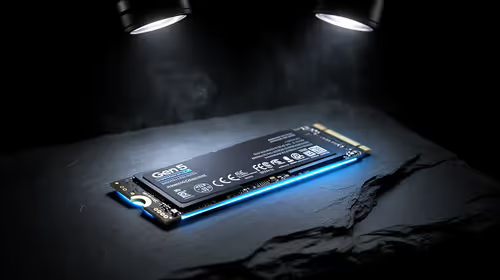
Gen 5 NVMe SSD guide for Bloemfontein gamers should be shortlisted around the job it must do. South African buyers should compare capacity, speed, thermals, and motherboard support, warranty path, and upgrade room before treating any pick as best.
Read more
Skip the RTX 5070 if your first-time builder budget needs better balance. Better SA picks can free room for the right CPU, PSU, case, monitor, storage, and cooling while still giving a strong first gaming PC experience this year in South Africa.
Read more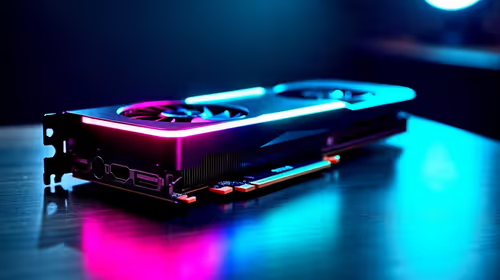
RTX 5080: weighing the pros and cons for SA should be shortlisted around the job it must do. South African buyers should compare GPU tier, VRAM, cooling, and PSU headroom, warranty path, and upgrade room before treating any pick as best.
Read more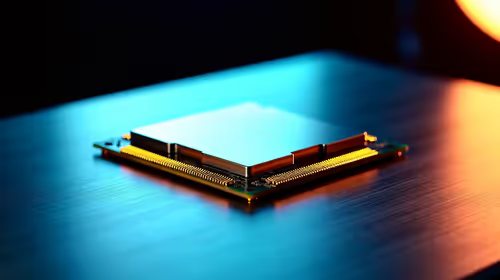
Core i5-13400F gives South African PC builders a capable mid-range CPU choice with clear limits. Check its gaming fit, discrete GPU requirement, LGA1700 platform costs, and upgrade path before locking in your parts list.
Read more
Pros and cons of the Wi-Fi 7 routers for SA should be shortlisted around the job it must do. South African buyers should compare WiFi standard, coverage, latency, and device support, warranty path, and upgrade room before treating any pick as best.
Read more
Steam content servers unreachable needs a download-path check, not an immediate reinstall of every game. Restart the client, inspect download settings and compare another connection when practical. Clearing the download cache is separate from deleting installed games.

Keychron G6 HE has built-in and swappable battery versions with different weights. The product brief lists 42g and 46g respectively, each with a 3g tolerance. Choose by grip and battery preference before treating one headline weight as universal.

Corsair HS80 v2 MAX supports 2.4GHz wireless and Bluetooth. Its maximum battery figures use RGB-off conditions and differ by connection. Check microphone routing, comfort and the exact device support before assuming every wireless mode behaves alike.

Windows taskbar notification badges can be shown or hidden in Taskbar behaviours. This changes the small app indicators, not the underlying messages. Choose a calmer desktop while keeping a deliberate routine for checking important conversations and app updates.
Windows taskbar notification badges can be shown or hidden in Taskbar behaviours. This changes the small app indicators, not the underlying messages. Choose a calmer desktop while keeping a deliberate routine for checking important conversations and app updates.

Windows USB device in use can mean a program still has the drive open. Finish transfers and close files before retrying ejection. Better performance caching requires safe removal; a replacement drive is not the first fix for an open-file warning.

Windows Nearby Sharing not working starts with feature, Bluetooth and visibility checks on both PCs. My devices only depends on matching Microsoft accounts. Test a small harmless file before buying networking hardware or changing your home router.

Windows hardware reserved RAM is different from memory used by applications. Compare installed memory with firmware detection and the usable amount before buying modules. Reservations and reporting limits vary by system; no universal setting restores every byte.
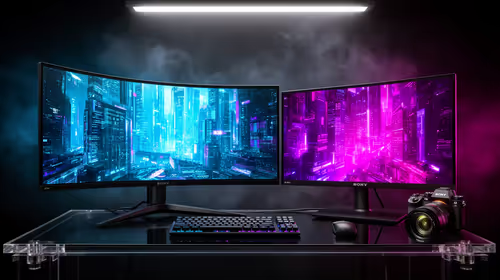
32:9 Super-ultrawide Or Dual-monitor Setup should be judged by your current setup, workload, and upgrade path. SA buyers should compare compatibility, likely gains, support, and timing before changing hardware.
IPS vs VA for strategy and sim games should be judged by fit, not a single winner. Compare compatibility, latency, capacity, upgrade path, cost planning, and South African setup needs.
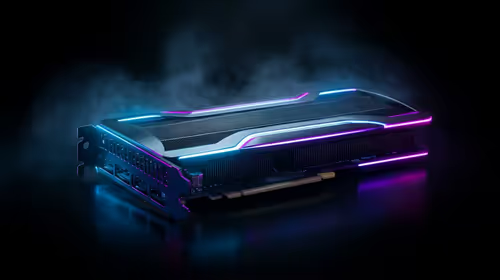
RTX 5090 for Horizon Forbidden West at 1440p should be judged by settings, CPU balance, drivers, and display goals. Use this as cautious SA build planning, not a fixed frame-rate promise or live benchmark claim.
Gen 5 NVMe SSD guide for Bloemfontein gamers should be shortlisted around the job it must do. South African buyers should compare capacity, speed, thermals, and motherboard support, warranty path, and upgrade room before treating any pick as best.