Quick Answer
Route one DisplayPort cable permanently to your gaming PC, one HDMI 2.1 to the console, and one USB-C to the laptop docking position. Keep all three cabled at all times, switch between sources via the monitor OSD, and use a cable management spine or under-desk tray to bundle the slack. No cable should ever need to be unplugged during normal use.
Planning the Cable Architecture Before You Start 🗂️
The most effective first step is deciding before you cable anything which port on the monitor handles which device. On a typical 32-inch 4K monitor with DisplayPort 1.4, two HDMI 2.1 ports, and USB-C, the assignment is straightforward: DisplayPort to the gaming PC for 4K 160Hz, HDMI port 1 to the console (PlayStation 5 or Xbox Series X) for 4K 120Hz, and USB-C to the laptop for 4K 60Hz with simultaneous charging. Write this assignment down or put a small label on each cable at the monitor end. When you revisit the setup after weeks, you will not need to trace each cable to figure out what is what.
Cable Management Tools for SA Home Setups 🔧
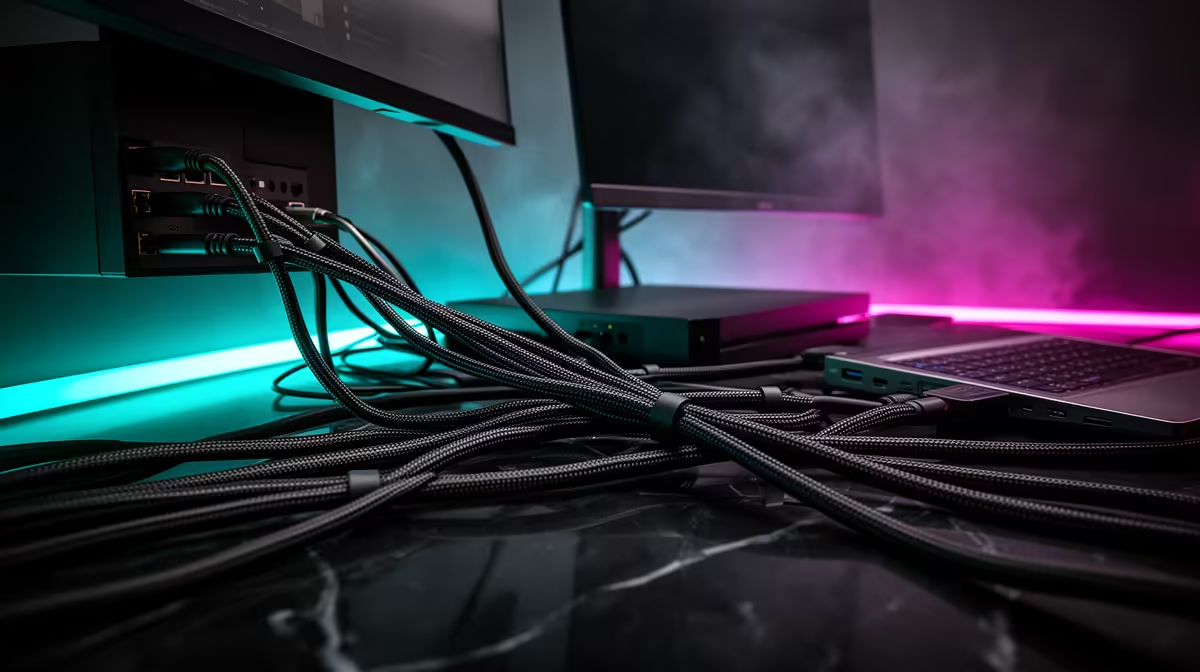
Adhesive cable clips pressed to the underside of a desk guide cables from the monitor base to the desk edge. A cable spine, a flat braided tube that groups multiple cables, removes the individual cable tangle at the back of the monitor. An under-desk cable management tray, typically costing R150 to R400 locally, keeps power strips and cable excess out of sight entirely. For the monitor stand itself, look for models with a cable channel built into the neck; this routes all cables from the display panel to the base in a single concealed path without additional accessories.
Laptop Hot-Desking Without Unplugging 💻
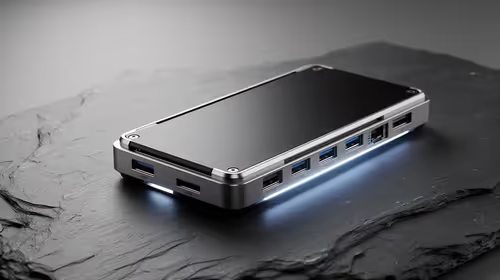
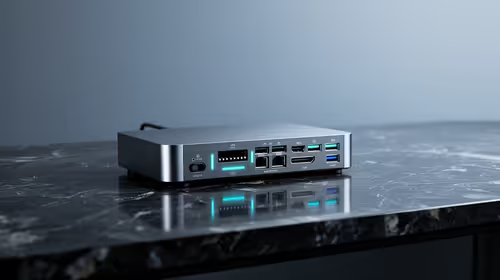
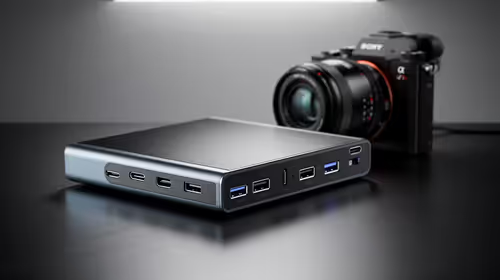
USB-C Power Delivery allows a laptop to sit at one corner of the desk permanently connected via a single cable handling both video output and charging. When done, you disconnect one cable rather than hunting for the power adapter, display cable, and USB peripherals separately. If your laptop lacks USB-C with DisplayPort Alt Mode, a compact USB-C hub adds this capability for R500 to R1,200. SA remote workers running a separate work laptop alongside a personal gaming rig benefit most from this: the laptop station is always ready, and the monitor switches between work and gaming modes in seconds without physical cable interaction.
Label Both Ends of Every Cable ⚡
Before finalising cable routing, put a label at both the monitor end and the device end of every cable. Use colour-coded electrical tape or printed cable labels from a local stationery store. When a cable works loose, you know immediately which cable belongs where without tracing the full run.
FAQ
Do monitor USB hubs help with cable clutter?
Yes, meaningfully. A monitor with a built-in USB-A hub lets you connect a keyboard, mouse, and USB drive to the monitor itself; those peripherals stay connected to the monitor and switch with the active input source, removing separate USB cables between devices and the PC or laptop.
What desk depth is needed for a cable-managed 32-inch monitor setup?
Allow 25 to 30cm of desk depth behind the monitor base for the stand footprint plus cable bend radius. Tight 90-degree cable bends near connectors can cause intermittent signal loss over months of use.
Can I use a single HDMI cable for the gaming PC instead of DisplayPort?
Yes, if your GPU and monitor both have HDMI 2.1. An HDMI 2.1 cable supports 4K at 144Hz without DSC. However, DisplayPort 1.4 remains the more reliable path for 4K 160Hz with adaptive sync on most current panels.
Setting up a multi-device desk around one monitor?
Evetech stocks 32-inch 4K monitors with multi-port inputs including USB-C, DisplayPort, and HDMI 2.1, all locally available with South African warranty.