Quick Answer
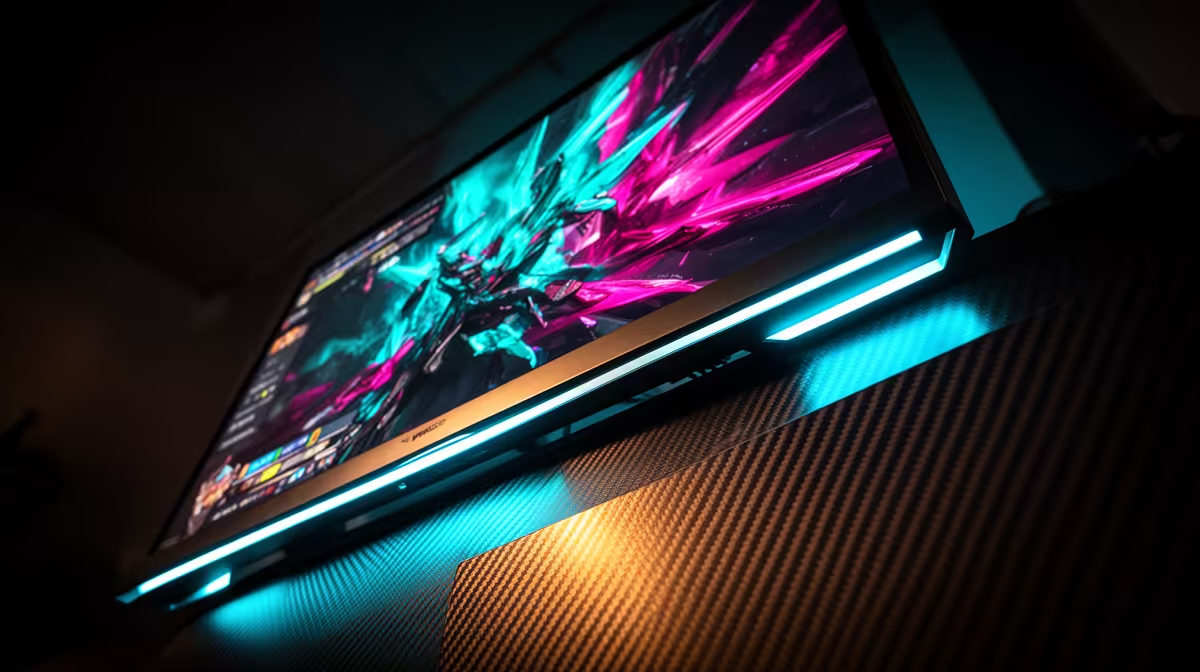
To fully optimise a 250Hz monitor for FPS and esports, set Windows to 250Hz, enable adaptive sync in your GPU driver and monitor OSD, cap in-game frame rate at 240fps (10 below panel max to keep adaptive sync engaged), and disable motion blur effects in every game. These four steps extract the maximum competitive advantage from a 250Hz panel.
Windows and GPU Driver Configuration 🔧
Start in Windows Display Settings under Advanced Display and confirm the active refresh rate is 250Hz, not 60Hz. In NVIDIA Control Panel, navigate to Display, then Change Resolution and set 250Hz there as well, since NVIDIA requires both confirmations. In AMD Software: Adrenalin Edition, enable FreeSync under Graphics and confirm the game profile for your main title does not override the global setting. Cap in-game frame rate at 240fps; this keeps frame time marginally above the panel's minimum sync threshold, preventing adaptive sync from toggling off at the exact moment the game is most GPU-stressed. In NVIDIA Reflex-compatible titles like Apex Legends or Valorant, enable NVIDIA Reflex with Boost for an additional reduction in system latency on top of the 250Hz advantage.
In-Game Settings for 250Hz Advantage 🎮
Every esports title has graphics options that affect how well 250Hz is exploited. Turn off motion blur globally; at 250Hz the panel produces minimal blur from high-speed pixel transitions and additional blur processing removes clarity without benefit. Disable depth of field and chromatic aberration in games that offer the toggle; these post-processing effects add GPU load without improving competitive awareness. In CS2, set cl_showfps 1 to confirm frame rate stays consistently at or above 200fps. If it dips below 150fps regularly, a GPU upgrade is more beneficial than any monitor setting change. In Valorant, use the built-in frame rate limiter and set it to 240fps.
Reducing Input Lag Beyond the Monitor 🖥️
A 250Hz panel reduces display latency to roughly 4ms per frame, but total system latency includes CPU processing and GPU render time. To complement the monitor: enable gaming mode in Windows to reduce background process priority, run your game in exclusive fullscreen mode rather than borderless windowed (exclusive fullscreen bypasses Windows compositor, saving 1 to 3ms), and use a wired USB gaming mouse. South African players on local Vumatel or Openserve fibre servers typically see pings below 20ms, so the 250Hz display latency reduction is proportionally impactful relative to network lag.
Frame Rate Cap Rule for 250Hz ⚡
Cap your in-game frame rate at 5 to 10fps below your monitor's maximum when using adaptive sync. At 250Hz, cap at 240fps. This prevents the GPU from briefly exceeding the monitor's sync ceiling, which forces adaptive sync off and causes a stutter spike. Most esports players use 237 or 240fps as their standard cap on 250Hz panels.
FAQ
Does 250Hz help in Valorant for South African players?
Yes, particularly for players running strong GPUs like an RTX 4070 or RX 7900 GRE. Valorant is a well-optimised engine delivering very high frame rates at FHD, making it one of the titles where the 250Hz advantage is most consistently available. SA players on local servers with sub-15ms ping benefit most.
Should I use adaptive sync or ELMB at 250Hz for competitive play?
For most players, FreeSync Premium is the right default at 250Hz. ELMB eliminates motion blur more aggressively but requires disabling adaptive sync. Professional players with GPUs locking at a stable 250fps-plus prefer ELMB; most players with variable frame rates benefit more from adaptive sync.
What resolution should I use at 250Hz for FPS games?
Always 1920x1080 on a FHD panel. Running a lower resolution at 250Hz saves marginal GPU headroom but introduces visible pixel scaling artifacts on FHD panels.
Ready to get every advantage from a 250Hz gaming setup?
Evetech stocks 250Hz gaming monitors across multiple sizes and panel types, all available with local warranty.