Quick Answer
Enable pixel shift, logo brightness limiting, and the panel's automatic pixel refresh cycle. Keep sustained brightness below 200 nits for static content. Avoid leaving the same static image or bright UI element on screen for more than two hours without a screensaver or auto-dimming. These steps together eliminate the practical risk of image retention under normal daily gaming and desktop use.
Enabling the Monitor's Built-In OLED Protection Features 🔧
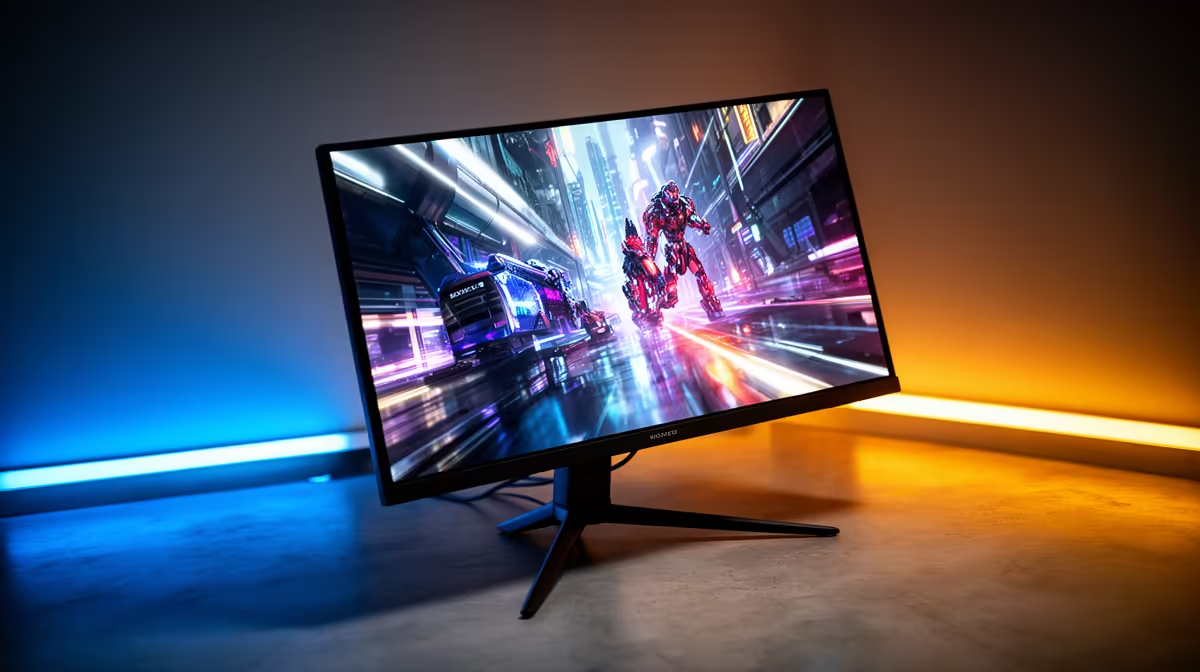
All OLED gaming monitors include panel protection tools in the OSD. Pixel shift moves the displayed image by 1 to 2 pixels at set intervals, ensuring no single pixel remains perpetually lit at the same position. Logo dimming detects bright static elements like taskbars or game HUD icons and reduces their brightness automatically. Automatic pixel refresh runs a maintenance cycle when you power off: the monitor briefly displays a maintenance pattern before fully shutting down. Confirm all three are active in the OSD under the Panel Care, OLED Care, or Pixel Protection menu.
Managing Brightness for Long OLED Panel Life 🖥️
OLED panels age based on cumulative light output per pixel. A pixel running at maximum brightness ages faster than one running at half brightness. For daily desktop use, reduce SDR brightness in the OSD to 100 to 150 nits. For gaming, 150 to 200 nits suits most South African room lighting conditions. Reserve peak brightness for specific HDR sessions. These practices extend the panel's usable life well beyond the manufacturer's 30,000-hour brightness claim.
Screensavers, Sleep Timers and Task Habits 💡
Set Windows to turn off the display after 10 to 15 minutes of inactivity. OLED pixels do not age when the panel is off. During gaming sessions, avoid pausing on a single frame for extended periods: minimise to desktop instead. South African gamers who take long breaks between matches often leave a lobby screen active, which has a static background. Setting an idle timeout in the monitor OSD to dim after 5 minutes handles this automatically.
Letterbox Warning ⚡
16:9 video with persistent black bars on an ultrawide OLED panel can cause the bar areas to age differently from the active image area over thousands of hours. Use the monitor's aspect ratio zoom or crop settings for video playback to fill the full panel, or keep overall brightness moderate to slow differential aging.
FAQ
How long do OLED gaming monitors last before brightness degradation is visible?
Modern OLED gaming panels are rated for 30,000 hours to half-brightness. At 8 hours of daily use that equates to roughly 10 years. With brightness managed at 150 to 200 nits, practical longevity exceeds the display's useful computing lifespan for most users.
Is image retention the same as permanent burn-in?
No. Image retention is temporary: a ghost of a static element that disappears after the pixel refresh cycle or a few minutes of varied content. Burn-in is permanent uneven pixel aging visible even on a white screen. Habits that prevent retention also prevent burn-in.
Should I leave the OLED panel off when not in active use?
Yes. Switching the monitor off when stepping away for more than 15 minutes is the simplest protection measure. Most OLED gaming monitors reach rated brightness in under 2 seconds from standby.
Shopping for an OLED gaming monitor for daily use?
Evetech stocks OLED gaming monitors with built-in panel protection features and local warranty support, browse the range and choose the right display for your setup.