Quick Answer
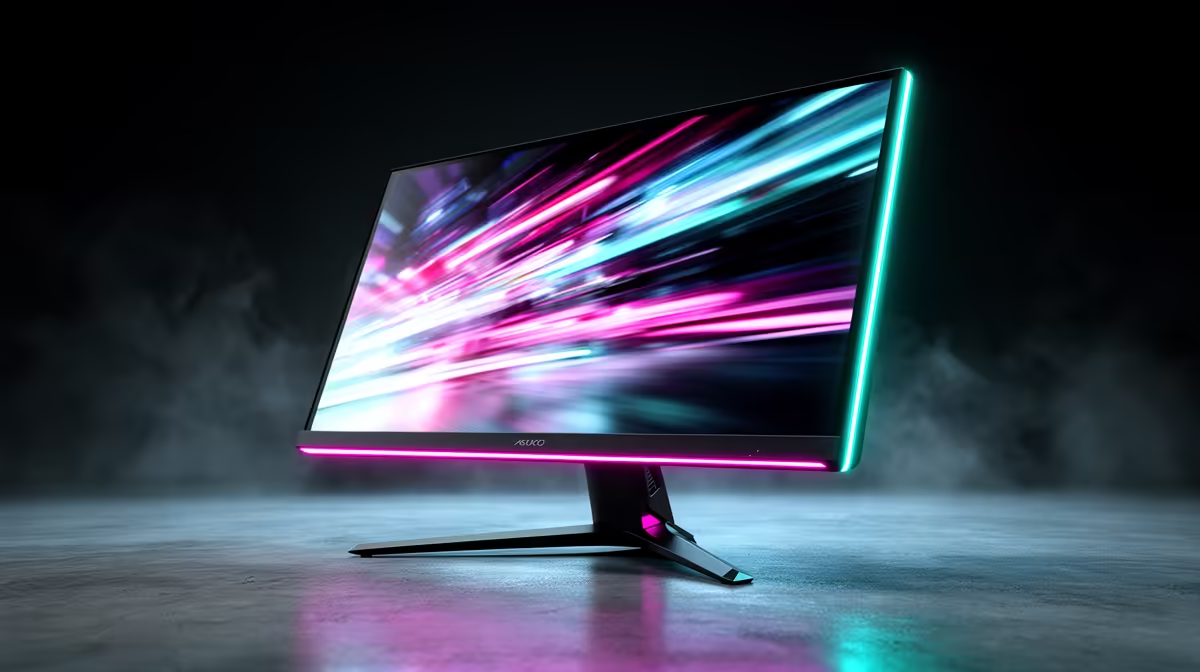
Reduce OLED image retention risk by enabling the panel's built-in pixel refresh and pixel shift features, keeping static UI elements like taskbars and game HUDs moving or hidden during long sessions, setting a screen saver to activate within 3 to 5 minutes, and avoiding maximum brightness for extended static content like spreadsheets or web pages.
Understanding the Difference Between Image Retention and Burn-In 🖥️
Image retention (also called temporary burn-in) is a short-lived artefact where a previously displayed static image leaves a ghost impression on the panel for minutes to hours. It typically self-corrects once the display shows varied content or runs a pixel refresh cycle. True permanent burn-in is irreversible and occurs only after thousands of hours of displaying the same static bright element, such as a game HUD element that stays in one position continuously. Modern gaming OLED panels from LG, ASUS, and Samsung include multiple protective mechanisms, and temporary retention is far more common than permanent damage in typical gaming use.
Practical Steps to Minimise Retention Risk 🔧
These are the most effective protective practices: first, enable pixel shift (also called logo luminance adjustment or orbiting on different brands) in the OSD. This subtly moves the image by 1 to 3 pixels periodically, preventing static elements from dwelling on the same emitters. Second, run the panel's pixel refresh cycle after every 4 hours of use; most gaming OLED monitors prompt you automatically. Third, reduce the brightness of static UI overlays where possible. Discord and browser tabs displayed at full white brightness impose more cumulative emitter stress than dark-mode equivalents.
Long Session Practices for SA Gamers 🎮
In a typical 4 to 6 hour SA gaming session spanning multiple game types, rotating from open-world exploration to competitive multiplayer actually helps OLED health because the content variety means different regions of the panel are actively lit at different times. The highest-risk scenario is a single-game grinding session where a bright static minimap or health bar occupies the same screen position for many hours. For those sessions, consider enabling in-game HUD opacity reduction if the game supports it, or use the monitor's built-in HUD transparency setting where available.
Dark Mode Everything Off-Game ⚡
When your OLED gaming monitor doubles as a work or browsing display, switch your browser, operating system, and productivity apps to dark mode. Dark themes drastically reduce the brightness stress on OLED emitters during non-gaming hours and are the single most impactful habit change for long-term OLED health, especially for SA students using their monitors all day for study.
FAQ
How often should I run the OLED pixel refresh cycle?
Most manufacturers recommend running the pixel refresh after every 4 hours of continuous use. Many modern OLED gaming monitors detect usage hours and prompt you automatically when a refresh is due. The cycle takes 5 to 10 minutes and the display goes black during the process, so plan it during a natural break.
Do OLED gaming monitors come with a burn-in warranty in South Africa?
Some brands, including LG and ASUS, offer burn-in coverage as part of their standard warranty on gaming monitors, though the coverage terms vary. Confirm the specific warranty terms when purchasing from Evetech, and keep proof of purchase in case a warranty claim is needed.
Is it safe to leave an OLED gaming monitor on overnight?
Avoid leaving an OLED monitor displaying static content overnight. Use Windows power settings to turn off the display after 10 to 15 minutes of inactivity. If the monitor is not in use, turning it off entirely is the safest option for long-term emitter health.
Looking for a quality OLED gaming monitor with built-in protection features?
Evetech stocks a range of OLED and QD-OLED gaming monitors with pixel refresh, pixel shift, and care mode built in. Browse the OLED monitor selection at Evetech to find your next display.