Quick Answer
To set up a Thunderbolt 4 docking station, connect the dock's Thunderbolt 4 cable to your laptop's Thunderbolt 4 port, then plug all peripherals into the dock. Your laptop detects the dock automatically in Windows 11 and charges via the same cable if the dock includes a power delivery of at least 65W.
Step-by-Step Thunderbolt 4 Dock Setup 🔧
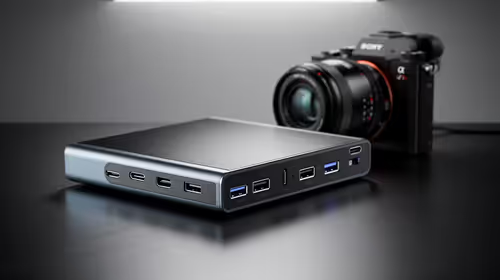
Start by placing the dock where cables from your monitor, keyboard, mouse, and network port all reach comfortably. Position it behind or beside your monitor to keep the desk surface clear. Connect your display first: use DisplayPort 1.4 directly from the dock to your monitor rather than HDMI if both ports are available, as DP 1.4 supports 4K at 144Hz or 1440p at 240Hz without compression. Then plug in your wired keyboard and mouse via the dock's USB-A ports. If you have a wired Ethernet connection from an Openserve FTTH or Vumatel fibre router, plug the RJ45 cable into the dock's built-in 2.5GbE or Gigabit port. Finally, run the single Thunderbolt 4 cable from the dock to your laptop. In Windows 11, open Device Manager and confirm the dock appears under Universal Serial Bus controllers. First-time connection may prompt a Thunderbolt security dialog asking whether to always connect this device.
Optimising Cable Routing for a Clean Desk 🖥️
The entire point of a Thunderbolt 4 dock is reducing visible cable count. With the dock positioned correctly, only one cable runs from the dock to your laptop, replacing separate display, USB, and power cables. Use cable clips or a cable spine attached to the underside of your desk to route the remaining cables from the dock to the wall. Velcro cable ties are better than zip ties in SA humid coastal climates like Durban because they allow expansion and contraction without cutting into cable insulation. If your dock has a USB-C video output, daisy-chain a second monitor from the dock without an extra HDMI cable to the laptop.
Troubleshooting Common Setup Issues ⚙️
If the dock is not detected, confirm your laptop has a genuine Thunderbolt 4 port (look for the lightning bolt icon). USB 4 ports look identical but may not support all Thunderbolt features. If the monitor shows no signal, update firmware via Intel's Thunderbolt Software utility. If the laptop charges slowly, confirm the dock's power delivery spec: 65W suits thin-and-light laptops, while gaming laptops need 130W or 180W.
Run One Thunderbolt Cable to Rule Them All ⚡
After setup, test a full disconnect and reconnect with your laptop in sleep mode. A properly configured Thunderbolt 4 dock should restore all displays, network, and USB peripherals within 10 seconds of reconnecting the single cable. If it takes longer or requires manual driver reloads, check Intel Thunderbolt Software for a firmware update on the dock controller.
FAQ
Can I use a Thunderbolt 4 dock with a USB-C laptop?
Thunderbolt 4 docks are backward compatible with USB-C, but only USB data and power delivery will work. Display output and high-speed Thunderbolt tunnelling require a true Thunderbolt 4 port on the laptop. Check your laptop's spec sheet for the lightning bolt symbol.
How many monitors can I connect through a Thunderbolt 4 dock?
Thunderbolt 4 supports up to two 4K displays simultaneously via the dock. Some docks with dedicated DisplayPort outputs support one 8K or two 4K displays. If you need three monitors, you need a dock with a built-in DisplayLink chip and the relevant DisplayLink driver installed.
Do SA electrical fluctuations affect Thunderbolt docks?
Thunderbolt docks with their own power bricks include internal voltage regulation, so minor supply fluctuations are handled. Connecting the dock's power adapter through a quality surge protector is still recommended, particularly in older SA suburbs with less stable municipal supply.
Ready to declutter your workstation with a single-cable dock solution?
Browse the Thunderbolt and USB-C docking station range at Evetech to match a dock to your laptop and display setup.