Quick Answer
Connect the ARGB header from the AIO pump head and fans to the motherboard's ADD_RGB (5V 3-pin) header or the included lighting controller hub, then install the manufacturer's lighting software or your motherboard's ARGB utility (ASUS Aura, MSI Mystic Light, Gigabyte RGB Fusion) to synchronise effects across all components.
Understanding ARGB vs RGB Connections 🌈
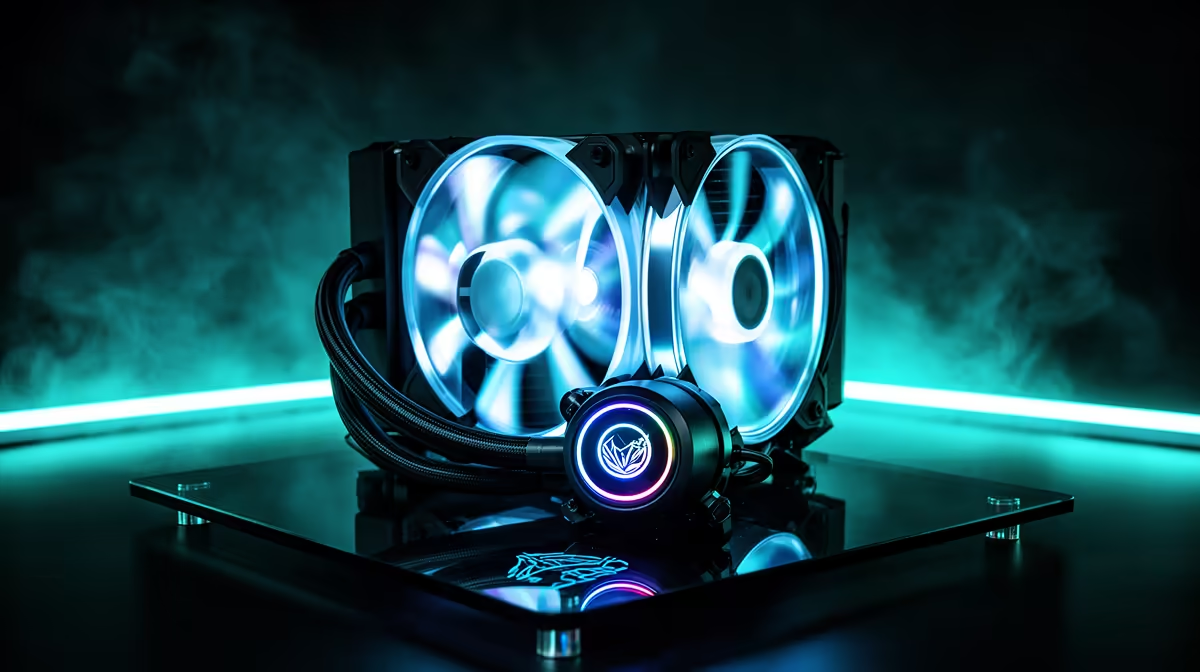
Addressable RGB (ARGB) uses a 5V three-pin connector and allows each LED to be individually controlled, enabling gradient and animated effects. Standard RGB (non-addressable) uses a 12V four-pin header and changes the entire strip as one colour. Most premium 360mm AIO coolers released in 2024 and 2025 use ARGB throughout: the pump head ring, fan rings, and sometimes tubing sleeves all run 5V three-pin. Before connecting anything, identify whether your AIO uses ARGB (5V, 3-pin) or older RGB (12V, 4-pin). Connecting an ARGB device to a 12V four-pin header will damage the LEDs; the connectors are keyed differently, but confirm before applying any force.
Connecting to the Motherboard or Hub 🔌
High-end motherboards from ASUS, MSI, Gigabyte, and ASRock include one to three ARGB headers (labelled ADD_RGB or ARGB) that connect directly to the AIO's ARGB cables. If your AIO has multiple ARGB connectors and the motherboard only has one or two headers, use the included ARGB hub. Connect the hub to a single motherboard ARGB header, then plug all the AIO's ARGB leads into the hub. Some AIOs also include a USB 2.0 internal header connection for the lighting controller, enabling broader software integration and reactive lighting modes responding to CPU temperature in real time.
Synchronising With Motherboard Software 💡
Once physically connected, install the motherboard manufacturer's lighting utility: ASUS Aura Sync, MSI Mystic Light, Gigabyte RGB Fusion 2.0, or ASRock Polychrome Sync. The utility should detect the AIO as a connected device automatically if the ARGB header is correctly connected. Select an effect mode (static colour, breathing, rainbow wave, temperature-reactive) and apply it uniformly across all detected ARGB devices. If you prefer the AIO manufacturer's own software such as NZXT CAM or Corsair iCUE, install that instead; some advanced temperature-reactive lighting features only work through the brand's own software.
Set Temperature-Reactive Colour for Live Status ⚡
Most AIO software and motherboard RGB utilities support a temperature-reactive mode where LED colour shifts from blue (cool) through green to red (hot) based on CPU temperature. This turns your AIO lighting into a live thermal indicator, giving an instant read on CPU load without opening any software overlay.
FAQ
What if the motherboard has no ARGB header?
If the motherboard lacks an ADD_RGB 5V three-pin header, use the ARGB controller hub included with the AIO and connect it to a USB 2.0 internal header. Alternatively, a standalone ARGB controller plugging into a SATA power connector can manage the LEDs without a dedicated motherboard header.
Can I sync AIO lighting with ARGB case fans from a different brand?
Cross-brand ARGB sync is possible through the motherboard's lighting utility if all devices connect to motherboard ARGB headers. Colour reproduction can differ slightly between brands because each manufacturer calibrates LEDs independently. Using the AIO and case fans from the same brand ecosystem is most reliable.
Does ARGB lighting affect CPU cooling performance?
No. ARGB LEDs draw under 2W total for an AIO's full lighting array and generate negligible heat. Lighting settings have no measurable impact on pump speed, fan speed, or cooling performance.
Building a synchronised ARGB gaming setup?
Browse Evetech's AIO liquid cooler range with ARGB lighting and compatible ARGB case fans, all stocked locally so your lighting setup arrives together.