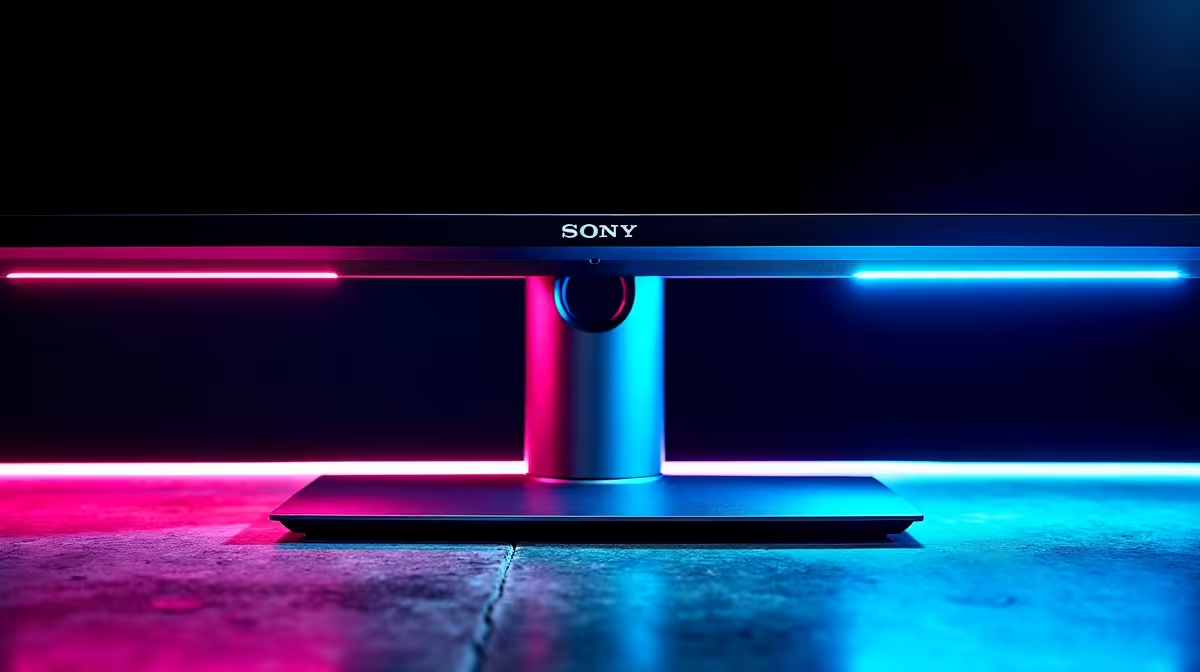
Is your monitor stand putting up a fight? You swivel it for a better view, and it either grinds stubbornly or flops around like it’s had one too many brandies. A wobbly or stiff screen is more than just annoying; it can throw off your aim in a clutch moment. Don't stress, this is usually a quick fix. This simple monitor base rotation friction adjustment guide will get your screen gliding smoothly in minutes. 🔧
Why Monitor Swivel Tension Matters
Getting your monitor's swivel tension just right isn't just about comfort; it's about performance. In fast-paced games like Apex Legends or Warzone, being able to quickly and smoothly adjust your view for a teammate's callout or a sneaky enemy can make all the difference. A correctly adjusted monitor reduces neck strain during long sessions and ensures your focus stays locked on the win, not on a frustratingly rigid stand.
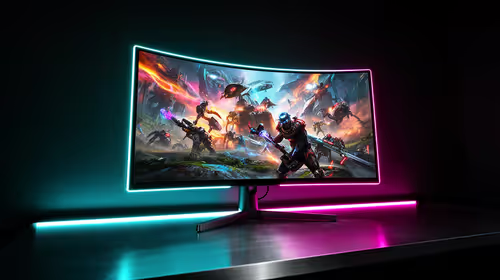
The best part? Many modern PC monitors are designed with this ergonomic flexibility in mind, from standard screens to massive, immersive curved monitors that wrap you in the action.
Your Step-by-Step Monitor Friction Adjustment Guide
Ready to get that buttery-smooth swivel back? It’s usually a two-minute job. Here’s how to approach your monitor base rotation friction adjustment.
Step 1: Find the Adjustment Point
First, carefully lay your monitor screen-down on a soft surface like a towel to prevent scratches. Look at the point where the stand connects to the monitor or at the rotating base itself. You're searching for a tension screw. It might be exposed or hidden under a small plastic cover that you can gently pry off. On some models, it’s a small dial or lever.
Step 2: Make Small, Careful Adjustments
Got your Phillips screwdriver? Good. Remember the golden rule: righty-tighty, lefty-loosy.
- If your monitor is too loose and wobbly: Turn the screw clockwise (to the right) in small, quarter-turn increments.
- If your monitor is too stiff to rotate: Turn the screw anti-clockwise (to the left), again, just a little at a time.
After each tiny adjustment, lift the monitor and test the rotation. The goal is a firm, controlled glide… not a free-spinning mess or a joint that needs brute force. ✨
Pro Tip: Don't Overdo It!
It’s tempting to crank the screw hard, but that’s how you strip it. Make a quarter-turn, then test. Repeat until the friction feels perfect. This gradual approach prevents damage and gives you much better control over the final feel.
What if My Monitor Has No Adjustment Screw?
Sometimes, especially with older or more budget-friendly displays, you might find there’s no screw to adjust. This often means the friction mechanism is internal and not user-serviceable. While frustrating, it gives you a great opportunity to explore better solutions. A new VESA-compatible stand or arm can offer far superior ergonomics and adjustability. You can find a fantastic selection of monitor accessories like VESA mounts that can give your old screen a new lease on life.
Knowing When It’s Time for an Upgrade
If your stand is cracked, broken, or just doesn't offer the height, tilt, and swivel you need for a comfortable setup, it might be time to level up your display. Today’s screens offer so much more than a pretty picture. The solid, highly-adjustable stands that come with stunning 4K and 5K monitors are built for stability and precision.
From ultra-responsive esports displays to handy portable monitors for your on-the-go setup, a new screen can completely transform your desk. If you've tried adjusting and you're still not happy, browse our full range of gaming monitors to find the perfect fit for your rig. 🚀