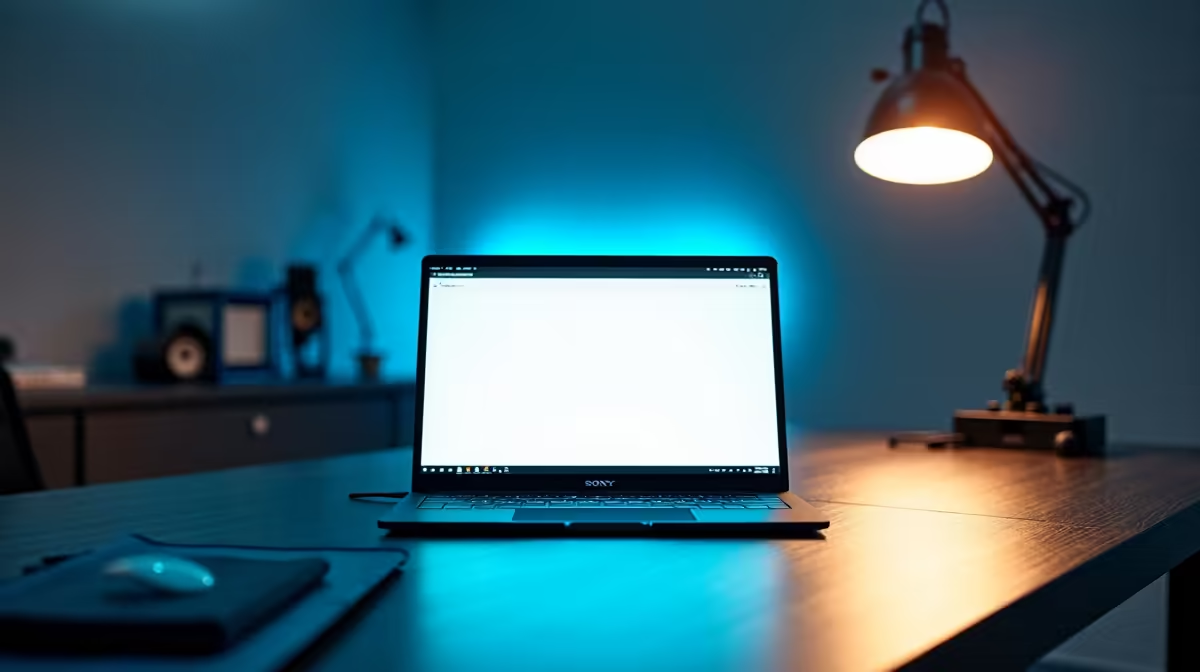
Is there anything more frustrating than your screen dimming on its own while you’re deep in a spreadsheet or typing up a report? You’re in the zone, and suddenly, the brightness dips for no reason. This isn't just annoying; it breaks your focus. For many South Africans using their powerful PCs for both work and play, this "feature," known as Adaptive Contrast, is a real pain.
Luckily, there’s a quick fix. Let's get this sorted. 🔧
Understanding Adaptive Contrast Energy Mode
Before we dive into the fix, what exactly is this feature? Adaptive Contrast is a power-saving setting, usually controlled by your graphics drivers (like Intel Graphics), designed to save battery life on laptops by adjusting the screen's contrast and brightness based on the content displayed. Darker images use less power.
While it’s a noble idea for laptops, it often causes more trouble than it's worth on a desktop PC, leading to that distracting, automatic dimming in apps like Microsoft Office. A quality display shouldn't need aggressive software tricks to look good; it should just deliver a stable, crisp image right out of the box. That's why investing in one of the many top-tier PC monitors available in South Africa is always a good long-term strategy for visual consistency.
How to Turn Off Adaptive Contrast (The Easy Way)
Ready to take back control of your screen's brightness? The steps to turn off Adaptive Contrast Energy Mode are usually found in your graphics card's control panel. The most common culprit is Intel Graphics, which is integrated into many CPUs.
Here’s the typical process for Intel Graphics Command Center:
- Open the Intel Graphics Command Center: You can find it by searching in your Windows Start Menu.
- Navigate to System: Look for the monitor icon on the left-hand menu.
- Select the Power Tab: At the top, you'll see a 'Power' option. Click it.
- Disable Power-Saving Features: You'll see toggles for options like "Display Power Savings" or "Adaptive Brightness." Switch them all to Off.
And that's it! ✨ The change should be immediate. Your screen will no longer betray you with random dimming while you’re trying to work. This setting is separate from the high-performance modes you’d use on proper gaming monitors, which prioritise refresh rates and response times over aggressive power saving.
Check Your Monitor's Settings Too
Sometimes, monitors have their own built-in 'Eco Mode' or 'Dynamic Contrast' setting. Use the buttons on your monitor to navigate its on-screen display (OSD) menu and make sure any similar features are disabled there as well for a truly consistent picture.
When the Software Fix Isn't Enough
Disabling the setting solves the problem for most people. But what if your screen still looks washed out, or the colours just don't feel right? Sometimes, you're just hitting the limits of your hardware. An older or entry-level monitor might struggle with colour accuracy and consistent brightness, no matter what settings you tweak.
Upgrading your display can make a massive difference, not just for productivity in Office but for everything else you do.
- For Unmatched Clarity: Working with high-resolution documents or creative apps? A crystal-clear picture from modern 5K and 4K monitors makes text razor-sharp and images incredibly detailed.
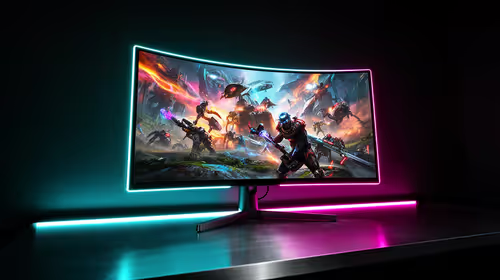
- For Total Immersion: Whether you're crunching numbers in a massive spreadsheet or exploring a world in a game, curved monitors wrap the picture around your field of view for enhanced focus.
- For Productivity Anywhere: If you're often on the move, a portable monitor can be a lifesaver, giving you a second screen for your laptop without the hassle.
Don't forget that the right monitor accessories, like a good monitor arm, can also improve ergonomics and help you create the perfect setup. 🚀
Ready for a Visual Upgrade?
If you're tired of fighting with settings and just want a brilliant, reliable display, check out the best monitor deals in South Africa. Explore the latest specials at Evetech and find a screen that works for you, not against you.