Quick Answer
Slow front panel USB transfers are almost always caused by one of three things: the case's internal header cable is rated for a lower USB generation than the motherboard header, the motherboard assigns a lower-priority USB controller to the front header, or the front panel port is USB 2.0 rather than USB 3.x.
The Three Root Causes in Detail 🔍
The most common cause is a generation mismatch. A case may include a USB 3.0 internal header cable (5Gbps rated) but the front port is labelled USB 3.2. The label refers to the physical connector standard, not the actual cable rating, and the transfer speed caps at the cable's 5Gbps ceiling regardless of how fast your drive runs. The second cause is USB controller priority. AMD and Intel platforms have multiple USB host controllers, and the PCH assigns the highest-bandwidth controllers to the rear I/O ports. The front panel header typically connects to a secondary controller that shares bandwidth with other devices. The third cause, USB 2.0 front ports, is less common on new cases but still appears on budget builds. USB 2.0 caps at 480 Mbps (about 60 MB/s), which is visibly slow when copying files to a fast flash drive or SSD.
How to Diagnose Which Cause Applies 🛠️
The fastest diagnostic is a side-by-side test. Copy a 10GB file to the same drive plugged into the front panel, then plug the same drive into a rear USB port and copy again. If the rear port is significantly faster, the front panel is the bottleneck. Next, open Device Manager and expand Universal Serial Bus Controllers. Find the host controller your front port is connected to by plugging in a device and watching which controller shows a new device underneath it. If it shows as USB 3.0 or USB 2.0 rather than USB 3.1 Gen 2 or higher, the port is operating below its potential.
Practical Fixes Without Replacing the Case 🔌
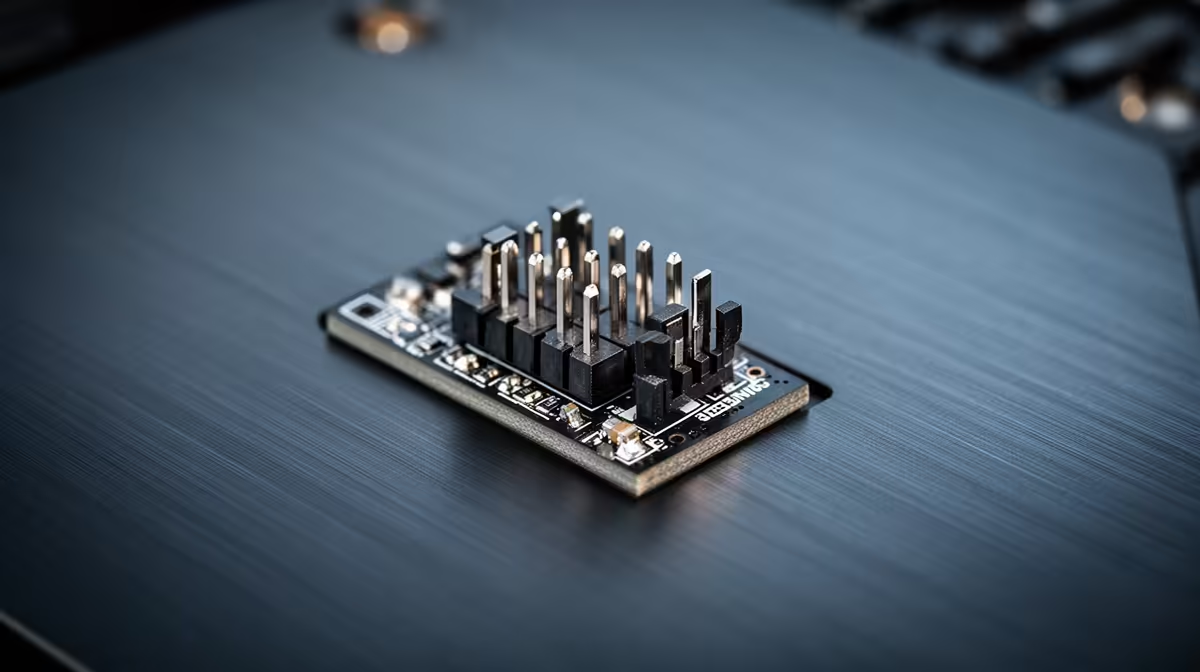
If the front panel header cable is the issue and is removable, purchase a replacement cable rated for USB 3.2 Gen 2 matching the header pin count on your motherboard. This is the cheapest fix at R150 to R400. If the motherboard controller assignment is the cause, there is no fix without moving to a rear port for high-speed transfers. For SA users who frequently ingest large files from cameras or external drives, the practical solution is to use rear USB ports for performance-critical transfers and reserve the front panel for low-bandwidth accessories. A USB extension cable that connects to a rear port and sits on the desk provides front-panel convenience with rear-panel performance.
Free Speed Boost: Check the Header Label ⚡
Before buying any new cable or case, pull your PC's side panel and physically read the label on the current front panel USB header cable. If it says USB 3.0 or shows no generation marking, that cable is the bottleneck. A replacement USB 3.2 Gen 2 header cable is the cheapest performance upgrade many SA PC users can make.
FAQ
Can a BIOS update fix slow front panel USB speeds?
Sometimes. Some motherboard manufacturers release BIOS updates that reassign USB controllers or improve front panel header initialisation. Check the BIOS update changelog on your motherboard manufacturer's support page and apply any USB-related update before purchasing hardware.
Does cable length affect front panel USB speed?
Yes, beyond about 80cm at USB 3.2 Gen 2 speeds, signal integrity degrades. Most standard case internal header cables are 50 to 60cm which is fine. Non-rated extensions can cause speed drops and intermittent disconnects with high-speed devices.
Will a USB hub on the front panel slow transfers further?
Yes. A USB hub on an already limited front panel port splits the available bandwidth across all connected devices. For any transfer where speed matters, always connect directly to the port rather than through a hub.
Want front panel USB speeds that match your rear ports?
Evetech stocks PC cases with premium front panel I/O, including USB 3.2 Gen 2x2 front Type-C ports that deliver real high-speed transfer performance. Browse the case range today.