You’ve just dropped a fortune on a beastly new graphics card. You fire up your favourite game, ready for buttery-smooth visuals… but something’s wrong. The image looks like it’s being torn in half whenever you whip the camera around. That, our fellow Saffa gamer, is screen tearing. It’s a frustrating issue that can ruin immersion.
Thankfully, there’s a solution. This ultimate guide will explain exactly what G-Sync and FreeSync are and help you choose the right tech. ✨
The Problem: What Exactly is Screen Tearing?
Before we dive into the solution, let's understand the problem. Screen tearing happens when your graphics card (GPU) and your monitor are out of sync.
Imagine your GPU is a master artist, painting frames as fast as it can. Your monitor is a gallery owner, displaying those paintings at a fixed rate (its refresh rate, like 60Hz, 144Hz, etc.). If the artist finishes a new painting halfway through the gallery owner displaying the old one, the owner just grabs the new half and slaps it on top. The result? A single, jarring image made of two different frames.
This mismatch between frames rendered and frames displayed is what causes that ugly horizontal line or "tear" across your screen, especially during fast-paced action.
The Solution: Understanding Adaptive Sync Technology
This is where G-Sync and FreeSync come in. Both are brand names for a brilliant technology called Adaptive Sync.
Instead of the monitor refreshing at a fixed rate, Adaptive Sync allows the monitor to adjust its refresh rate in real-time to match the frame rate of your GPU.
Going back to our analogy, the gallery owner (monitor) now waits for the artist (GPU) to finish a complete painting before displaying it. If the artist is painting quickly, the gallery displays them quickly. If the artist slows down, the gallery waits. The result is a perfectly smooth, tear-free visual experience. 🚀
NVIDIA G-Sync: The Premium Experience
Developed by NVIDIA, G-Sync was the first adaptive sync technology on the scene. It originally required a special proprietary hardware module to be built directly into the monitor, which communicated with your NVIDIA GeForce graphics card. This ensures a strict level of quality control and performance.
G-Sync Tiers Explained:
- G-Sync Compatible: These are monitors that don't have the dedicated NVIDIA hardware but have been tested and certified by NVIDIA to provide a good baseline variable refresh rate (VRR) experience. They are often more affordable.
- G-Sync: This is the classic version with the dedicated hardware module, offering a full refresh rate range and excellent performance.
- G-Sync Ultimate: This is the top tier, reserved for the best of the best. These monitors not only have the advanced G-Sync processor but also feature cutting-edge tech like HDR (High Dynamic Range) and are often found on high-resolution displays like stunning 4K monitors.
The key takeaway? To use any form of G-Sync, you need an NVIDIA GeForce graphics card.
AMD FreeSync: The Open Standard Alternative
Not long after G-Sync, AMD released its own version called FreeSync. The biggest difference is that FreeSync is built on an open standard (VESA's Adaptive-Sync), meaning monitor manufacturers can implement it without paying licensing fees or buying proprietary hardware from AMD.
This has made FreeSync monitors incredibly common and generally more budget-friendly across all our gaming monitors.
FreeSync Tiers Explained:
- AMD FreeSync: The base level, which eliminates screen tearing and offers low latency.
- AMD FreeSync Premium: This tier adds a requirement for at least a 120Hz refresh rate at FHD (1080p) resolution and includes Low Framerate Compensation (LFC), which keeps things smooth even when your FPS drops.
- AMD FreeSync Premium Pro: Previously known as FreeSync 2 HDR, this is the highest tier. It adds strict requirements for HDR performance, ensuring excellent colour and contrast alongside a tear-free experience.
To use FreeSync, you traditionally needed an AMD Radeon graphics card. However, things have changed recently...
Pro Tip: Enabling Adaptive Sync 🔧
you've got the right monitor and GPU? Don't forget to enable the feature! Dive into your monitor's on-screen menu and turn on G-Sync FreeSync. Then, open your NVIDIA Control Panel or AMD Radeon Software and toggle the setting there too. Also, ensure you're using a quality DisplayPort cable, as HDMI has limitations. Check out our range of [quality monitor accessories](https: www.evetech.co.za PC-Components buy-monitor-accessories-368) to get the right connection.
G-Sync vs FreeSync: Which is Better for South African Gamers?
So, what is the difference between G-Sync and FreeSync, really? It boils down to a few key points:
- Hardware: G-Sync requires an NVIDIA GPU. FreeSync requires an AMD GPU. However, NVIDIA now allows many "G-Sync Compatible" monitors (which are often FreeSync monitors) to work with their cards.
- Cost: Because FreeSync is an open standard, FreeSync monitors are generally cheaper than their G-Sync counterparts with the dedicated hardware module.
- Certification: G-Sync has a very strict certification process, guaranteeing a certain level of quality. FreeSync's certification is less stringent, meaning performance can vary more between different models, though the Premium tiers help standardise this.
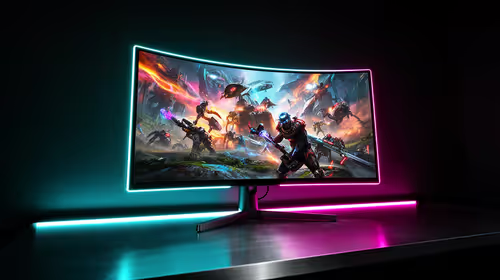
- Experience: For many gamers, the experience is nearly identical. High-end FreeSync Premium Pro monitors and G-Sync monitors both offer incredible smoothness. You can get a fantastic experience with both, whether you're on a flat panel or one of the latest immersive curved monitors.
This amazing tech is even finding its way into smaller screens, with some high-end portable monitors now offering adaptive sync for the ultimate LAN party setup.
Ultimately, the best choice often depends on the graphics card you already have or plan to buy. If you're Team Green (NVIDIA), a G-Sync or G-Sync Compatible monitor is your best bet. If you're Team Red (AMD), a FreeSync monitor is the obvious choice.
Ready for a Flawlessly Smooth Experience?
Screen tearing is a thing of the past. Whether you're Team NVIDIA or Team AMD, the right monitor will transform your gaming. Stop putting up with judder and tearing. Explore our massive range of PC monitors and find the perfect screen to unlock your PC's true potential.